A new feature has been added to Report Builder for Report Cards. Office users can now email reports to the students’
contacts. There are some steps that must be completed before using this feature.
Hosting customers, please make sure that hosting mail has been set up before using this feature, or any function that
uses email within Maplewood. Please refer to the technical articles on our website for more information on setting this
up.
For customers (hosted or not) whose mail is hosted by Gmail, please note, you will not be able to send to any non-
Gmail.com addresses. This applies to this feature as well as any other function that uses email within Maplewood.
Emailing reports from Report Builder for Report Cards
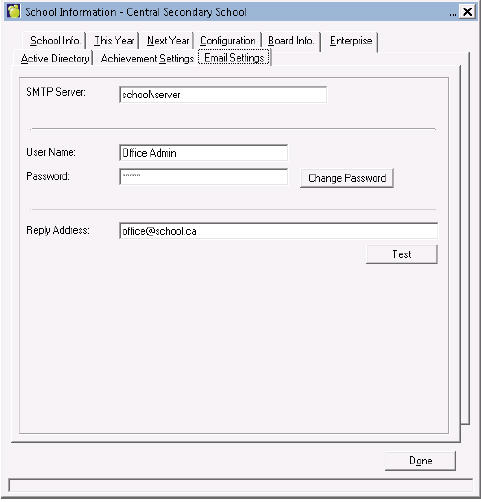
To make use of this feature, you must first define the Email Settings tab of the School Information Form. If you have
been using the email feature from Report Builder for Students, or Maplewood connectEd Security, this should already be
defined:
Next, define Email Templates. In the school, go to File – School Setup – Email Templates. Click Add to create a new
template.
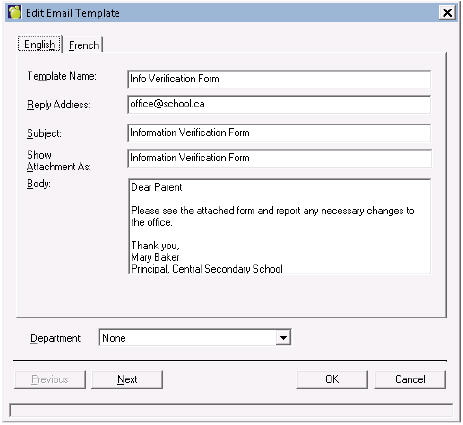
Enter the Template Name, Reply Address, Subject, Show Attachment As, and Body.
To email from Report Builder for Report Cards, select the desired report and click the Run button. Enter the criteria to
narrow down the list of students to whom to send.
As always, click the Show Students button to make sure you are going to be sending to the correct students.\
Check the Email Report checkbox, then click the Run button. The Email Report Options window will appear:
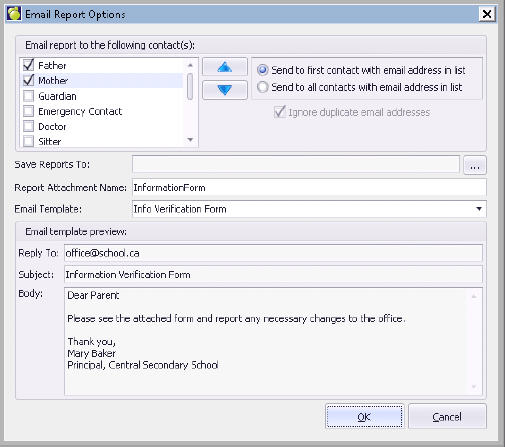
Fill in the following settings:
Email report to the following contact(s):
Save Reports To: Enter the desired folder in which to store the PDF files that will be created. Defaults to your data
folder\Reports\ReportBuilder
Report Attachment Name: The prefix of the file to be created for each student. The full file name will end up like this:
InformationForm_GivenNameSurname_MinistryNumber_yyyy-mm-dd--hh-mm.PDF
Email Template: Select the desired email template from the list.
Email template preview: This will be pre-loaded from the defined Email Template, and you will not be able to edit this
information from this screen.
Click OK to send. This will send one email message to each selected contact, for all students listed in the Run screen.
As always, please contact Maplewood’s support department if you have any questions about this new feature.