Creating a new Calculated Field
This assumes that the page number is required at the bottom of the page Any field that will be used inside a band (Classes band, Contacts band, etc) needs to reside inside that area of the Field List.
These instructions are designed for a report card with a flexible design, meaning that class bands (different classes will appear depending on the student’s timetable) and/or shrinking/expanding comment boxes are in use. If your report card is fixed in length and layout, page numbers can be added directly to the design of the report, as text labels.
To implement Page Numbers in a flexible-design report card
Right-click in the main Detail band and choose Insert Band – Group Header
If your report already has a Page Header, this Group Header will be created underneath that.
Shrink your Group Header so that the Height is 0 (zero).
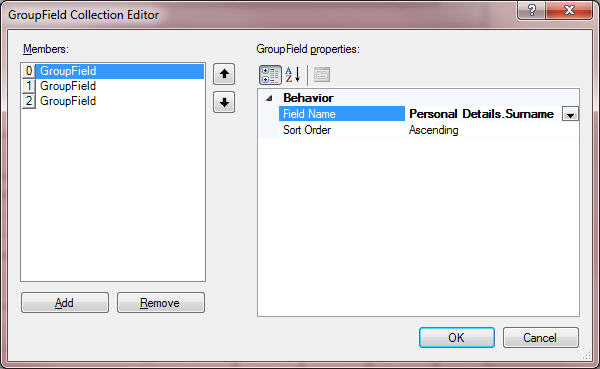
In the Group Fields property of the Group Header (accessible either through the small white arrow right on the Group Header, or in the list of Properties), click the ellipsis (…) icon to bring up the GroupField Collection Editor. Click the Add button to add a grouping field. Beside Field Name, click the drop-down arrow and choose Personal Details – Surname. Repeat, adding two more fields: Personal Details – Given Name and Personal Details – Middle Name.
Your screen should appear like this:
Please note, if there is a risk of two students having exactly the same name in a school, you may want to consider adding a fourth field, for Ministry Number, or any other field that you feel will make the student completely unique (e.g., Birthdate).
Make note of the name of your new Group Header.
Right-click anywhere on your report and choose Insert Band – Page Footer.
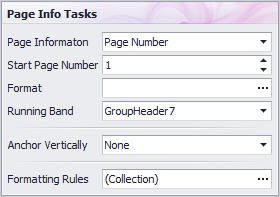
To this Page Footer, add a control from the Tool Box called “Page Info”.
Set the properties of the Page Info control as below:
a Page Information: As desired
b Start Page Number: 1 if this report is NOT part of a combined report where there is a header page; 2 if this report is part of a combined report where there is a header page (the header page is page 1)
c. Format: As desired (blank is acceptable)
d. Running Band: the name of your new Group Header
e. Anchor Vertically: As Desired
f. Formatting Rules: As Desired