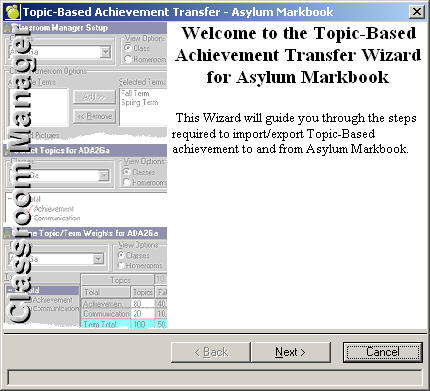
Users have the option to Import or Export Topic Based achievement. The information can be exported in a text file to the export\comments directory within Maplewood. To access the main Utilities screen, from the Administration System choose Marks, Topic-Based Marks, Data Transfer and then select Asylum Markbook, E-Teacher, Maplewood or Teacher Partner.
*** Special Note for Asylum Markbook Users***
Schools can now use files created by Asylum Markbook to import marks and comments into Maplewood Topic Based Marks. The files must be created using the option Reports, Markbook to Maplewood SIS. Also, the following elements from the Maplewood Administration System need to be in Markbook to make this transfer successful:
Course code and section
Student last name, first name
Student number
At this time, files created using the Markbook Export feature cannot be brought back into Maplewood, the user must be using the Markbook to Maplewood format.
The following is an Import example using Transfer to Asylum Markbook.
1. Choose Marks, Topic-Based Marks, Data Transfer, Asylum Markbook.
2. Click Next.
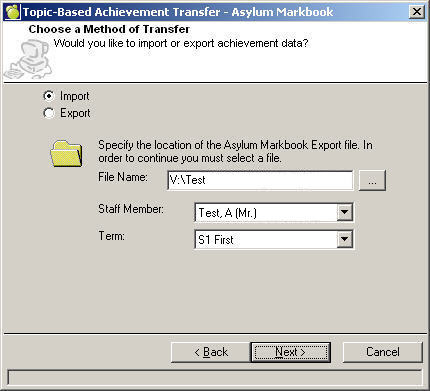
3. If not already selected, click Import.
4. Select a File Name by clicking the ... button and navigating to the file location.
5. Select a Staff Member from the drop-down list.
6. Select a Term from the drop-down list.
7. Click Next.
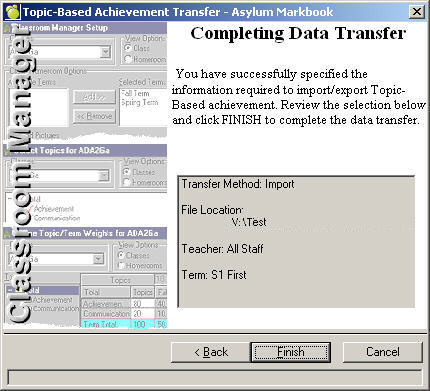
7. Click Finish and a print preview will display.
The following is an Export example using Transfer to Asylum Markbook.
1. Choose Marks, Topic-Based Marks, Data Transfer, Asylum Markbook.
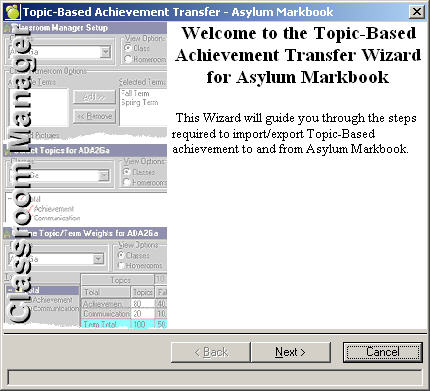
2. Click Next.
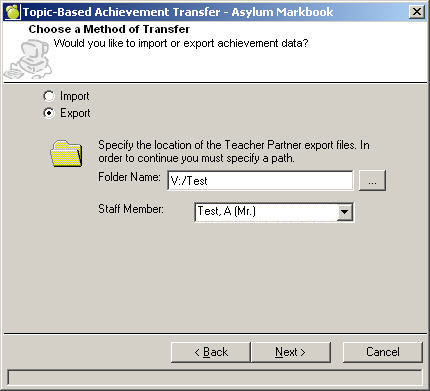
3. If not already selected, click Export.
4. Select a File Name by clicking the ... button and navigating to the file location.
5. Select a Staff Member from the drop-down list.
6. Click Next.
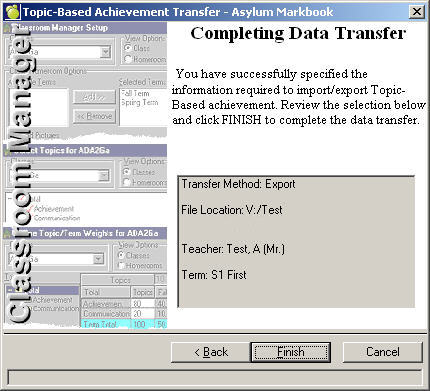
6. Click Finish and a print preview will display.