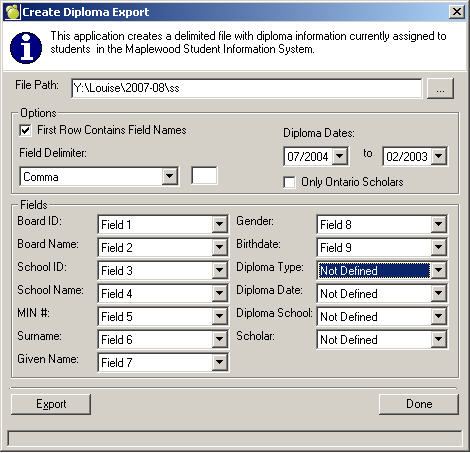
Maplewood has a program that determines all the students, both past and present, who have an entry in their first diploma field, and it distinguishes between those that graduated with and without Ontario Scholarship qualifications. This program can be used to choose groups of these students for printing, thereby assisting in determining the accuracy of the Ministry's records.
Choose Marks, Automatic Transcript Update, Verify Diploma Information to see this setup window:
Here is how it works:
The "default" setting should be used but you will need to enter/change the following:
File Path: This is where the file to be created based on the Maplewood data will be stored. In this example, the file will be found in the c:/documents folder.
Diploma Date: Specify the date range. Students granted any diploma in this range will be included in the file. In this example, the students with diplomas granted between September 1999 and August 2000 will be included.
Then click the Export button. The software will load all the students (past and present) with diplomas into Memory. This may take a couple of minutes. It will indicate that a file is created and will prompt you to view the file. From the view, you can print all or selected pages.
When the Only Ontario Scholars option is not checked, you will view the students who received diplomas during the specified dates, but the students are not considered Ontario Scholars. When the option is checked, you will view students with diplomas during those dates who are also Ontario Scholars. (Ontario Scholars have an aggregate of at least 480 marks in honour level or OAC courses, having a total of 6 credits).
When you are done with the view, you can change the settings on the screen and reselect Export. Since the data is already in memory, the changes are quickly reflected. For example, you will need to select the Ontario Scholars Only option and then Export again.
The references to Field 1 to Field 13 may be changed if you want to change the order of the data or exclude some fields on your printout. For example, if you do not want the school and board numbers and names to print, change the first 4 fields to Not Defined. If you want to print the birthdate printed before the gender, change the birthdate to Field 8 and the gender to Field 9.
Assuming the data in Maplewood has been maintained accurately, the printouts generated by this program can be cross referenced against the data in the Ministry's printout.
Make the changes on the Ministry's printout so that they can clearly identify what they need to correct in their records.