2. Setting Up The Page
Setting Up the Printer
The Report Builder feature uses the default printer setup in Windows. If this printer’s settings need to be altered or if another printer is required, choose File, Printer Setup. The printer selected will be used as the default printer for Report Builder reports. Refer to the Windows documentation for further information about installing printers. Always select the printer before formatting the report. The available fonts depends on the selected printer. You can change printer settings: paper size and source, and orientation (portrait or landscape).Note: Always select the printer before formatting the report. The choice of fonts depends on the selected printer. The printer settings, which you can alter, include the paper size and source, and orientation (portrait or landscape).
 To customize the set-up of a page choose the Page Setup option from the File menu. Specify the Page size, Margins, Header and Footer size, number of Records and Grid size.
Dimensions can be in either inches or centimetres. Once you have changed the settings, click OK to display the report page size. The Width and Height of the page are specified here. Normally the size is 8.5 (width) by 11 (height) inches. You can enter different sizes for special forms or labels. Note: If the printer is set up to print using the landscape orientation, then the width should be changed to 11 inches and the height should be changed to 8.5 inches.
Header and Footer Heights
A Header is printed at the top of each page. A Footer is printed at the bottom of each page. The height of the header and footers are initially set to zero. Once you have indicated the size of a header or footer, you can move/adjust by,Grid
The Grid is an invisible mesh that controls how text, field and pictures are aligned on the report. When you enter a large value, the print justification between grid lines will be coarse; when you enter a small value, it will be fine. The grid values are only applicable when you use the Snap to Grid feature under the Options menu.Margins
Margins are specified by using the Top, Left, Right, and Bottom options. Each of these settings is initially set to 0.5 inches. The margin space appears on the screen as a dark gray border around the plain white page.Records
The Number of Records Across and Down control the number of records (e.g., students) that the report will contain. The defaults for these settings are 1 student record across, and 1 student down. This would allow a single record to be reported on each page, since the whole page is available to design a report.
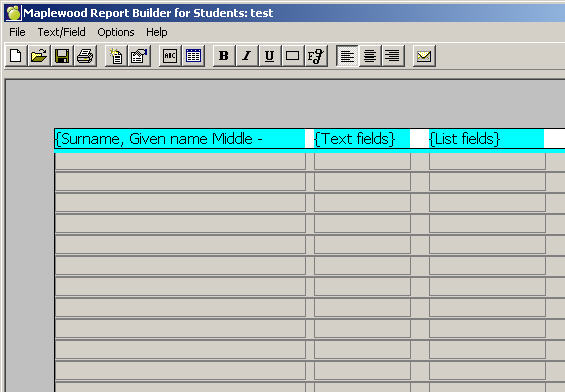
If you want to change these settings, select the Across and/or Down box in the Records frame and type new settings. If you have indicated that you want 3 student records per page, the following Report Builder will appear: If you are reporting on 2 records, then only half the page is available. By specifying 2 records down, the page is printed with the first record on the top half of the page and the second record on the bottom half. By specifying 2 records across, the first record is printed on the left side of the page and the second record on the right side.Included on this screen are vertical and horizontal record setting lines. These lines provide a fast way to set record numbers without having to go back to the Page Setup option. To change the number of records per page, simply click on the blue line, drag the line and then release the mouse when you have the location you want.
When using multiple records, the text and fields are placed in the first record only. The information for the other records is automatically repeated. The gray area of the Report Builder screen shows how the report will look overall.