Overview
The Provincial Approach to Student Information (PASI) is an initiative by Alberta’s Ministry of Education to provide a mechanism for real-time data exchange, used to ease the process of data submission to the province. It is now a seamless extension to Maplewood, reducing the impact of the data exchange process, while providing significant improvements in day-to-day processes. Using the Maplewood PASI Client Server to connect directly with PASI the data exchanged currently includes demographic data and enrolment data.
Since 2013 schools and divisions no longer need to create Enrolment Registration Files. This information is now sent to PASI through Maplewood and any data discrepancies are easily reported and resolved by the end user. Please note, at this time real-time communication pertains to Biographic (Student) and Enrolment (Student Enrolment) data. Mark, Exam and Class Size files must still be created and uploaded to PASI Prep. For appropriate table values and rules, please consult your PASI Guide https://phoenix.edc.gov.ab.ca/login/default.asp.
PASI Student Record Information Collected
PASI Student Enrolment Record Information Collected
| Field | Location in Maplewood |
| ASN | Students, Enrolment, ASN |
| Name | Surname, Usual Name (if no Usual Name then Given), Middle Name |
| Legal Name | Legal Surname (if none, then Surname), Given Name, Middle Name |
| Birthdate | Student, Biographics, Birthdate |
| Gender | Student, Biographics, Gender |
| Verification | Student, Name, Source Document Type |
| Document Number | Student, Name, Document Number |
| Document Issue Date | Student, Name, Document Issue Date |
| Citizenship | Student, Enrolment, Citizenship |
| Study Permit Expiration Date | (Student Authorization Expiry Date) |
| Section 23 | Section 23 Eligibility |
| Is Deceased | Comes from PASI |
| Date of Death | This date is populated from PASI, not at the school level therefore, when available from PASI, must be updated to the School Record. Please note, this field is not displayed in the student record. |
| Phone Number | Student, Family/Contacts, Student |
| Address | Student, Family/Contacts, Student |
| Disclosures | Student, Custody, Disclosure Restriction Details, Disclosures |
| Disclosure Restriction Details | Student, Custody, Disclosure Restriction Details, Disclosures, Disclosure Status Type |
| Field | Location in Maplewood | ||||||||||||||||||||||||||||
| ASN | Students, Enrolment, ASN | ||||||||||||||||||||||||||||
| School | File, School Set Up, School Number | ||||||||||||||||||||||||||||
| Year | File, School Set Up, Calendar Note: Based on current school year. Please note, calendar dates must match those which division submitted to ministry before start of school year. | ||||||||||||||||||||||||||||
| Grade |
Student, Biographics, Grade
|
||||||||||||||||||||||||||||
| Local Student Number | Student, Biographics, Name, Student Number | ||||||||||||||||||||||||||||
| Entry Date | Student, Enrolment, Entry to This School | ||||||||||||||||||||||||||||
| Exit Date | Student, Enrolment, Exit Date The exit date is calculated to be one day less than the Exit Date in Maplewood. Continue, within Maplewood to enter the exit date to be the first day after the last day attended by the student. |
||||||||||||||||||||||||||||
| Status | Student, Enrolment, Registration Status | ||||||||||||||||||||||||||||
| Entry Status | Student, Enrolment, Registration Entry Status | ||||||||||||||||||||||||||||
| Exit Description | Student, Enrolment, Exit Description | ||||||||||||||||||||||||||||
| Type | Student, Enrolment, Registration Type (default is Regular Day if not indicated) | ||||||||||||||||||||||||||||
| Resident Board | Student, Enrolment, Resident Board Note: only applies if Grant Program Code of 110 or 140 | ||||||||||||||||||||||||||||
| Francophone Board | Student, Enrolment, Other Fields, Francophone Board | ||||||||||||||||||||||||||||
| FNMI | Student, Enrolment, Aboriginal Tab, FNMI Declaration | ||||||||||||||||||||||||||||
| French Hours | Student, Enrolment, Other Fields, Hours of French | ||||||||||||||||||||||||||||
| Type Codes | Student, Enrolment, Other Fields, Enrollment Type(s) | ||||||||||||||||||||||||||||
| Exception Codes | Student, Special Education, Categories | ||||||||||||||||||||||||||||
| Grant Codes | Student, Enrolment, Other Fields, Grant Program(s) |
Click the link to go to the PASI Central Management Tool (also accessible through, File, Maintenance, PASI Central Management). As well, look to the bottom of the screen, to the Status Bar, (where the Administration date is displayed), this will change colour to red, indicating there are Alerts.
When any data pertaining to Demographic and Enrolment, is changed, PASI notifications are created. The frequency of PASI notifications is therefore related to the changes in data either at the school or PASI level.
There exist two areas within Maplewood where PASI errors can be addressed:
Both areas are correct. The Student Record view deals with one student at a time. While the CDS (Central Data Service Data Management), provides an overall view to all PASI errors within a school.
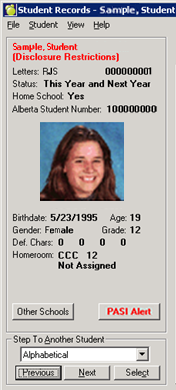
If the button is red, this indicates that there are data issues that must be addressed. Once a user clicks on the PASI button, it will bring them into the PASI Details window. If a user hovers/mouse overs more specific information will be conveyed.
Once a user has clicked the button, look to the tabs at the top and the side, whatever is red must be addressed. Within PASI, the Student Record and the Student Enrolment Record are separate. The two parts are managed separately and distinctly within PASI. For each tab, please pay particular attention to the top and left tabs, especially if they are red.
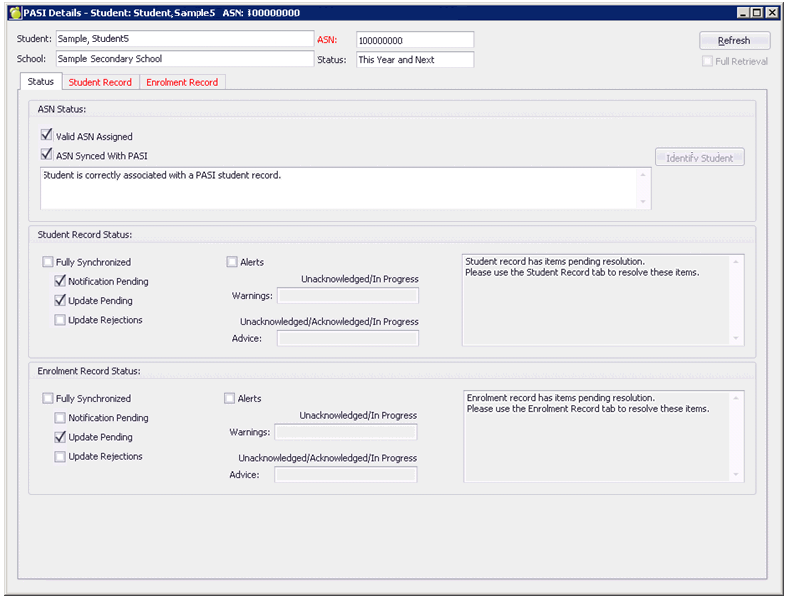
The status tab gives an excellent summary of the student with respect to PASI. If for some reason, the student does not have an ASN assigned, click on the Identify Student button (only available when not ASN), and follow the prompts to resolve an ASN.
The Full Retrieval check box forces a manual ‘get’ of PASI information. Not necessary to use, but it is a troubleshooting tool that can be used if concerned that the PASI side display is not correct. The Refresh button should be used after a Full Retrieval.
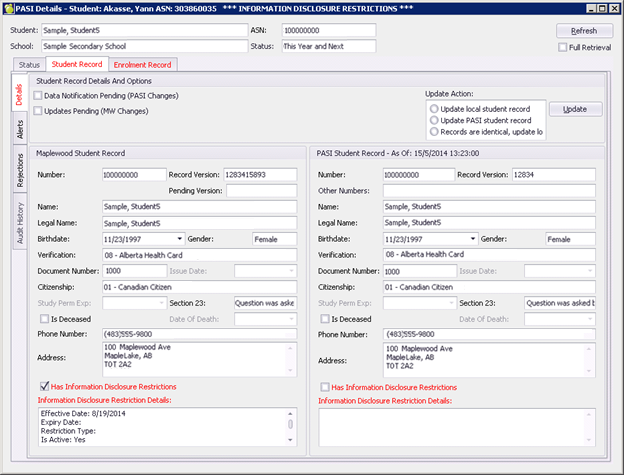
Analyze the Red Fields and select which action is to be taken and press the Update Record button. Please note, all red fields are updated in the process so it is recommended that schools pick the most correct record and/or the one with the least amount of post-data clean up. In most instances, a user will select the second option, Update PASI student record as your Maplewood should contain the most up-to-date information.
There is a delay once the Update button is clicked, please be patient.
On the Alerts Tab (left hand side):
Warnings – These impact funding and should be addressed. Not able to take action on the message, however should look at the student record to validate if the data is in fact true. It is a warning about the validity of situation/data, not the file/data of the student record. Although it is a warning, this could have future ramifications. Within Warnings, the user can choose to Unacknowledge or place the warning In Progress. To resolve, user must go into the student record and edit the data.
Advice – can choose to ignore and/or take action. These pertain to demographic data, i.e. Postal Code of Student is outside of school boundary. Within Advice, the user can choose to Unacknowledge, Acknowledge or place the warning In Progress. Alerts are removed when resolved within the student record.
PASI Details
Under Address, if scroll bar is active, be sure to scroll down to see all information (greater than 3 lines).
When reading the Alerts, the user should set to In Progress to see that they have or are doing something with the Alert and can then sort the new Alerts.
Should you wish to create the old SIS files, you can create the following reports through Reports, PASI :
Fall Enrolment Registration – Info Only
Spring Enrolment Registration – Info Only
Enrolment Registration (Specify Date) – Info Only
Class Size Information
Please note, these remain in the old SIS file format and are for informational purposes only.
Other Changes to the Student Record
Student Addresses When making any change to the address, the user will now be prompted with the question “Is it a New Address.” Please respond accordingly depending upon the situation:
Yes, (i.e. student has moved) it will create a New Address PASI record.
No, (i.e. just fixing data) just updates PASI record.
Removing Students
Although not encouraged previously, once a school/division enables the Maplewood PASI Server, a student can never, ever be Completely Removed from the database. Doing so will cause irreconcilable errors in the databases.
Transferring Students
When Transferring Students to Past, during a current school year, please ensure that the PASI process is complete before moving the student to Past. It is recommended that schools do not transfer students to past during a school year unless absolutely necessary.
Student Custody (Information Disclosure Restrictions)
When users press the Custody button, Information Disclosure Restrictions button, will appear. This is where Disclosure Restriction information (required to be submitted by PASI) must be recorded.
Changes to the Student record, Biographics tab, Custody have been made to reflect these changes.
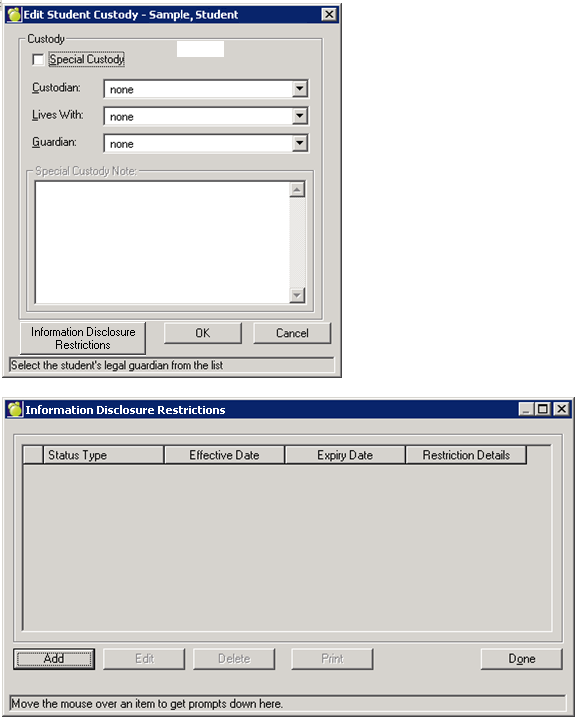
In the protection status dialog, change terminology to Information Disclosure Restrictions
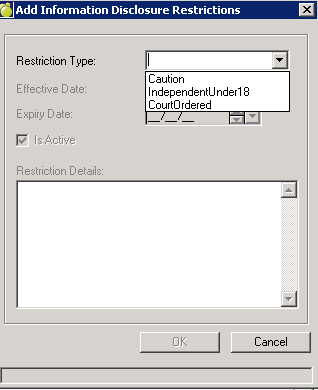
Once a user has selected the Restriction Type, an Effective Date must be entered. The Is Active button is automatically checked. Should a student’s Disclosure change, an Expiry Date must be entered and the Is Active button must be unchecked. Should the same student have another Information Disclosure Restriction, users must Add a New Information Disclosure Restriction.
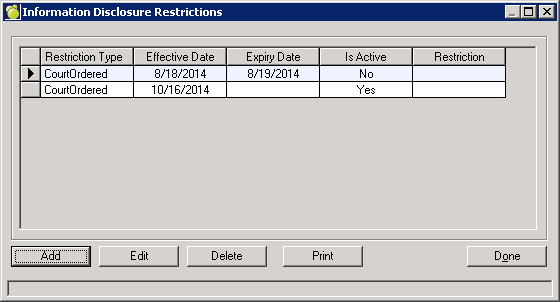
A student is considered to have Information Disclosure Restrictions if they have an entry today that falls within the range of Effective Date and Expiry Date, and Is Active or the Student is 18 years of age or older.
Students with an Information Disclosure and/or are 18 years of age will have their name in red.
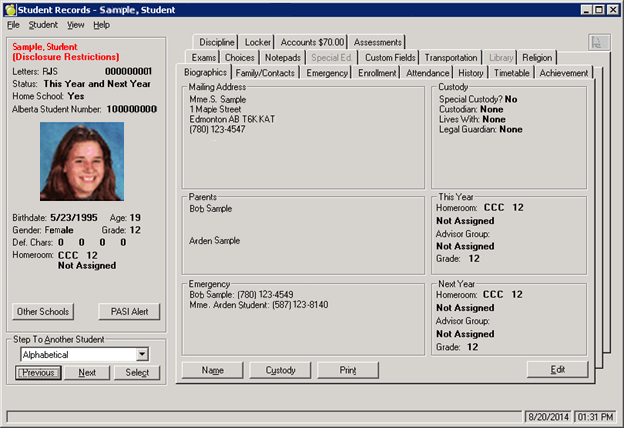
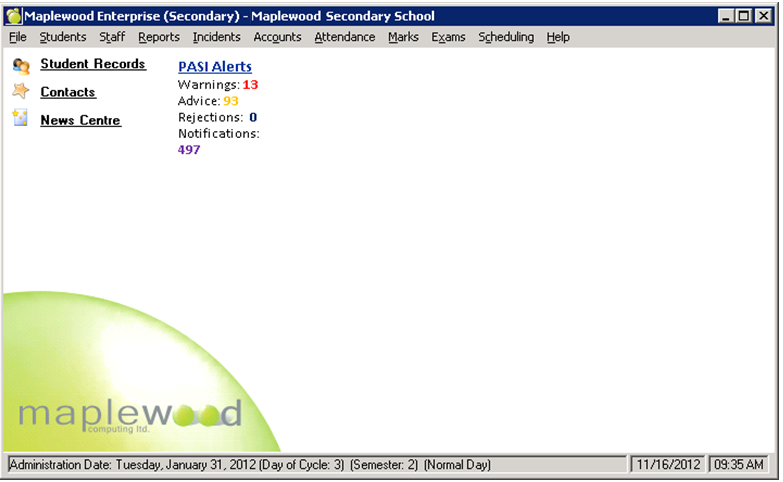
File, Maintenance, PASI Central Management or click PASI Alerts Link
This can be done at the school level or through Central Office. The PASI Central Management is a tool where either a school or the division office can see all of the outstanding PASI issues. The following notes are designed to assist schools and/or the division work through the process. The suggested order of data resolution is to, in the order provided, address items on the following tabs:
1. Data Notifications
2. Synchronization Issues
3. Data Alerts
4. Review Rejections
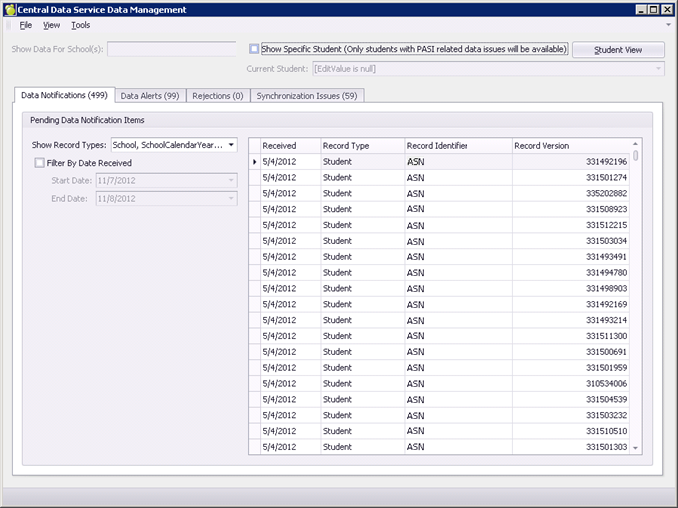
Data Notifications refer to data that must be updated in the Student Record. It is imperative that the notifications are addressed within the student record. It is recommended that the school use the Show Record Type to filter the notifications. At the school level, it is recommended that the following filters be used:
When addressing a notification, double click the student. This will bring up the Compare Student Records window. Please see above section for information.
Synchronization Issues can occur if the student is in Maplewood with no version number or isn’t in PASI. This will occur if there is not connectivity between the databases (Maplewood and PASI – i.e. PASI not available when adding a new student). If a school has synchronization issues, simply click on them and they will be instructed of the required action/steps.
Within Alerts, there exist two main classifications, Warnings and Advice.
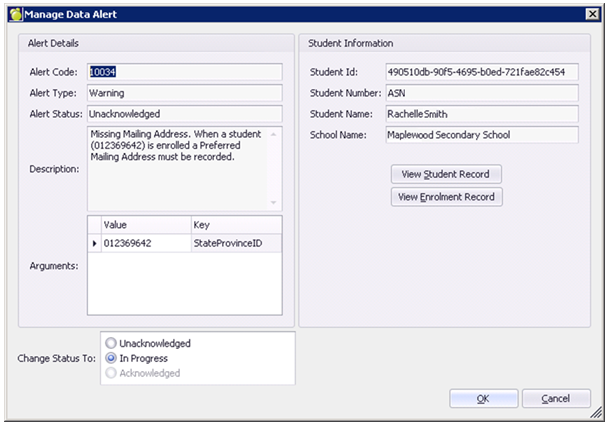
Warnings – These impact funding and should be addressed. Not able to take action on the message, however should look at the student record to validate if the data is in fact true. It is a warning about the validity of situation/data, not the file/data of the student record. Although it is a warning, this could have future ramifications. Within Warnings, the user can choose to Unacknowledge or place the warning In Progress. To resolve, user must go into the student record and edit the data.
Advice – can choose to ignore and/or take action. These pertain to demographic data, i.e. Postal Code of Student is outside of school boundary. Within Advice, the user can choose to Unacknowledge, Acknowledge or place the warning In Progress. Alerts are removed when resolved within the student record.
Tip: When reading the Alerts, the user should set to In Progress to see that they have or are doing something with the Alert and can then sort the new Alerts.
Rejected data from PASI and you need to change the data in the student record. A school should have no rejections. If a school has Rejections, the course of action is to change the student data and resubmit. Basically a Rejection indicates that the data is so bad it cannot even be processed by PASI.
Miscellaneous Tools
Please note, these tools should not be used unless working with a member of the Maplewood PASI team. They are of an advanced level and are found under the View menu option.
Activity Log
This is a tool that can be used at an advanced level to trouble shot. It is the listing of activities occurring with PASI. Gives a listing of the data passed back and forth.
Resolve Duplicate Enrolments
Removes multiple student records from the PASI database. The user selects which record is correct.
Validate Year End
This is used as part of the Transfer to Current Process. This must be run before Transfer to Current can take place and it ensure that the data is in synch and correct because once a school Transfers to Current the previous year’s PASI is signed off and cannot be changed. We will provide you with more information on this step as you approach the end of the school year.
Note: Please ensure that schools listed in the Schools file have codes between 0000-9999, outside of this range will cause errors.
Adding a New Student
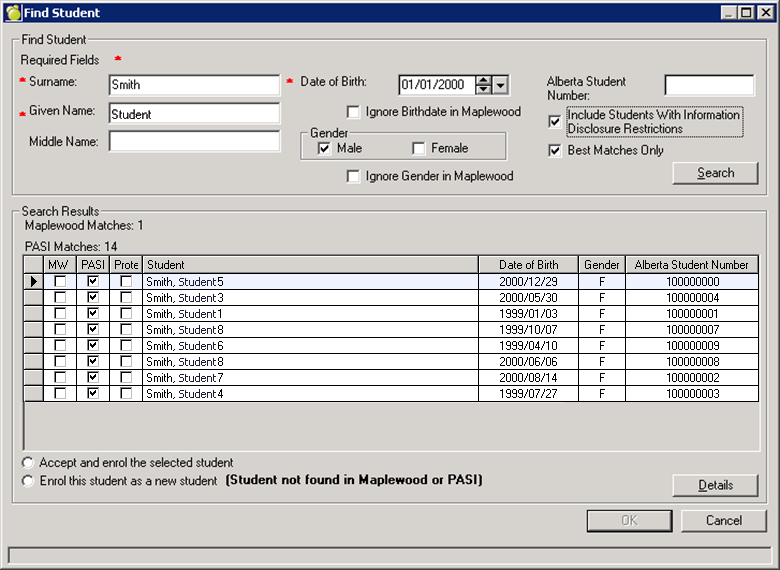
With the enabling of PASI, the Enter New Students process has changed. The initial entry screen remains the same under Students, Add New Student, however, once OK is presses, both the Maplewood and PASI Data bases are queried. If matches are found, they are returned and the school can select the appropriate matching student.
The following fields are critical for accurate matches:
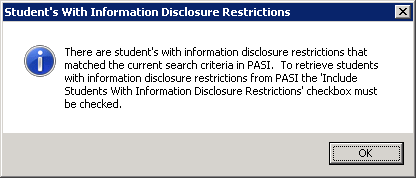
OK to see search results WITHOUT students with Information Disclosure Restrictions. To have these students (and potential matches included), please check the box Include Students with Information Disclosure Restrictions and then click the Search button.