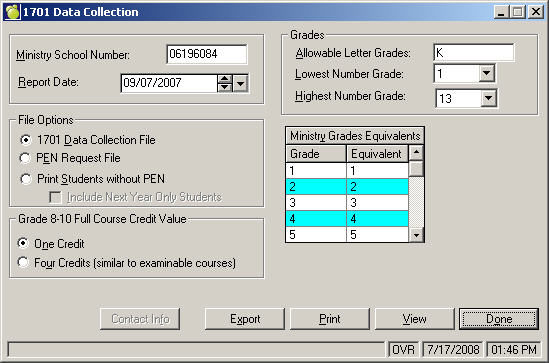
The British Columbia Ministry of Education assigns a Personal Education Number (PEN) to each student. In October of each year, each school sends a 1701 file to the Ministry containing information on the students enrolled in the school on September 30th. The Ministry assigns a PEN to each student in the 1701 file that does not yet have a PEN. The newly assigned PENs are recorded in a file and then sent to the school as a PEN update file. The students need to have these PENs recorded into the Maplewood system. Maplewood provides an option to Import PENs from Ministry File, rather than entering each PEN into the students' records individually.
After the 1701 file has been submitted, schools are encouraged to request PENs for new students who have never been assigned a PEN (usually kindergarten students, out-of-province students, and older students returning to school after an absence) as soon as they register with the school. PENs are assigned on a continuous basis. When a "new" student arrives at a school, the school should get the PEN from the school previously attended by the student. If the student is new to the B.C. education system, the school can request a PEN from the Ministry. Maplewood provides an option to Request PENs for New Students. Once the Ministry processes this request, a new PEN update file will be returned so the new numbers can be imported into the students records.
The student number is extremely important for updating the school database with PENs from the Ministry. It should not change from year to year for a student, and it should be unique for each student in the school.
Note: The Ministry PEN allows for 10 digits but the numbers are currently only 9 digits. If you manually enter a student's PEN (using the Name button in student records), leave a 0 at the start of the PEN not at the end of the number.
Before creating the PEN Request Data Collection file in the Maplewood System, please ensure that the following information found within Maplewood is accurate (see Maplewood Description for the location of data in Maplewood).
|
PEN Request Header Record |
|||
|
Item |
Size |
Offset |
Maplewood Description |
|
Transaction Code |
3 |
0 |
Always 'FFI' - automatically populated by Maplewood |
|
Ministry School Code |
8 |
3 |
File, School Set-up, School Information, School Number |
|
School Name |
40 |
11 |
File, School Set-up, School Information, School Name |
|
Request Date |
8 |
51 |
Reports, 1701 and PEN Data Collection, Create 1701 Data Collection File, Report Date |
|
Email ID |
100 |
59 |
Reports, 1701 and PEN Data Collection, Create 1701 Data Collection File, select the Contact Info button, Email Address Information must be entered before creating the PEN Request File |
|
Fax Number |
10 |
159 |
Reports, 1701 and PEN Data Collection, Create 1701 Data Collection File, select the Contact Info button, Fax Number Information must be entered before creating the PEN Request File |
|
Contact Name |
40 |
169 |
Reports, 1701 and PEN Data Collection, Create 1701 Data Collection File, select the Contact Info button, Surname and First Name Note: Actual name of school contact must be entered. Adding School Secretary is not an acceptable entry by Ministry standards. Information must be entered before creating the PEN Request File |
|
Office Number |
2 |
209 |
Reports, 1701 and PEN Data Collection, Create 1701 Data Collection File, select the Contact Info button, Office Number The Office Number field should only be filled out if the school has multiple sites that requests PENs and have been assigned an office number by the Ministry. |
|
PEN Request Detail Record |
|||
|
Item |
Size |
Offset |
Maplewood Description |
|
Transaction Code |
3 |
0 |
Always 'SRM' - automatically populated by Maplewood |
|
Local Student ID The student number is extremely important for updating the school database with PENs from the Ministry. It should never change, and it should be unique to each student. |
12 |
3 |
Biographics, Name, Student Number Note: If you assign a student to a number that is already used, a warning is produced. Therefore duplicates should not normally occur. |
|
PEN New students will not yet have PENs |
10 |
15 |
Enrolment, Edit, PEN# |
|
Legal Surname |
25 |
25 |
Biographics, Name, Legal Surname (if different from usual surname) |
|
Legal Given Name |
25 |
50 |
Biographics, Name, Given Name |
|
Legal Middle Name |
25 |
75 |
Biographics, Name, Middle Name(s) |
|
Usual Surname |
25 |
100 |
Biographics, Name, Surname |
|
Usual Given Name |
25 |
125 |
Biographics, Name, Usual Name (first name in the field) |
|
Usual Middle Name |
25 |
150 |
Biographics, Name, Usual Name (second name in the field) |
|
Birthdate |
8 |
175 |
Biographics, Edit, Birthdate |
|
Gender |
1 |
183 |
Biographics, Edit, Gender |
|
Unused |
16 |
184 |
Blank - automatically populated by Maplewood |
|
Enrolled Grade Code
|
2 |
200 |
Biographics, Edit, Grade To set up your Maplewood system to accept letter grades of H, E, S, K, F, choose Students, Custom Fields/Tables, Table of Grades. You can enter each students grade in the Maplewood system using any single letter or number. For example, you may want to use grade H for home schooler, E for elementary ungraded, S for secondary ungraded, K for kindergarten (half-time), and F for kindergarten (full-time), 1 through 12 for grades 1 through 12. When the PEN Request file is created, translate each grade into the appropriate Ministry grade using the Ministry Equivalent Grade table. |
|
Unused |
26 |
202 |
Blank - automatically populated by Maplewood |
|
Postal Code |
6 |
228 |
Family, Students, Edit, Postal Code |
|
PEN Request Trailer Record |
|||
|
Item |
Size |
Offset |
Maplewood Description |
|
Transaction Code |
3 |
0 |
Always 'BTR' - automatically populated by Maplewood |
|
Student Count |
6 |
3 |
Number of students included in the file - automatically populated by Maplewood |
|
Vendor Name |
100 |
9 |
Maplewood Computing Ltd. - Automatically populated by Maplewood |
|
Product Name |
100 |
109 |
Maplewood Educational Administration Software - Automatically populated by Maplewood |
|
Product ID |
15 |
209 |
Currently not collected by Ministry (Unused) |
Although PENS are assigned during the 1701 data collections. They are also assigned on a continuous basis. When a new student arrives at a school, the school should get the PEN from the school previously attended by the student. If the student is new to the B.C. education system, the school can request a PEN from the Ministry. The school can also save up PEN requests, and send a batch by electronic data file (preferred method) or FAX (if fewer than 10 students). The PEN requests on the electronic data file take the same format as the 1701 data file.
You can print a list of students without PENs at any time by choosing Reports, 1701 and PEN Data Collection, Create 1701 Data Collection file, Print Students Without a PEN.
If your school has several students for whom you can not get PENs from other sources, you can send a PEN request file directly to the Ministry. To create this file,
1. Choose Reports, 1701 and PEN Data Collection, Create 1701 Data Collection file.
2. Verify your schools number (assigned by the Ministry of Education). Under file options, Select PEN Request File.
3. On the following screen, check the information outlined below:
4. Specify the drive, directory and filename (dddnnnnn.PEN where ddd is the district # and nnnnn is the school #). Then select Save to save the file.
5. Before sending the file to the Ministry, you can view its information. Select the View button, An Open File window will appear. Select the file (*.PEN), and select the Open button.After verifying information on the
file, send the file to the Ministry using the PEN Web application which is accessible from the Personal Education Numbers link on the main Data Collections website.
When the Ministry assigns new PENs to students, they send the school a PEN Update file containing the following information for each student in the file: Ministry School Code (School Number), student number (local ID), Personal Education Number (PEN), and surname. The contents of the Ministry file may be opened in Notepad or a word processor and printed if required.
The PENs on the Ministry's file can be applied to the students' records.
The program first checks for PEN numbers in the existing students records within Maplewood. Then it reads the information on the file from the Ministry. The program tries to match the students on the file with the students in your school by comparing student numbers.
When there is a student number match, the program automatically assigns the PEN number to the student. If unable to match the student by student number, it will then try to match the student by surname. The program will not make a match if your school has two or more students with the same surname because it does not have enough information to determine which is the correct student.
When the PENs have been imported into the student records, you should check for students that were on the Ministry file but were not updated.
Subsequent 1701 data submissions sent to the Ministry will automatically include the PEN from each students record, unless the student has never been assigned a PEN.