Here is how it works and the order it calculates the numbers (e.g. looking at report by grade):
1. Calculates total days (extreme right column): days in calendar minus any days that are day 0 that are NOT grant or exam days ( e.g. holidays, special, and board days ARE taken away whereas exam and grant days ARE NOT taken away). Numbers are not halved for half time students (e.g. am or pm K students).
2. Calculates the number of Absent Days: Number of days the student has an absent attendance entry (attendance code's report card definition is Absent). Numbers are not halved for half time students (e.g. am or pm K students).
3. Calculates the number of Excused Days: Number of days the student has an excused attendance entry (attendance code's report card definition is excused) plus the number of exam and grant days. Numbers are not halved for half time students (e.g. am or pm K students).
4. ES Attendance: Total Days - Absent Days
5. Present Days: ES Attendance - Excused Days
ES Audit is a program that was created to meet the needs of Independent Schools in B. C. The program generates enrolment numbers based on attendance and qualifying factors. The deadline for schools to submit this information to the auditor is May 15th of the calendar year. After the submission date, the auditor sets up a visit to the school, in order to verify that the numbers are correct and that they are a true reflection of enrolment at that school. They also look at a sample of students and their attendance. The amount of funding that each school receives is based entirely on the numbers generated by ES - Audit.
ES Audit is meant to be printed directly on the ES Audit form provided by the auditors. Insert the form in the printer before printing (as a suggestion, photocopy the form first and use as a test print sheet to ensure the paper is correctly aligned).
Qualifying Factors
A qualifying student is one who is of school age, whose parent(s), or guardian resides in British Columbia, and who is a Canadian Citizen or Permanent Resident. The student cannot be a Native living on a reserve, an out-of-province student or an off-shore student. Home Schoolers are also not included.
To be classified as a fully qualifying student, the student must have at least 135 days of attendance between July 1/** and May 14/**. This ES-Attendance figure includes excused absences, which are defined as an absence due to sickness or any other unavoidable cause, including religion, or ministry related absences.
A student who has retired from the school, even though he/she has been deleted, is a qualifier if the number of days of attendance is greater than or equal to 135 days if it is less than 135 the student is a partial qualifier. If a student has retired and then re-enrolled, all of that student’s attendance from his previous enrolment is included in his/her attendance totals.
Before running the ES-Audit or any accompanying reports, please ensure the following information is correct:
Ensure for each student that the data is correct pertaining to: birthdate, grade, citizenship, origin type, school entry date/retirement date, addresses (student, father, mother and guardian include Province field), check the funding codes and enrolled program.
Note: Next year students must have a legitimate Entry Date to This School or ES-Audit interprets a blank date as 1900.Enrolled program codes relevant to the ES-Audit include:
Note: These field are located under Student Records, Enrolment, Other Fields, Edit, Enrolled Programs.
English as a Second Language (ESL).
Aboriginal Language and Culture, Aboriginal Lang. Prog – Obsolete, Aboriginal. Support Services and Aboriginal Alt. Education Program.
Special Education (Student Records, Enrolment, Edit, Special Education).
Before running the ES-Audit, please ensure that all daily attendance procedures have been completed for the day.
The number of Presents that are printed for each student include the total number of lates, as well.
The school’s Attendance Codes must be set up to report all medical, religious, and ministry related absences as ‘Excused’ on the Report Card. If they are not currently set up as such, the school can change them temporarily, and then change them back and run Count Classes Missed (Secondary only) when they have finished. From the Windows Maplewood System, choose File, Maintenance, Count and select Count Classes Missed (for a Secondary School running period attendance).
Print the Attendance Codes. From the Windows Maplewood System, choose Attendance, Attendance Codes and click the Print button.
As well you must print a copy of your calendar (File, School Set up, Calendar, Edit, File, Print, Calendar) as this is required by the auditor.
Please be sure that the Maplewood administration date for the program is set for May 15, for the current year.
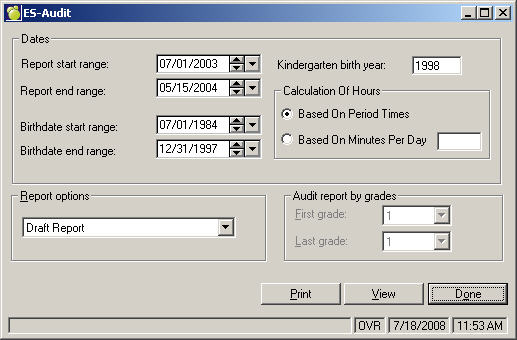
1. Choose Reports, ES Audit. Please ensure that the Birthdate Start and End Ranges are correct as well as the Kindergarten Birthyear. These dates are instrumental with the calculation of qualifying students.
2. Select the Report option:
Draft Report prints the totals as they would appear on the ES-Audit form. This form is not required by the auditor, but is included so that the school can verify numbers.
The Draft Report and Audit Report by Grade differs in one aspect. If there is a student who is repeating Kindergarten, he/she will show up on the Draft Report as a Fully Qualifying Student. This is incorrect. He/she still should only qualify for 50% funding.
Enrolment Transactions - Entry prints a list of names and dates with entry reasons, e.g., transferred in origin type and origin school.
Enrolment Transactions - Retirement prints a list of names and dates with retirement reasons a destination type and destination school.
Audit Report By Grades prints a list of students with their date of birth, citizenship, parental citizenship and whether they are Native. Attendance totals are also included. When you choose this report, you can select the first and last grade for printing from the Audit Report By Grades frame. The ‘Q’, ‘P’ or ‘N’ (on the Audit Report By Grade), is determined by the qualifying factors. A ‘P’ indicates a partial qualify, which is less than 135 days of ES Attendance, an ’N’ for those students who don’t qualify based on enrolment information.
Q = Qualify P = Partial N = Non-Qualify
Note: This is only required for the sample of students that the auditor requests from the school.
Audit Qualifying Student Summary is a summary of the Audit Report by grade. Use this report to verify your student data. You will need to select the grades to include on this report from the lower right hand side of the ES-Audit screen. Please include all grades on one report for the auditor.
Individual Student Audit Report prints the selected the first and last student for a range of students, or an individual student for printing. You may also select List to print the students from an existing excursion list. If you print the student attendance register for the auditor, then choose the school codes and full day equivalent options.
Notes: Individual Student Audit Report is not required by the auditor unless the school is sent sample students from the auditor. The school should not run this program for all of the students. You will have to print the Attendance Notes for the same students that the auditor requests Individual Student Audit reports. Choose Students, Print Notepads/Notes and click the Attendance Notes option button. If printing student attendance register for the auditor, then use the school codes with full day equivalent.
3. Place the form in your printer. The ES Audit Form should be printed directly on the ES Audit form provided by the auditor.
4. When you have made your selection, click View to see a print preview from which you can print the current page or the entire report; or click Print to send information directly to the printer.
5. When you have finished, click Done to return to the Maplewood Administration system. If you have temporarily changed any health, ministry or religion related attendance, then change these back and then run Count. From the Windows Maplewood System, choose File, Maintenance, Count and select Count Classes Missed (Secondary using period attendance).