B.C.'s permanent student record displays all of the information about a student's schooling and achievement organized on one window in tab format.
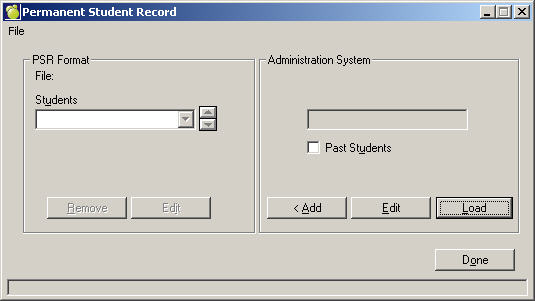
You must open an interchange file (PSR File) before moving students into the file. If you attempt to add students before opening a file, a message will tell you that no file is open.
To create a new file, choose Reports, Permanent Student Record (PSR). Then choose File, New PSR File.
Choose a name for your file and the location you wish to store the file. Remember where you store the file as this will be file that you will need to send to the ministry. If you wish to add students to an existing interchange file (PSR File) choose File, Open.
To open a student's PSR file, click on the Load button.
Note: For past students, click the check box and then click Load.
Once you choose a student the PSR card will be displayed (see Student Tab image below). From here, you can edit and print the card. Click Done when you have finished to return to the main Permanent Student Record screen. Here you can click Add to add the student to the interchange (PSR) file. Once you have added a student to your file, he/she will appear in the drop-down menu on the left hand side of the screen.
You can view the information by clicking on Edit in the Administration System frame. You will notice that the fields are grayed out and you are unable to edit the information, this is because once the file has been transferred as per ministry documentation, you are not supposed make changes.
Note: You can edit it by clicking on the Master Copy In School checkbox (we don't recommend you do this).
Once your student has been transferred (if you choose Yes when asked if they will be transfers), if you load that student on the right side of the form to edit the information, you will be unable to do so.
On the main Student tab you can enter the Personal Education Number, Legal and Usual Name information. Other information such as Gender, Birth and Ancestry is also available.
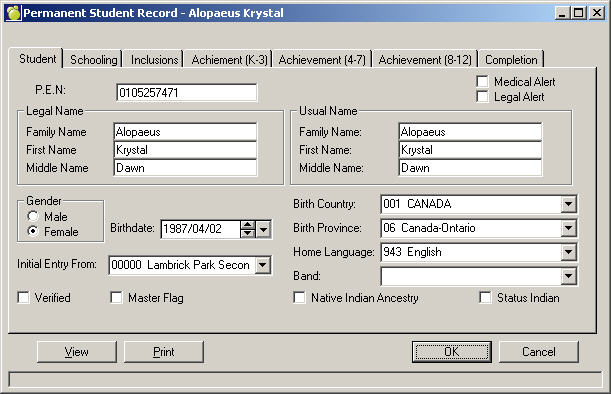
Here are some important features and explanations for entering information into the PSR record.
The Entry to This school is the Entry to the current School - e.g. St Margaret's ...therefore the exit date of the Origin School - e.g. Chandler Park. There is currently no way to store previous school (Entry) information in MW.
Legal Alert is pulled from the Special Custody check box under Custody in Student records.
Medical Alert is not populated by anything at this time.
Birth Province is populated by the Birthplace on enrolment tab of student records if the table has valid ministry codes.
Birth Country is also populated by the Birthplace on enrolment tab of student records if the table has valid ministry codes. If you choose a country other than Canada (other than ministry code 001), then there will be no Birth Province displayed). However, to get another country to appear the ministry code must not start with 00. The best way to ensure that the correct Countries and Provinces display in PSR is to setup your Birthplace table as per the ministry PSR requirements and specifications document.
For Native Indian Ancestry check box, ensure the student has Native checked off in enrolment in student records.
The band information is populated by going to Enrolment tab of student records, then to "edit other fields" , school funding code must be set to: status Indian living on a reserve in order to choose the band from the pull down menu.
In order for absent information (attendance) to display under 8-12 achievement, this information must be entered into the course information on the history tab of student records. (change wording)
For Secondary students - the completion screen is populated with Diploma info from the transcript record.
The inclusions tab of PSR is not currently being populated by anything from Maplewood. This information has to be manually entered at this time.
Click the Verified check box in the bottom left corner when everything is complete and correct.
There are three types of print outs.
Master Copy" will print when printing directly from the loaded student's PSR card, you will be asked if they will be transferred.
If you say Yes, then it will print Master Copy, if you choose no, it will "Copy Only".
Obsolete Copy" will print when you print from a student's PSR card who has already been transferred to the file.
Note: that no matter which procedure you have executed, "Copy Only" will appear when you View the PSR card.
This tab shows all Records of schooling for the student: School Code, District and School Name are displayed, followed by GPL (Grade Entry), Entry into and Exit from the school dates.
Inclusions are documents (or copies of document that are used to help plan or support the individual student's education program. On this tab there are places for a Date, Description/Documentation and Expiry Date.
On this tab there is School Year, Grade and a brief description of the student's progress with reference to the expected development for students in similar age range. As well, the days absent in each school year will be displayed.
On this tab there is the student's Subject, Grade and Absent Totals.
On this tab there is Course Code, Letter Grade, Per Cent, Credit Value and Absent Totals.
If the student has met Click Graduation Requirements and or Provincial School Completion Certificate click the corresponding checkboxes. Enter the Completed month and year in the Completed In boxes for each area.
Note: all of tables (for birthplace, bands etc.) are all defined under Custom Fields and Tables.