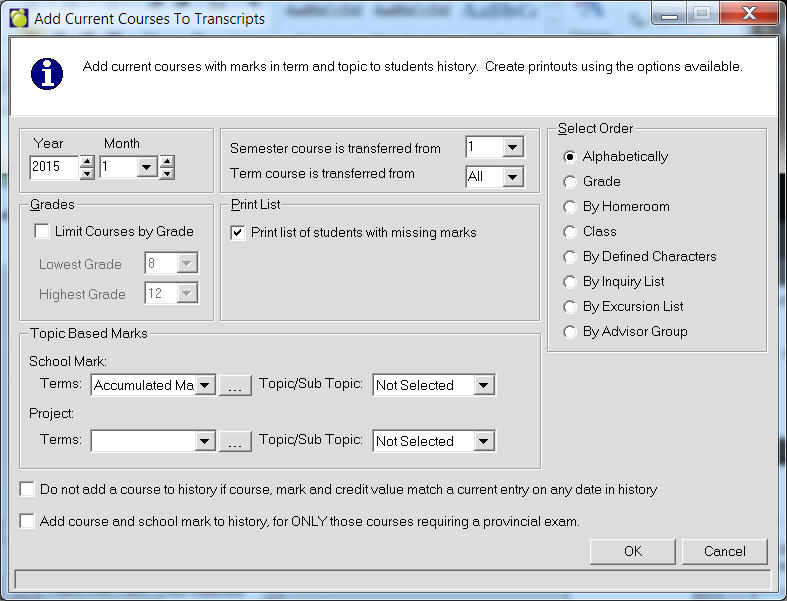
Once the students' final marks for courses are entered for the semester / term, choose Marks, Automatic Transcript Update, Add Current Courses To Transcripts to transfer those courses and marks to the student’s History. The courses from semester 1 or semester 2 may be added to the history record. Select the Year and Month that corresponds with the completion date of the courses being updated and select the applicable Semester/Term the course mark is being updated for (for example: 1 or 2).
For the School Mark select the applicable topic-based Term and Topic that contains the final mark for the course. If the school is offering any courses where the Course Completion Method is Nunavut Project, also indicate the applicable Term and topic for Project that represents where the project mark has been entered (the transcript will blend the course mark and project mark for the overall final mark).
Choose the most applicable Select Order, as this determines which students will have their courses and marks updated to History. The Limit Courses by Grade checkbox allows for further specification that only courses within the grade range will be updated. It is not necessary to check this box if you want all courses in the student’s timetable to be copied to the History tab.
A course will not be transferred to the history records if it has been previously recorded with the exact same date. This allows you to run Automatic Transcript Update more than once (although this is not recommended). If a course is already in a student's history records with a different date and mark, it will be added again (e.g. for those students that are upgrading their mark). Although not recommended, the option exists to not post a course to history if the course, mark and credit value match an existing entry on another date. It is best to re-post the course and mark again if a student received the same mark the subsequent time so as the history tab accurately reflects that the student took the course again, yet received an identical mark.
If modifications are required after the courses and marks have been added to the history records, this may only be done through Central Office. Please contact the Student Registrar when modifications to History are required.
In preparation for sending the school course marks to Alberta Education for classes that require the students to write a provincial exam, the school course mark must first be added to Transcripts. When updating only those courses where the Course Completion Method is Alberta Exam, check the box “Add course and school mark to History, for ONLY those courses requiring a provincial exam.” After updating the transcripts with the examinable courses and marks, then the Diploma Exam Course Marks file can be created and uploaded to Alberta Education.
Choose Students, (select student), History tab.
The main History tab provides summary information about Completed Courses and Compulsory Credits for the current student. Please note the scroll arrows along the right-hand side and the bottom of the window.
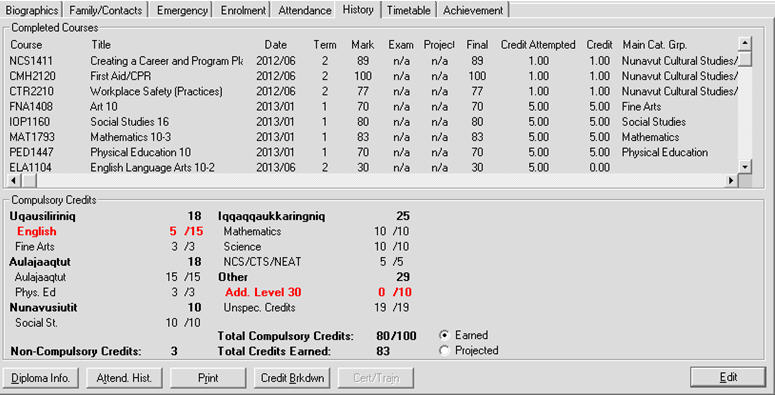
Click the Diploma Info. button to review all saved information regarding the student’s Diploma and Graduation Path. The Diploma and Graduation Path may be set by clicking the Edit button.
Detailed prior years attendance information is accessible in the historical details by clicking on the Attend. Hist. button. The program maintains the attendance information from the register from year to year. To have data in this area, a school must Archive Attendance prior to Transferring to New Year.
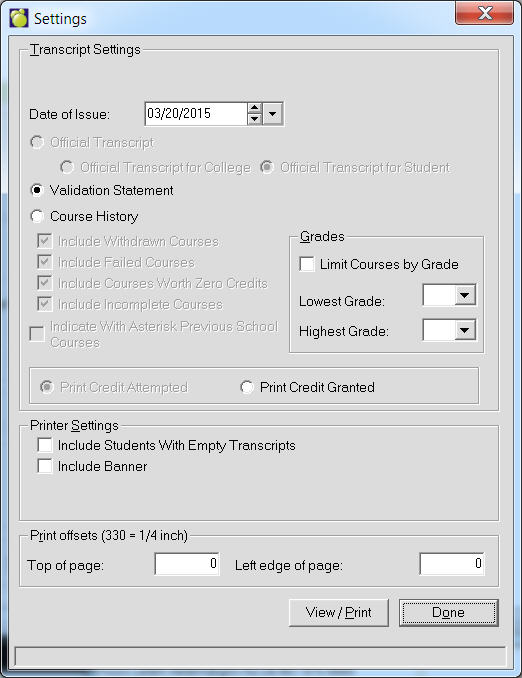
Choose Print to produce either a Validation Statement or Course Summary for this student. To print these documents for multiple students at time go to Marks, Print Transcripts.
A detailed printout showing which of the courses earned on the Student’s History counted towards which compulsory credits can be produced by clicking on the Credit Brkdwn button. The Student must have a Graduation Path defined in order for the Compulsory Credits to be calculated.
Setting the Diploma or Graduation Path Information
To update a student’s Diploma details or their Graduation Path click Edit on the History. Only Central Office has the ability to modify or manually add courses and/or marks to the History area.

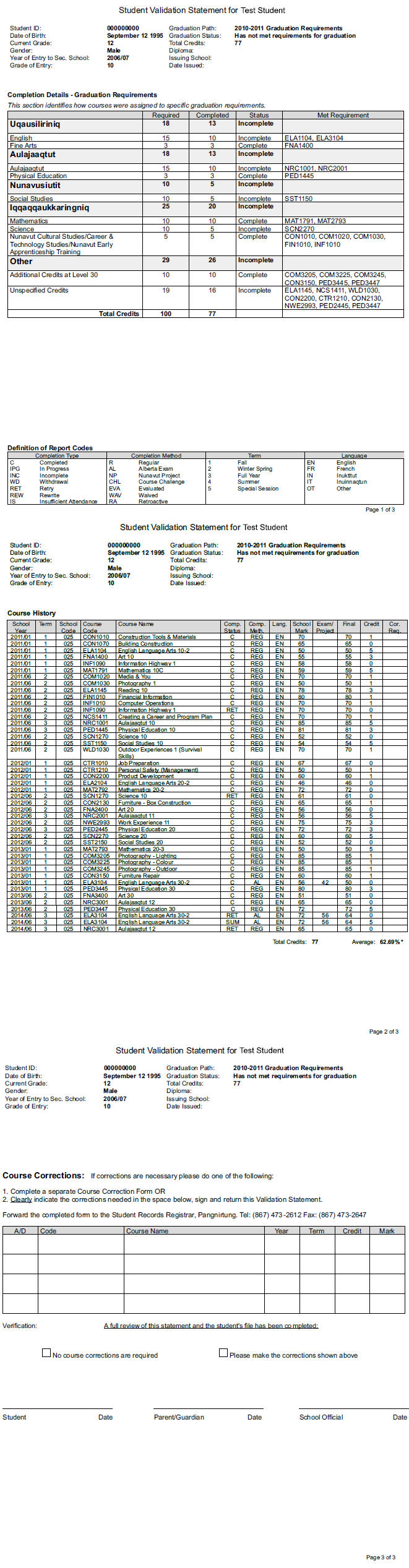
Schools may generate the sample validation statement by clicking Print on the student’s History tab. The Validation Statement includes the Compulsory Credits earned towards their Graduation Path, listing of all courses taken, mark received, completion status, student’s course average, and a separate page for course corrections. If the school only wants a statement of marks, and not a full validation statement, choose the option for Course History.
Official Transcripts
Official Transcripts for schools or students may only be produced through Central Office.