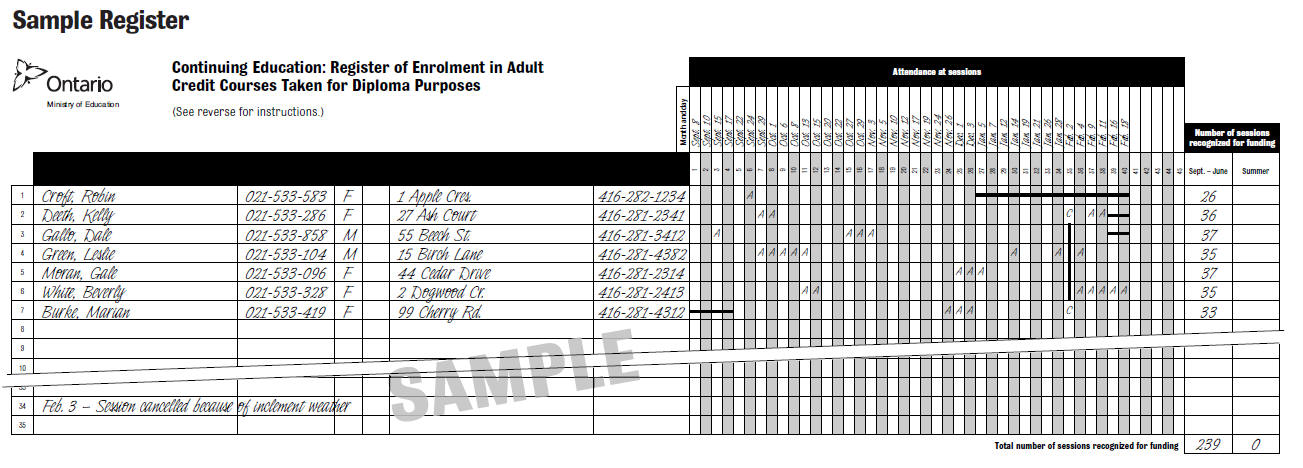
The principal of the continuing education program is responsible for ensuring that enrolment and attendance records are accurate and up to date. He/She must certify that the course data and pupil data are correct on each register.
Maplewood provides the system needed to provide school staff with all the appropriate information about each pupil that is required for keeping the enrolment register and attendance records. Below are the specific Ministry registers and how they are populated based on data entered in the Maplewood software.
Adult Credit Courses for Diploma Purposes
Correspondence and Self Study Register
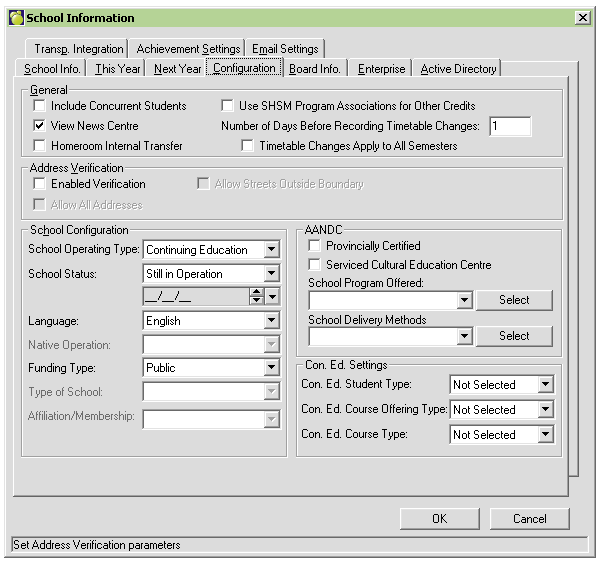
In order for a school to have access to all of the Continuing Education features in Maplewood, the school must be flagged with a School Operating Type of Continuing Education. This information is stored under File, School Set-up, School Information - on the Configuration Tab.
Users can also set up default settings for the Con. Ed. Student Type; Course Offering type, and Con. Ed. Course Type. This is of particular benefit to schools that have a majority of one Con. Ed. Student Type; Course Offering type, and Con. Ed. Course Type (i.e. Summer School). Leaving the entry of these fields set to 'Not Selected' will ensure that no default is set, and users will need to enter these fields for all students enrolled and classes offered at the school.
A separate register is required for each class. The program relies on start and end dates of the class, as well as the period set/pattern to populate the register dates. Name, Gender, Address and Telephone, are populated based on what is entered within the student record.
DAY SCHOOL PUPIL column: Full time day school pupils cannot be included in this register unless the start time is after the end of the school day (i.e. Evening credit course).
The determination as to whether a student should be included/excluded from this register, will be based on the Con. Ed. Student Type field which is located under Enrolment, Edit, Other Fields Tab. This field only appears if 'Continuing Education Centre' is selected within the School Information, configuration tab AND the school is a Secondary School. This option is not relevant to the Elementary School.
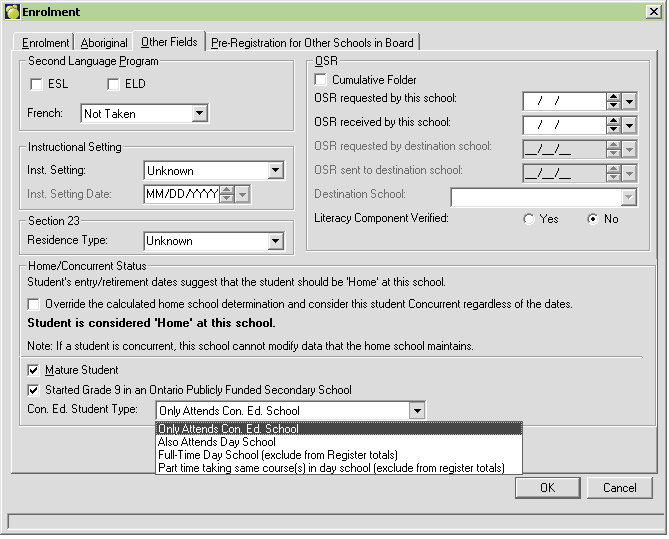
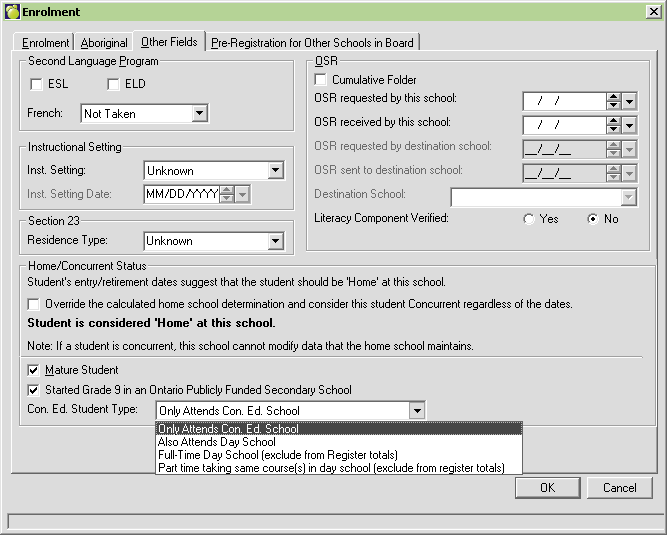
There are 4 options available under the Con. Ed. Student Type pull down menu - for the 'Adult Credit Courses for Diploma Purposes' Register here is how each selection is processed.
Only Attends Con. Ed. School - student is included on the Con. Ed. Register (no checkbox in Day school Column)
Also Attends Day School - student is included on the Con. Ed. Register, and a checkmark appears in the 'Day School Pupil' column
Full-Time Day School - student is not included (will not print) on the Con. Ed. Register.
Part time taking same course(s) in day school - student is not included (will not print) on the Con. Ed. Register.
Note: If the Fulltime day school pupil is taking a evening credit course, then the option of 'Also Attends Day School' should be selected for the student. This will ensure that the student appears on the register as required.
RECORDING ABSENCES: If student misses 3 or more absences in a row, these absences must be deducted from the total number of Lessons/Sessions that are eligible for funding. All other absences are included in the session total.Rescheduled Classes: Using excursion lists, and select '^ - not enrolled' for all students in the class for that day. Select the option to include attendance note, and enter in the details that the class has been re-schedule, and what date it was rescheduled to. Once posted to the register, this date will not appear on the register as a day that students were expected to attend. Note: Schools will then need to add a day to the class (by changing the setup of the class to include that extra date).
Cancelled Classes: Where an instructional session has been cancelled due to exceptional circumstances (i.e. Inclement Weather), and the office has marked the class in the Attendance Register as Cancelled, a 'C' will appear or that date in the session column.
Note: A cancelled session is not included in the calculation of the number of consecutive session absent. However, a cancelled class does not "break" the consecutive absent string either.For Example: Student: Green, Leslie had 5 consecutive absences in a row (Sept 26 to Oct 15), as well as 3 consecutive absences on Jan 30, Feb 6 and Feb 11. The 'Cancelled Class' on Feb 4 does not count as a consecutive absence, but it also does not break the link of consecutive absences. Therefore of a possible 40 sessions that Mr. Green could attend, the school will receive funding for 32 sessions (40 - 5 - 3 = 32)
NUMBER OF SESSIONS RECOGNIZED FOR FUNDING: This information is populated based on Start and End Dates of the class. Individual absences are not subtracted from this total; however, if a student misses 3 or more absences in a row, these absences must be deducted from the total number of sessions that are eligible for funding. Cancelled sessions are NOT deducted from the total number of sessions that are eligible for funding.
For students who enrolled after the start date of the class, or withdraws from the class prior to the class end date - the total number of sessions that are eligible for funding will be adjusted according for that student.SEPT - JUNE column: Students who began the class prior to July 1 or completed the class after August 31, will have the total number of eligible sessions appear within this column
SUMMER column: Students who began the class on or after July 1 or completed the class prior to August 31, will have the total number of eligible sessions appear within this column.
Note: it is not possible for one class to have eligible funding totals in both the Sept- June column as well as the summer column.
This register is based on the number of lessons marked (not the number of days attended). The maximum number of lessons eligible for funding is the product of 20 ( 20 for 1 credit course, 10 for a half credit course). Please ensure that the classes are set up based on this requirement.
Please note that attention should be paid to the following areas:
Note: The number of Sub-Topic "Lessons" will vary, from class to class, as it is based on the credit value of the class ( 20 for 1 credit course, 10 for a half credit course). Users are also able to define titles for lessons as they see fit, as long as the Identifier for the topics and sub topics do not change.
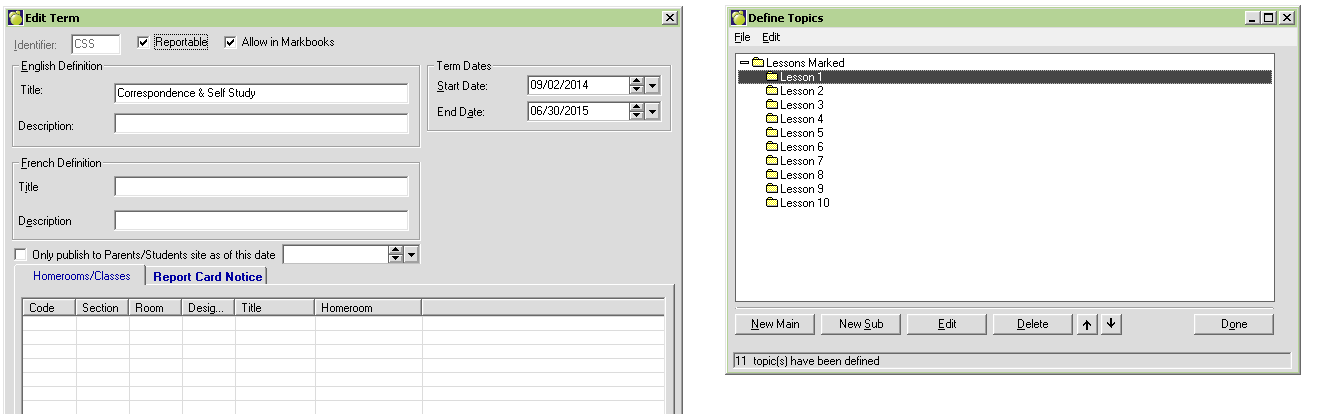
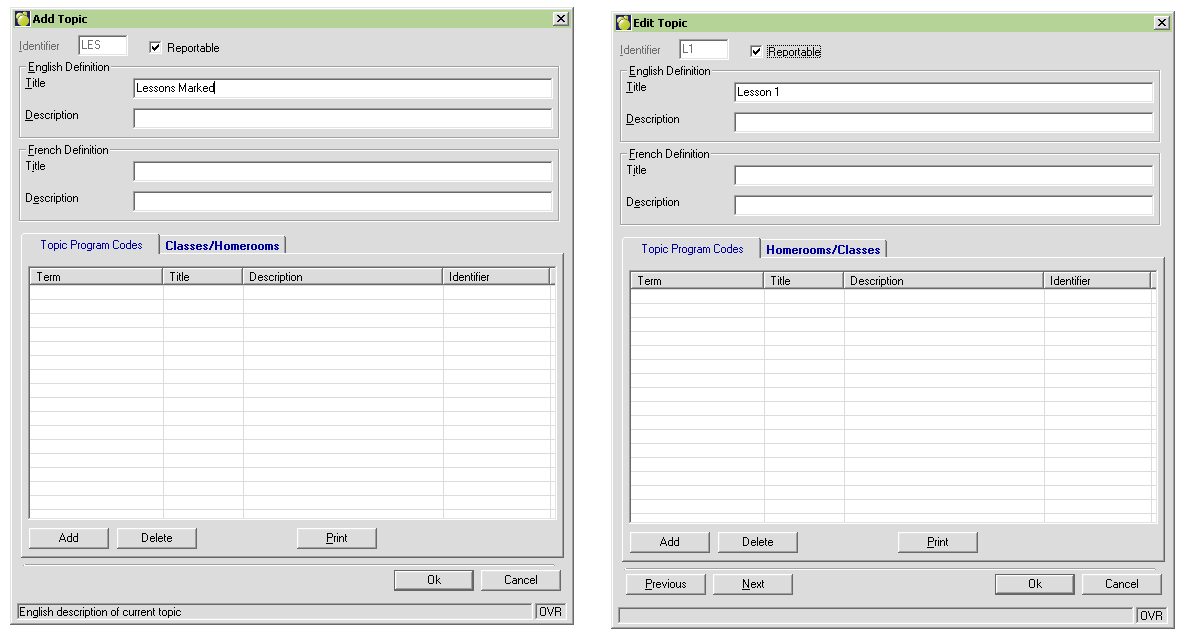
ii) A letter grade or numeric mark may be entered in the topic based marks area. If Lesson/Work Unit has an entry, this will be converted to a Checkmark at the time of printing.
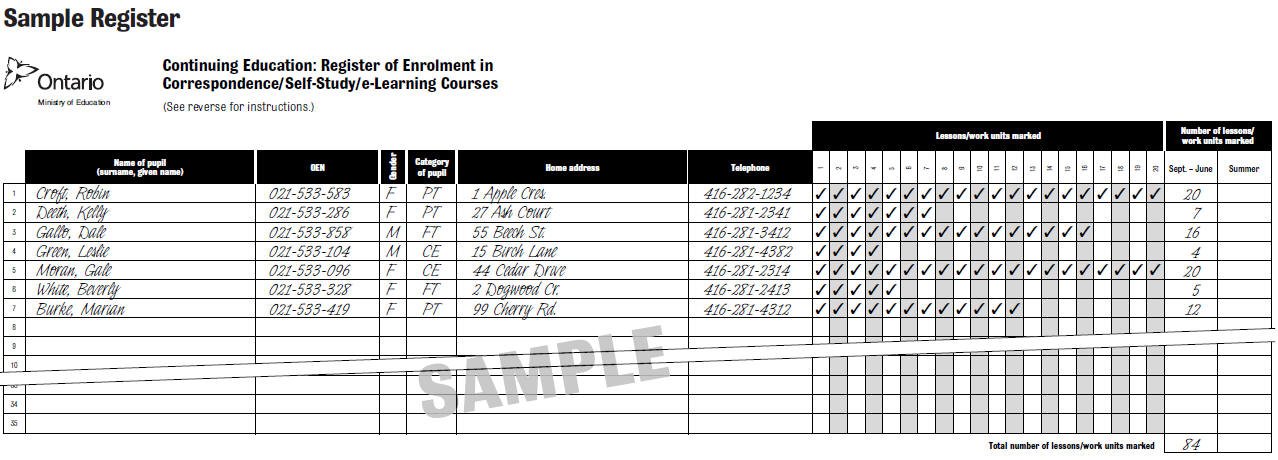
The determination as to whether a student should be included/excluded from this register, will be based on the Con. Ed. Student Type field which is located under Enrolment, Edit, Other Fields Tab. This field only appears if 'Continuing Education Centre' is selected within the School Information, configuration tab AND the school is a Secondary School.
Only Attends Con. Ed. School - student is included on the Con. Ed. Register (CE will appear in the column)
Also Attends Day School - student is included on the Con. Ed. Register, (PT will appear in the column)
Part time taking same course(s) in day school - student is included on the Con. Ed. Register, (PT will appear in the column)
Note: Part-time students who are taking the same course through the day school - must also have these lessons subtracted. Therefore if student has Part time taking same course(s) in day school selected for the Con Ed Student Type (Enrolment, Edit, Other Fields Tab) then student will still appear on register, however totals will be excluded from the register. Full-time day school pupils - the number of lessons marked for these students must be subtracted from the total number of lessons marked, unless course is taken through summer school. Therefore if a student has a Con Ed Student Type = Full Time Day School (Enrolment, Edit, Other Fields Tab) additional checks (based on Internal Transfers for Con. Ed. Student Type) will be done to determine which lessons/work units are able to count on this register based on the following ministry rules:
For pupils who are enrolled as full-time day school pupils on the October enrolment-count date, the number of lessons/work units marked must be subtracted from the total number of lessons/work units marked during the period September 1, 2015, to January 31, 2016. Likewise, for pupils who are enrolled as full-time day school pupils on the March enrolment-count date, the number of lessons/work units marked must be subtracted from the total number of lessons/work units marked during the period February 1, 2016, to June 30, 2016. However, the number of lessons/work units marked for any full-time day school pupils is not subtracted from the total number of lessons/work units marked if these pupils take the courses in the summer.
NUMBER OF LESSONS MARKED: 'September - June' versus 'Summer'
SEPT - JUNE column: Students who began the class prior to July 1 or completed the class after August 31, will have the total number of eligible sessions appear within this column
SUMMER column: Students who began the class on or after July 1 or completed the class prior to August 31, will have the total number of eligible sessions appear within this column.
Note: it is not possible for one class to have eligible funding totals in both the Sept- June column as well as the summer column.
OR
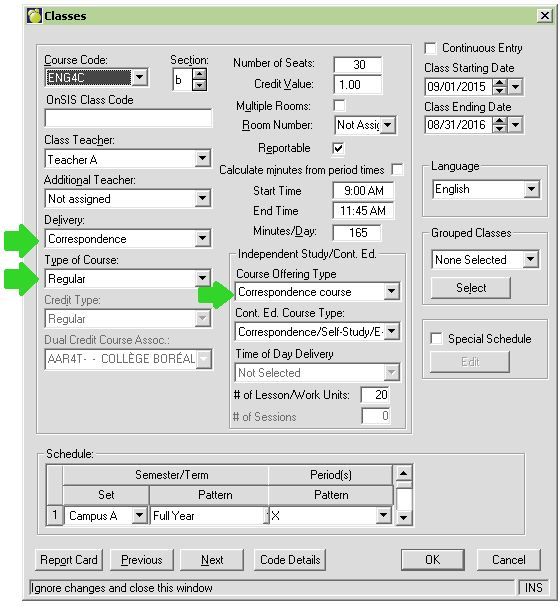
Delivery = Summer School and Type of Course = E-learning, then all totals will appear in Summer Column.
Register Printout: Summary Page (Course Data)
- Type of Course: This area will be populated based on what is selected in the 'Course Offering Type' field
- Correspondence purchased from ILC : If 'Course Offering Type' field is set to Independent Learning Centre (ILC) Course - then this box will be checked off
- Correspondence prepared by the Board: If 'Course Offering Type' field is set to Correspondence Course - then this box will be checked off
- e-learning: If 'Course Offering Type' field is set to E-Learning Course - then this box will be checked off
The Continuing Education: International Languages Elementary (ILE) Program register must be used for recording data on enrolment and attendance only on pupils in Junior Kindergarten to Grade 8 who are enrolled in the International Languages Elementary (ILE) program.
This register is based on physical attendance in the IL program, and should capture attendance data for all pupils enrolled in this program both during the school year and during the summer (pupils enrolled in private schools may be included in this register).
Setting up the ILE program in Maplewood:
The program information should be setup within a Continuing Education 'Operating Type'. The only exception to this setup would be schools who offer this program via an extended day program. Where all students in the school are taking the international language during the course of a regular school day, but the start and end times of the school day have been extended to accommodate for this program. Please contact Maplewood's support staff for assistance with the extended day program setup.
The information for this register will be captured based on enrolment in a class. Follow the instructions below on how the program must be setup in order to capture data correctly for both the registers and the OnSIS submission.
The Language of Instruction table (File, School Setup) will need to be updated to capture all of the international language programs that are offered at the school.
|
03 |
Albanian |
24 |
Italian |
45 |
Spanish |
69 |
Romanian |
|
04 |
Arabic |
25 |
Japanese |
46 |
Tagalog |
70 |
Somali |
|
05 |
Armenian |
26 |
Korean |
47 |
Tamil |
71 |
Swedish |
|
06 |
Bengali |
27 |
Latvian |
48 |
Telugu |
72 |
Tigrinya |
|
07 |
Cambodian |
28 |
Lithuanian |
49 |
Ukrainian |
73 |
Turkish |
|
08 |
Cantonese |
29 |
Macedonian |
50 |
Urdu |
74 |
American Sign Lang |
|
11 |
Croatian |
30 |
Malay |
51 |
Vietnamese |
75 |
Bosnian |
|
12 |
Czech |
31 |
Maltese |
54 |
Dari |
76 |
Simplified Chinese |
|
13 |
Danish |
32 |
Mandarin |
56 |
Farsi |
77 |
Malayalam |
|
14 |
Dutch |
35 |
Persian (Farsi) |
57 |
Hmong |
78 |
Thai |
|
15 |
Estonian |
36 |
Polish |
58 |
Igbo |
79 |
Swahili |
|
16 |
Finnish |
37 |
Portuguese |
59 |
Khmer |
80 |
Karen |
|
17 |
Gaelic |
38 |
Punjabi |
60 |
Kurdish |
81 |
Bemba |
|
18 |
German |
39 |
Russian |
61 |
Lao |
82 |
Bahasa |
|
19 |
Greek |
40 |
Serbian |
62 |
Lisane-Dawat |
83 |
Hausa |
|
20 |
Gujarati |
41 |
Serbo-Croatian |
63 |
Marathi |
OTH |
Other |
|
21 |
Hebrew |
42 |
Singhalese |
66 |
Oromo |
|
|
|
22 |
Hindi |
43 |
Slovak |
67 |
Pashto |
|
|
|
23 |
Hungarian |
44 |
Slovenian |
68 |
Pilipino |
|
|
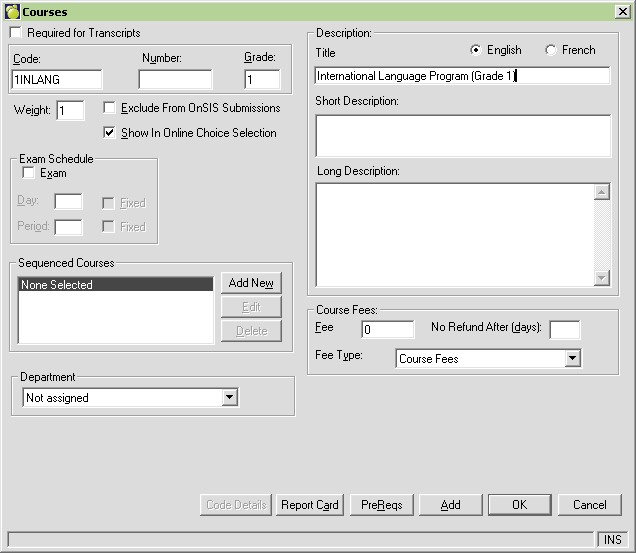
Courses must be defined for the International Language program. These can be generic course code that describe the grade of the students that will be taking this course, it can be defined based on site offered, or type of language being taught. There are no ministry guidelines as to what the course name should be, so create the definitions based on what makes the most logical sense for the school. In the scenarios below the definition will be based on the grade of the students taking the course. The course title and short description are also up to the school's discretion.
Note: Boards that have a centralized code table, will need to deselect the 'Required for Transcript' feature to add the course at the school level (screen shot below is from a Centralized, Con Ed, Secondary perspective
Then set up the Classes - ensure that the Course Offering Type and the correct Language has also been selected within the class definition. The class MUST reside within a period (cannot be a floating class). Users can opt to change the Class Starting date and/or ending date (as long as these dates fall within the semester/term pattern definition), the change to Start and End Times can also be entered (unselect the option to calculate minutes based on period times) if they fall outside of the standard period definition.
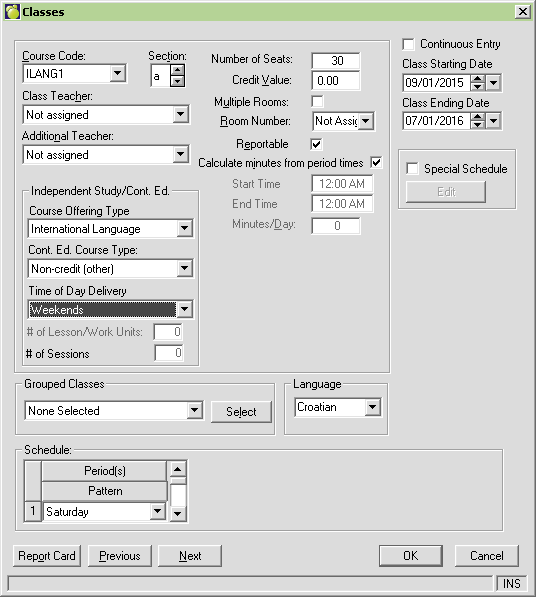
For setup within an Continuing Education Elementary School (and Extended Day School Setup) - the program will look at the start time of the class to determine which half day attendance entry will be used to populate the register. If the start time is within the AM, then the morning attendance entry will be used. If the start time is within the PM, then the afternoon attendance entry will be used.
This can be done by manually adding these students to the Continuing Education School (via Add New Student) or if the student currently resides within your school board, then using the 'Pre-registration for Other Schools in Board' option can be used. The Pre-reg. option is done within the home school by filling out the necessary information (under the student's enrolment tab, Edit, Pre-registration for Other Schools in Board tab), and the Continuing Education School would use the option to transfer students into the school (Students, Transfer, Enrol students from this board).
After the student is enrolled the user will then need to add the classes to the student's timetable. If the entry is added after the student started attending the ILE program, please ensure that the ADD date is updated accordingly. If a student stopped attending the ILE program (and the ILE program is still on-going) then the user will be required to 'DROP' the class from the student's timetable. If this drop is done after the actual drop date, please ensure that the DROP date has been updated accordingly.
1. Register Details
2. Register Summary
The Continuing Education: Literacy & Numeracy Program - This register is based on physical attendance in the program, and should capture attendance data only for pupils enrolled in one of the following programs where instruction is not provided as part of the day school program.
Programs may be run both during the school year and during the summer. Programs should only be captured under the summer area if the program starts after the regular school year ends, and ends after the regular school year begins (i.e. Starts in July and ends in August).
The program information should be setup within a Continuing Education 'Operating Type'. This program cannot be setup within a Secondary or an Elementary regular day school environment.
The information for this register will be captured based on enrolment in a class. Follow the instructions below on how the program must be setup in order to capture data correctly for both the registers and the OnSIS submission.
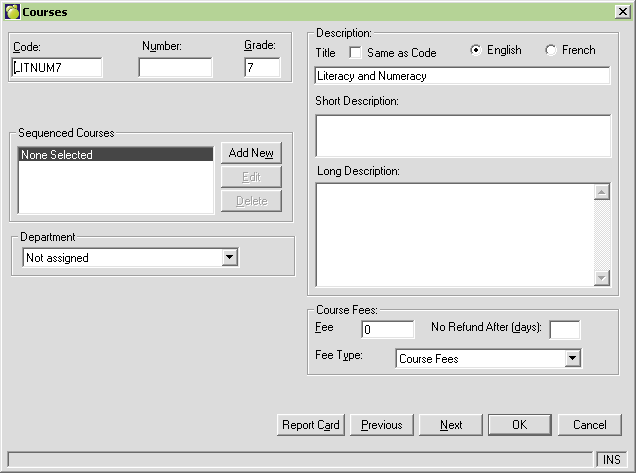
Courses must be defined for the Literacy and Numeracy program. These can be generic course code that describes the grade of the students that will be taking this course, it can be defined based on site offered, or type of language being taught. There are no ministry guidelines as to what the course name should be, so create the definitions based on what makes the most logical sense for the school. In the scenarios below the definition will be based on the grade of the students taking the course. The course title and short description are also up to the school's discretion.
Note: Boards that have a centralized code table, will need to unselect the 'Required for Transcript' feature to add the course at the school level (screen shot below is from a Centralized, Con Ed, Elementary perspective)First define the course
Then set up the Classes - ensure that the Course Offering Type and the correct Time of Day Delivery has also been selected within the definition. The class MUST reside within a period (cannot be a floating class). Users can opt to change the Class Starting date and/or ending date (as long as these dates fall within the semester/term pattern definition), the change to Start and End Times can also be entered (unselect the option to calculate minutes based on period times) if they fall outside of the standard period definition.
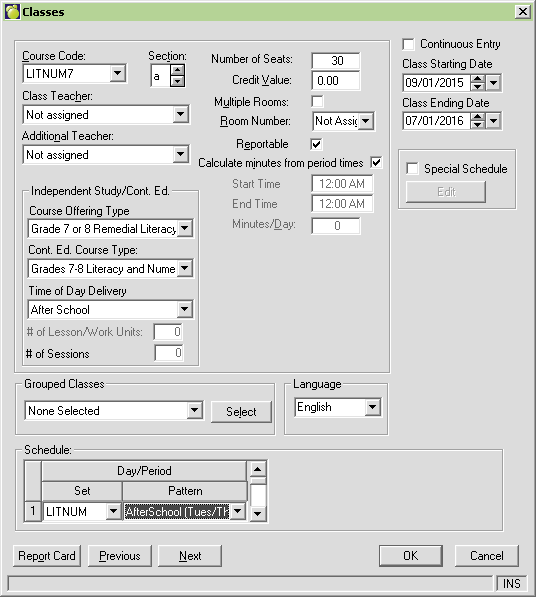
For setup within an Continuing Education Elementary School - the program will look at the start time of the class to determine which half day attendance entry will be used to populate the register. If the start time is within the AM, then the morning attendance entry will be used. If the start time is within the PM, then the afternoon attendance entry will be used.
This can be done by manually adding these students to the Continuing Education School (via Add New Student) or, if the student currently resides within your school board, by using the 'Pre-registration for Other Schools in Board' option. The Pre-reg. option is done within the home school by filling out the necessary information (under the student's enrolment tab, Edit, Pre-registration for Other Schools in Board tab), and the Continuing Education School would use the option to transfer students into the school (Students, Transfer, Enrol students from this board).
Parents/Guardians must be entered as a student in Maplewood. This will ensure that the Maplewood software can capture all of the data required for ministry reporting. OEN is not required for Parents/Guardians enrolled in the Literacy and Numeracy for Parents and Guardians. However, a parent/guardian may be currently/previously enrolled within the school board. Do not remove the OEN for these Parent/Guardian students if it does exist.
A final step in enrolment registration is required for those enrolled in the Literacy and Numeracy for Parents and Guardians. This last step is crucial to those schools that are offering Literacy and Numeracy for Parents and Guardians. Parents and Guardians are enrolled in this program when the principal feels that support is needed at home, and that the program would benefit the parent/guardian in providing the correct support. Therefore these parents/guardians must be linked to the School Age student for which they are taking the Literacy and Numeracy support program for.
The area to Link the parent/guardian student to a school aged student can be found under Enrolment, Edit, Other Fields Tab
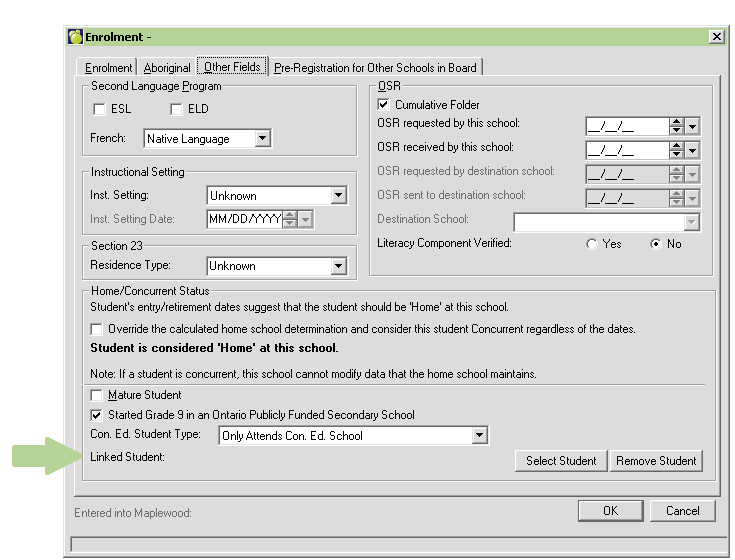
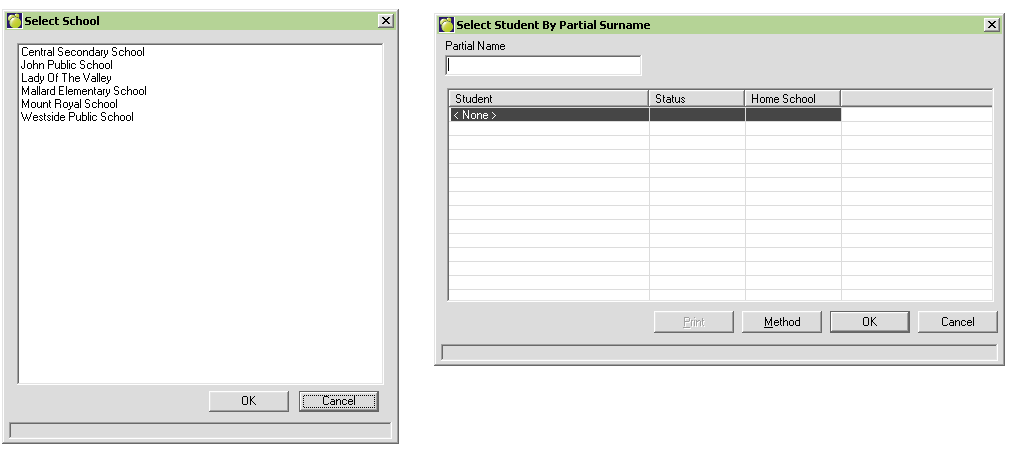
Choose the Select Student button and a list of schools within the board will appear. Select the school where the school aged student (that the parent/guardian is taking the program for) is enrolled, then select the school aged student using the standard Select Student interface. Once the school aged student has been highlighted, select OK and the student is now linked with their parent/guardian.
1. Register Details
Note: Pupils Who Are Not Pupils of the Board - must be recorded in the register as “other pupils” (OP). Since they are not pupils of the board, they must not be included in the “equivalent average daily enrolment (ADE)” calculation.
2. Register Summary
Course Data
1 - on a school day during the lunch hour
2 - on a school day before school
3 - on a school day after school
4 - in the evening
5 - on the weekend
This register is in a similar format to that of the Adult Credit Courses for Diploma Purposes Register. Each class must be on a separate register and the funding is based on the total number of sessions attended. Total enrolment must include ALL pupils who enrolled in a course and attended course sessions - this number is NOT reduced if a pupil withdraws before completing the course. Other criteria for this register include:
Inclusion of Students: In order for student to appear on this register, the Con. Ed Student Type must be set to 'Also Attends Day School' this information can be found under the students Enrolment tab. Choose the Edit button, then go to the 'Other Fields' tab. This field can also be changed/populated via the Assign All of a Field feature within Maplewood. This feature can be found under the Students Menu. Choose Students, Assign All of a Field, Current Students. Within the tree, choose Enrolment, Con. Ed. Student Type
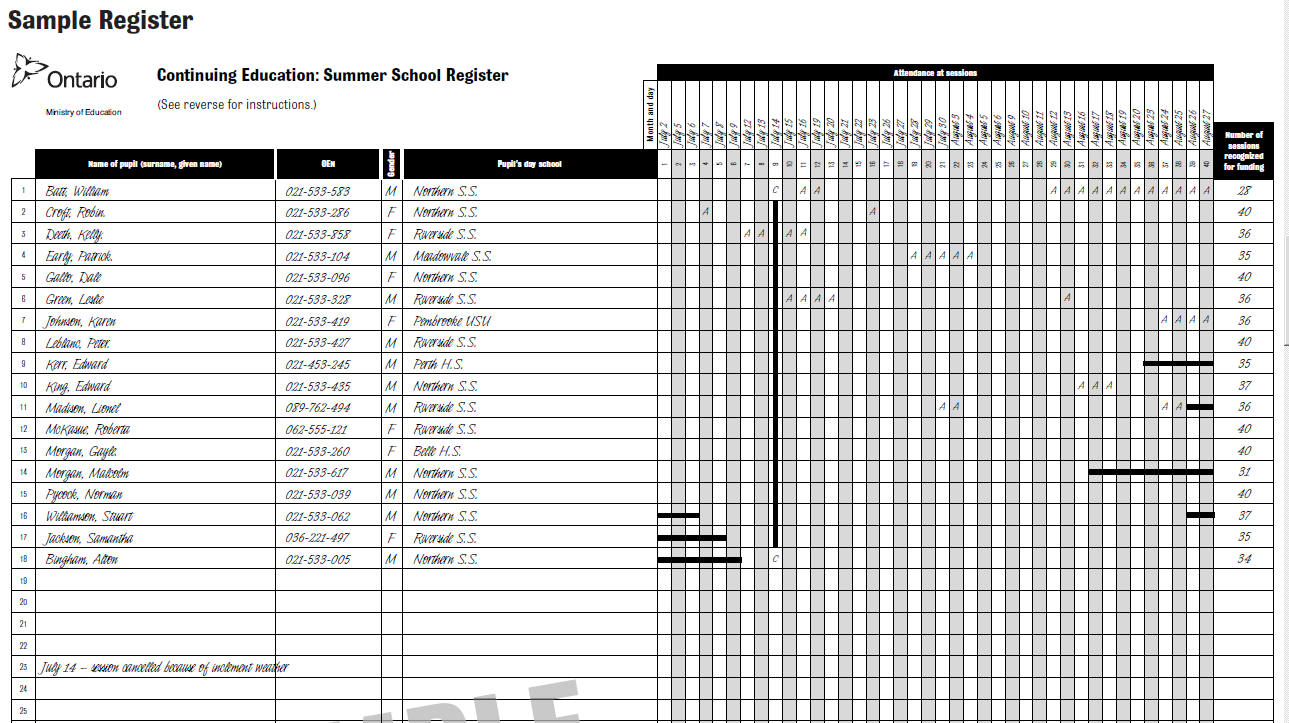
PUPIL'S DAY SCHOOL: This field is used to record the school in which the student attends during the regular school year (Sept - June). This information will be pulled from the Origin School area in enrolment.
NUMBER OF SESSIONS RECOGNIZED FOR FUNDING: This information is populated based on Start and End Dates of the class. Individual absences are not subtracted from this total; however, if a student misses 3 or more absences in a row, these absences must be deducted from the total number of sessions that are eligible for funding. Cancelled sessions are NOT deducted from the total number of sessions that are eligible for funding.