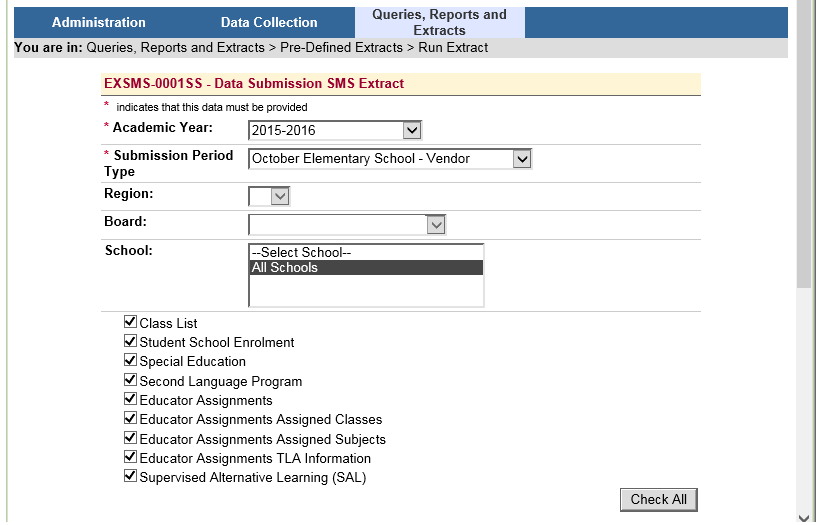
If you will be submitting OnSIS files on behalf of your elementary schools, here are some steps that this might provide some relief to the amount of time and effort it will take to create OnSIS files.
When requesting extracts for your elementary schools --- choose the option to select ALL ELEMENTARY SCHOOLS. This will create extract files with all elementary schools in one file (i.e. you will only have one extract 003 – but if you open it, it will contain all of the elementary schools within your board). Remember the location where you save these extract files – it will be needed in step 2.
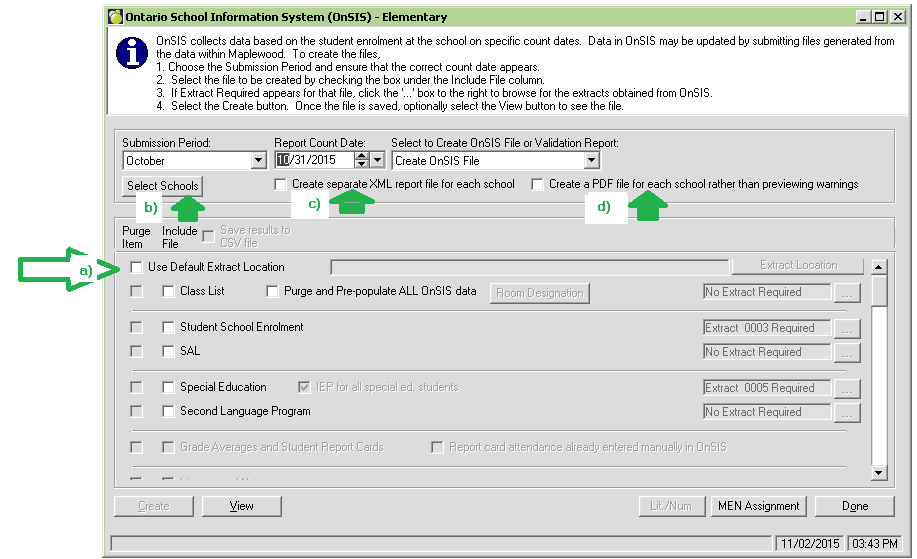
a. Use Default Extract Location – Here you can select the location where you have saved the extracts you downloaded from OnSIS – in the first step. Choosing this option, the automatic population of the extract location will occur (for those files that require an extract) when creating the batch file. A time saving step, as you will no longer be prompted to select an extract file for each batch file you create.
b. Choosing the Select Schools button the user can select all your elementary schools at once (or even in batches of 5 or 10 schools – whatever is easiest).
c. Users can choose to create a separate xml file report for each school.
DO select this item if you want separate files for each school to be created - From a process perspective, you only have to choose to create the file once, and we will create individual files for each school. I would recommend this option for the first round of the student school enrolment file – as these are typically where the most amount of warnings and errors would occur.
DO NOT select this option, if you want all the schools to be sent in one file. For example, you can create the Class List batch file as one “super” file – that will include all the elementary schools – then you just have to upload one file. I would recommend that you create “super” files for all but the Student School Enrolment file. That way you only have to load one file for each batch option (that includes all schools) --- instead on one file for each batch option, for each school.
Advanced Users: You can even multi-select files to be created at once --- i.e. select SAL, Special Education and Second Language program, and all 3 batch files will be combined into ‘Mega’ file --- which would again decrease the number of files you need to upload. Using all of these features you could create 4 files that will include all the information for all of your elementary schools Classes Batch (all elementary schools); Student Batch (Student School Enrolment, SAL, Special Education, and Second Language for all elementary schools); Educator Class Assignment (all elementary schools); Educator Subject Assignment (all elementary schools)
d. The warning reports that come up at the end of the file creation – can be saved by individual school, rather than one big report.
Note: The same steps above can be used to create secondary school files as well.