Learn more about the Board OEN Data Transfer Information: The Homework Help Project 2011-12
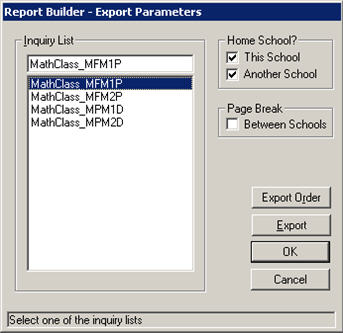
Users will have to create inquiries for all students that are enrolled in the math classes you are looking to include in the export file.
This example shows one for each of the 4 MDCC for Math in grade 9 and 10.
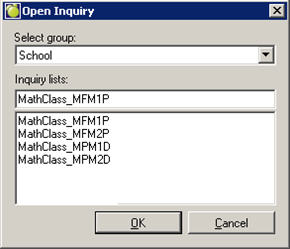
To do this go into the CENTRAL OFFICE Inquiry for current students and follow the steps as displayed in the screen shots that follow.
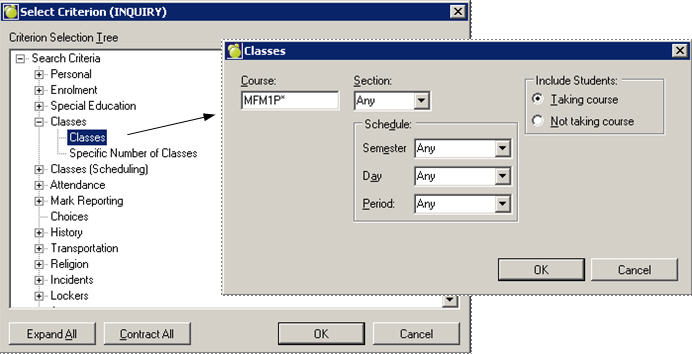
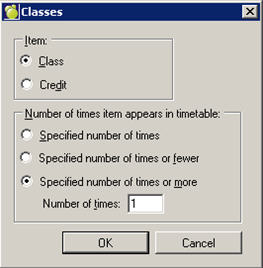
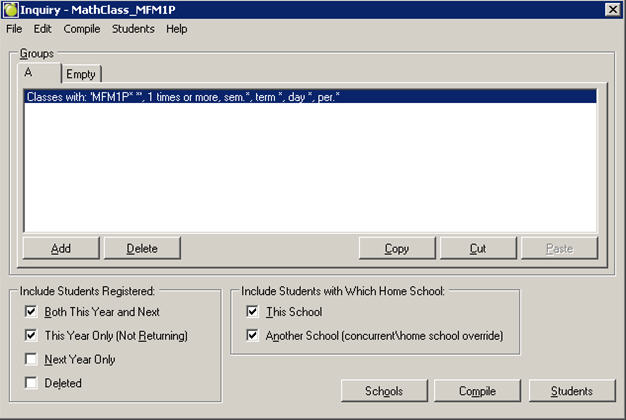
Now select the `SCHOOLS`button and select all schools that are offering this course (that are to be included in the Homework Help File to ILC, for example, summer school should not be included).
Now continue creating the other inquiries for each Math course you are including in your extract.
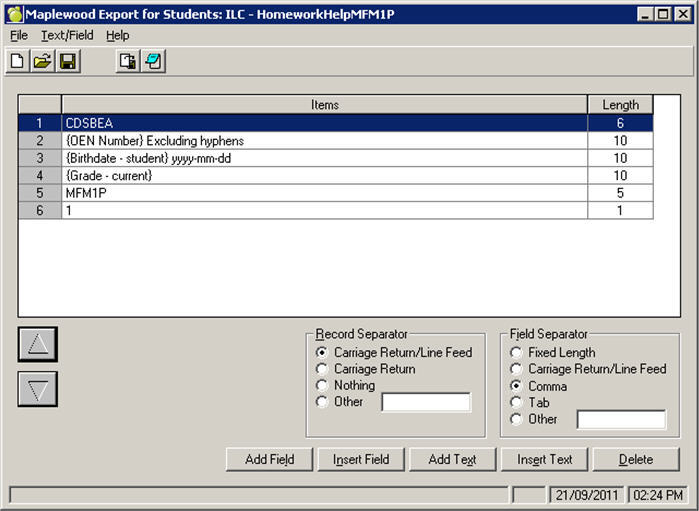
Item# 1 in the export file (see image below): This is a TEXT FIELD—enter your ‘School Board Code’ as described in the ILD document. For example, CDSBEO is listed as CDSBEA
Item#5 in the export file (see image below): This is a TEXT FIELD. This is the easiest way to export the file without having to do data manipulation at the end ( data manipulation would be required if you exported the student timetables for all students taking grade 9 and 10 Math. The user would have to remove all not related courses as well as removing the section letter for the math classes.
Note: A separate export will need to be created for each math course you are reporting on. Each export will have a different value for item# 5 (MFM1P, MFM2P, MDM1D, and MDM2D).
Item#6 in the export file (see image below): This is a TEXT FIELD that is used to denote those 'particpating' in the ILC Homework Help Project. See note below.
Item #6 Note: This field is not currently stored in Maplewood. Therefore all students will be exported with a ‘1’ which = participating. Schools/Boards can either change the values of those that are not participating to a zero, or completely remove those students who are not participating from the file. Boards that are using custom text fields in Maplewood to keep track of this information, can export this field, provided the field is stored as a 1 for participating, and a 0 for not participating.
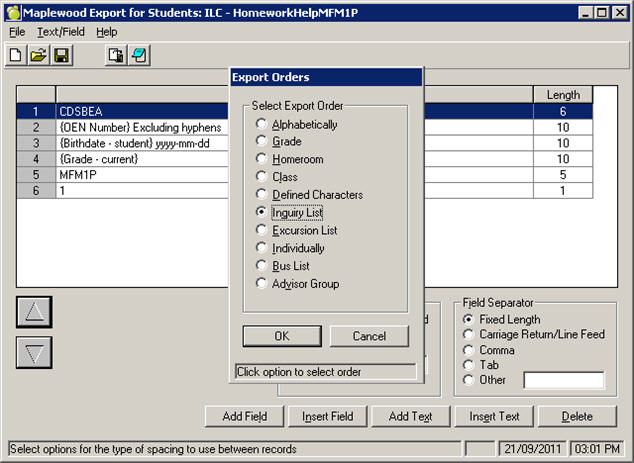
Once you have completed creating your exports for the Mathematics classes, you can then begin to export. Choose the export option, the Export Order for the Math classes should be via INQUIRY.
Item# 1 in the export file (see image below): This is a TEXT FIELD—enter your ‘School Board Code’ as described in the ILD document. For example, CDSBEO is listed as CDSBEA.
Item#5 in the export file (see image below): This is a TEXT FIELD—left blank (for grade 7 & 8 students—as there is no course name that you are to export in the file.
Item#6 in the export file (see image below): This is a TEXT FIELD that is used to denote those ‘participating’ in the ILC Homework Help Project. See Note below screen shot.
Item #6 Note: This field is not currently stored in Maplewood. Therefore all students will be exported with a ‘1’ which = participating. Schools/Boards can either change the values of those that are not participating to a zero, or completely remove those students who are not participating from the file. Boards that are using custom text fields in Maplewood to keep track of this information, can export this field, provided the field is stored as a 1 for participating, and a 0 for not participating.
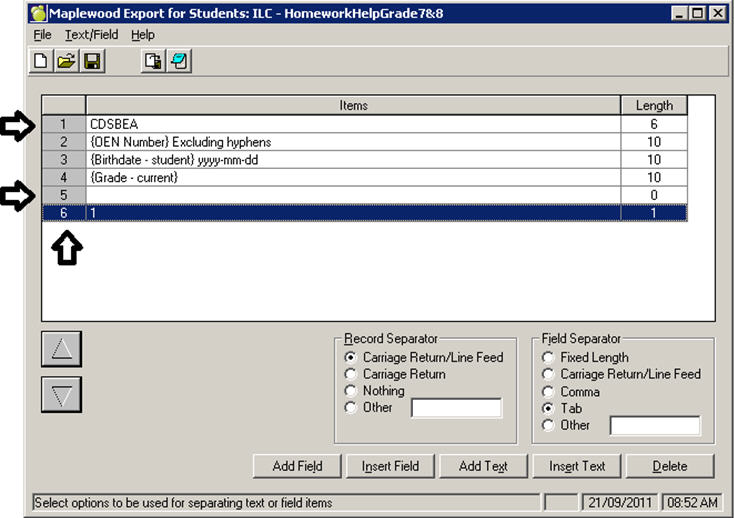
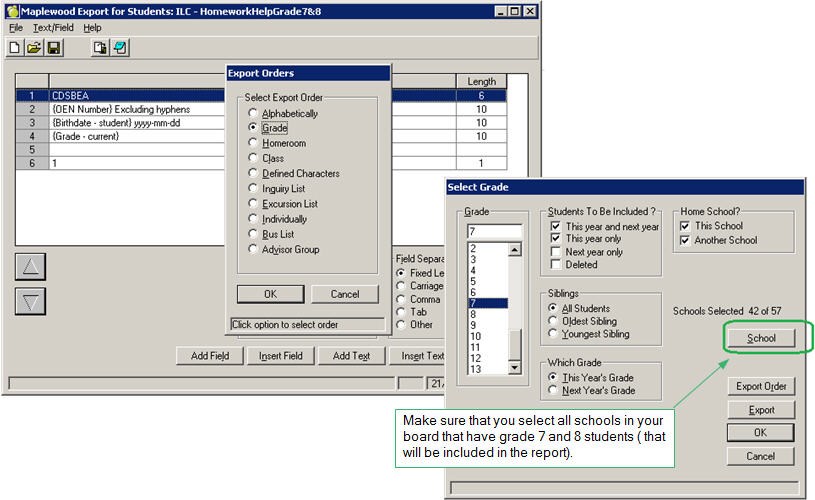
After you have created the export for all grade 7 students, create another export for the Grade 8 students (ensure you name the export file differently than the grade 7 one).
Once you have completed creating all of your CSV files (should be 6 in total—2 grade 9 Math Classes, 2 Grade 10 Math Classes, Grade 7 export, Grade 8 export , you will then need to merge all files into one prior to submitting. Once the merge has been completed rename (cdsbea_oen_transfer.csv (replace cdsbea with your Board code) and submit the file to the ministry.
To confirm that your file is formatted correctly:
1. Check that the filename is named correctly:
cdsbea_oen_transfer.csv
or
cdsbea_oen_transfer.xml
2. Check that file data is formatted correctly:
If the file is a CSV file, then:
Open the file, and ensure the data is in the format:
board,oen,date_of_birth,grade,course, participating
CDSBEA,999888777,YYYY-MM-DD,9,MFM1P,1