A new electronic register has been added to the list of enrolment registers that is generated in Maplewood. This register has the feel of a continuing education register, but is actually a day school register.
According to Ministry Documentation,
A pupil doing "independent study" is not registered for classroom instruction, but takes credit courses that fulfil the ministry’s program and diploma requirements and meets with qualified teachers for scheduled times during the school day. It should be noted that a course for which a pupil is enrolled cannot be considered an independent study course if any portion of it consists of classroom instructional time that is also used to classify the pupil as either "full-time" or "part-time".
Enrolment in non-classroom instruction offered through an independent study program must not be included in the enrolment register for elementary or secondary schools. The ministry’s Independent Study and e-Learning Register for Day School Pupils, or an appropriate computerized equivalent, must be used to record this enrolment. The Independent Study and e-Learning Register for Day School Pupils must not include any pupil whose enrolment is recorded as "full-time" in any publicly funded school.
excerpt taken from Enrolment Register Instructions for Elementary and Secondary Schools 2014–15 School Year
The Independent Study Register requires that
Students on this register are day school pupils
Students on this register are not enrolled as a full time day school pupil
The course is offered from September to June of the current school year
The course is divided in to a number of specific work units that are similar in value
Teacher Contact sessions -> for a course with one credit there must be a minimum of 10 scheduled sessions of at least 30 minutes each, and total number of hours must be at least 10 hours. These sessions must occur during the day. Proportional increase is required for credits greater than one.
Teacher Contact sessions that are missed must be re-scheduled. Pupils not meeting the criterion of regular attendance must be retired from the register.
Information used to populate this register is taken from the class details; students enrolled in the class, and information entered through the Topic Based marks, markbook area in Maplewood (via Maplewood connectEd).
Turn on markbooks (within File, School Setup, School Information, Achievement Settings) Note: Cummulative markbooks do NOT need to be turned on.
Ensure staff have connectEd security for class markbooks (File, Security, connectEd security)
Ensure that terms and topics are assigned to all classes.
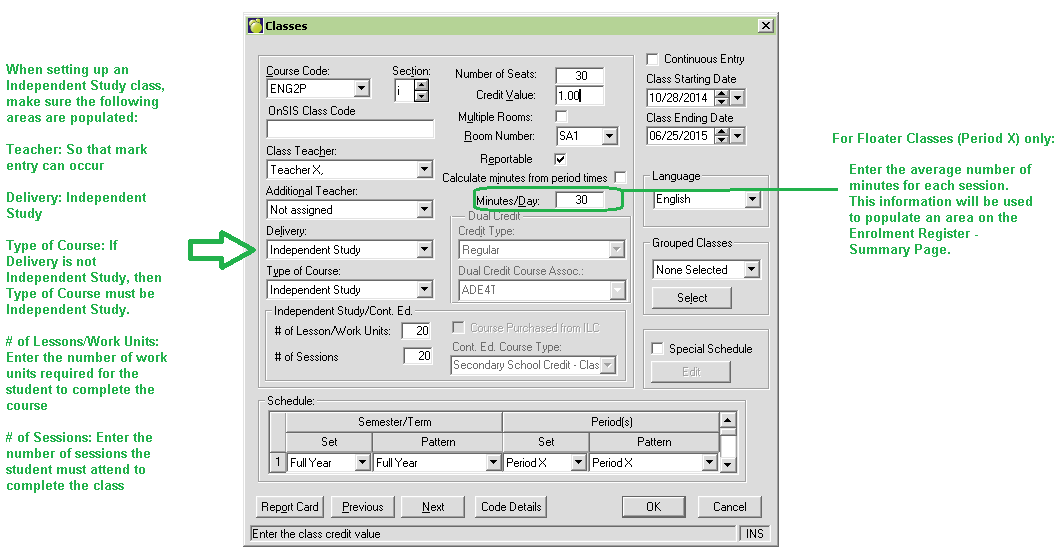
Within the Classes file, select the class that should be flagged as the independent study class, and assign a ‘Type of Course’ or a 'Delivery Type' of Independent Study.
Assign total number of Work Units, and Total number of Teacher Contact Sessions for the class. Once saved, this will automatically assign the markbook items to the class. This information (Teacher Contact Sessions, and Work Units Completed) will only be automatically be assigned to the class (through the classes file) provided the class has the correct course type and/or delivery type and BOTH ‘# of Work Units” and the ‘# of Sessions’ defined.
The # of Sessions will automatically have a new ‘Letter Grade Group’ associated with it in the Markbook. This new group will include 2 letter entries: ‘A’ for Absent; and ‘P’ for Present
# of Work Units –
Users can now go into Maplewood connectEd, and enter in the information for the Independent Study class. All ‘Work Units’ and ‘Teacher Contact Sessions’ are added to the last term that is associated with the class (i.e. If it is a Semester 1 class, then the categories and items are assigned to the ‘S1, Final’ Term; If it is a full year class, the categories and items are assigned to the ‘FY, Final’ term).
When in connectEd, ensure that the ‘From’ and ‘To’ dates fall within the term that the categories and items are assigned to. It is recommended to users to change the information in the header frame` to ensure that all data can be seen. Ensure the From: area is set to the First day in the Calendar and the To: area is set to the Last Day in the Calendar. This will ensure that all information can be seen when the user flips between terms defined for the class.

1. Contact Sessions - attendance (Absent or Present) must be entered for each contact session where the student was expected to attend.
2. Work Units Completed - marks must be entered for each unit completed (successfully or unsuccessfully), a numeric grade entry here is required. Users do not need to enter in the grades for these students in consecutive order (i.e. a student can complete Unit 1, 3, 4, and 8, while another could complete 1,2,3,4). It is recommended that a title change of the items for this category be done, from Work Unit 1 --- to the actual name of the work unit. This will allow for easy identification of work units. A field for Date Submitted will display beside each mark in the Work Units category. This date can be changed afterwards manually if necessary.
3. Report Card Marks and Comments.
Please note, if an ISR teacher wishes for the marks in the Work Units Completed category to calculate to the student's mark for the course, they must set the weight of the category to a value greater than zero, then weight the items accordingly.
Maplewood will populate the printed copy of the independent study registers (Reports, Enrolment Reports, Independent Study/E-Learning Register) with a checkmark (þ) for contact session marked Present or an A for each missed session. Work Units populated with a ‘C’ which indicates each unit for which a mark has been entered.
a) If this class is a period X class, then schools will need to add the minutes of instruction. The minutes of instruction should reflect the average number of minutes for the teacher contact session. Failure to do so, will result in the number of session minutes (on the summary page of the register) printing as 0 (zero).
b) Term dates: These dates (Marks, Topic Based Marks, Define Terms) need to have accurate dates assigned. Failure to do so may result in errors when populating the ISR.
c) When printing the register – the program will print the work units completed as a consecutive entry (so all will appear as 1,2,3, and 4 --- even if the student completed 1,3,4 and 8). This is because the register does not track WHICH units were completed, but rather HOW MANY were completed.
As of October 2013, OnSIS will be collecting Independent Study ADE information within the regular secondary day school submissions (October, March and June). Maplewood has added 2 fields to the student school enrolment export to adhere to the changes in OnSIS specifications. They are <ADE> and <HIGH_CREDIT_ADE>. These fields are populated/calculated by Maplewood and displayed on the FTE Tab within student records.
To assist users in understanding how ADE is calculated, a description on the process is included below.
In a regular secondary day school, ADE is only calculated on classes that have been flagged with a COURSE TYPE or DELIVERY TYPE of Independent Study. Calculations are done for both a regular ADE calculation and a High Credit ADE.
Calculation:
Regular ADE = Credit Value x Proportion of Total Work units completed after last count date ÷ 7.5 x (1 - high credit factor)
High Credit ADE = Credit Value x Proportion of Total Work units completed after last count date ÷ 7.5 x high credit factor
High credit rules for exemption are the same here as they are for FTE . If the Independent Study class is a full year class, divide the credit value in half for the purpose of calculating the high-credit factor only (the same as for regular day school courses). When calculating the actual ADE, the credit value is not divided but the calculation applies the 'proportion completed since the last count date'.
Note: Work Units completed come from the 'Markbook' items for the class. The work units completed need to fall within the count dates, in order to be counted for a specific submission cycle. A date is automatically created upon the entry of the work unit mark. Users are able to change this date if the entry of the work unit information into Maplewood has occurred after the actual date the work unit was submitted for marking.
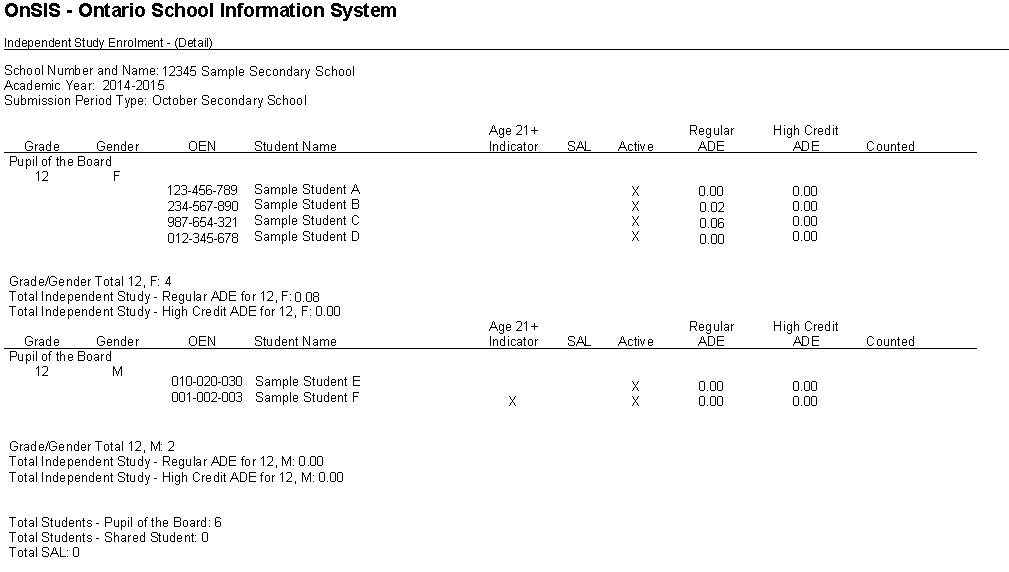
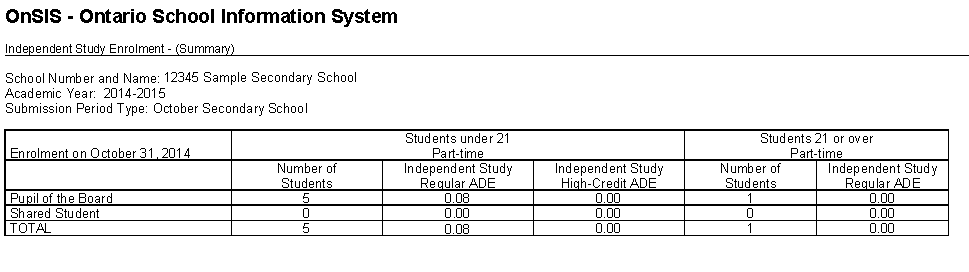
To assist users in verifying data against OnSIS, Maplewood has created 2 new reports. These reports are available through the Maplewood OnSIS application.
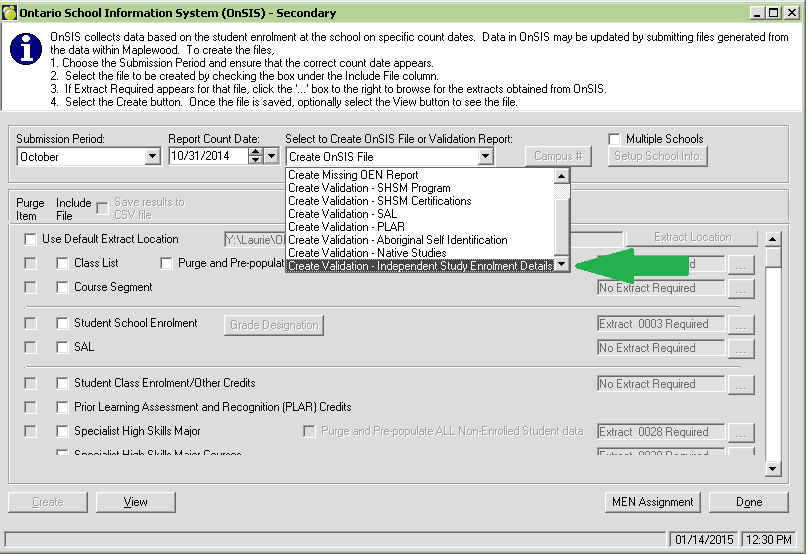
The new reports mirror the ones created through the Ministry OnSIS site, and are called 'Independent Study Enrolment - Detail' and 'Independent Study Enrolment - Summary' - below is a sample of each report.