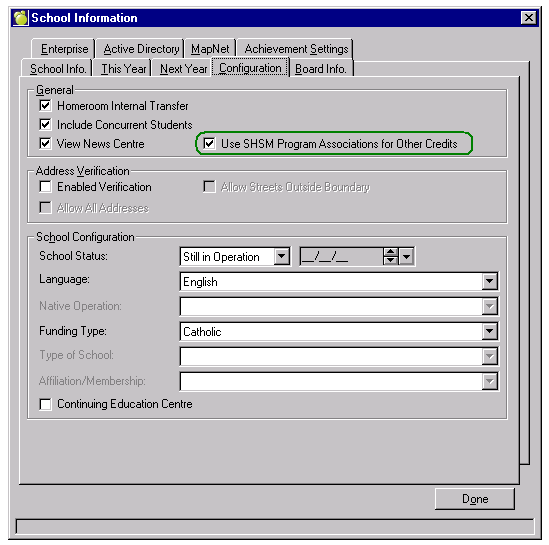
SHSM Program Association - This new feature allows users to track the 'Other' credits (including English and Mathematics) portion of the SHSM sector requirements. To activate this feature, go to File, School Setup, School Information. Select the 'Configuration' Tab, and ensure that the 'Use SHSM Program Associations for Other Credits' has been selected (has a checkmark).
Once this has been completed, Maplewood will no longer only look at the 'Category' area to determine if the code fulfills the requirement. The program will first look at the Program Association to determine if the code is eligible to count toward the requirement, and then look at the 'Category' to fulfill any areas that have not been fulfilled to date.
Setting up the SHSM Program Association:
Users will now see a new area within the 'Codes' file and within the 'Define SHSM Requirements' area.
Codes File
In the Codes file (File, School Setup Codes), a new pull down menu and select button are now visible within the edit screen. Users can manually step through the code file for each SHSM Program that is being offered at the school, and choose which codes are allowed to count toward the English, Mathematics and Other credits for the SHSM Sector requirements.
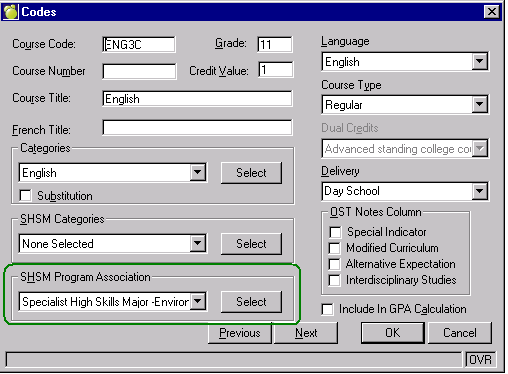
To do this, choose the 'Select' button and the following screen will appear. Note:The pull down menu allows the user to see which SHSM Program sectors area currently assigned to that code.
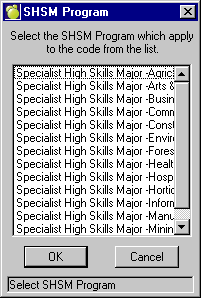
Choose the applicable sectors and then select OK.
Under Marks, Specialist High Skills Major, Define SHSM Requirements a new tab has been added to the edit screen called 'Program Association'. This tab works similar to the 'Define SHSM Categories' area where users can add all associated codes in one location (rather than stepping through each code in the code file).
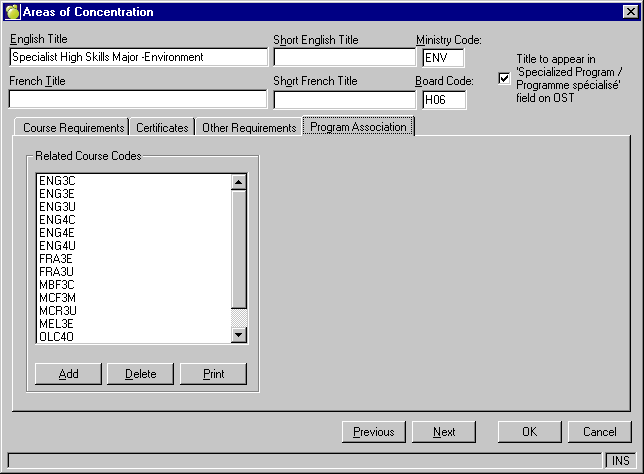
Users can add, delete or print the codes that are currently associated with the SHSM Sector. The addition of related course codes SHOULD INCLUDE ALL ENGLISH, MATHEMATICS as well as any Other credits associated with the requirements for that sector.
The Specialist High Skills Major (SHSM) program is a ministry-approved specialized program that enhances knowledge and skills of career-related learning and is obtained in conjunction with meeting the requirements for the Ontario Secondary School Diploma (OSSD). This program was designed to allow students to focus their learning on a specific economic sector and assist in the transition from secondary school to post secondary endeavours such as apprenticeship, post secondary education or entering the workforce.
For additional information contact your board's Student Success Leader or lead for the SHSM programs. Maplewood is pleased to provide your school/board with the tools required for reporting this new program within the Ontario Secondary School Report Card and the Ontario Student Transcript.
Each Specialist High Skills Major program must be approved by the ministry. Every SHSM must include the following five components, which are outlined in detail in individual guides for each sector:
1. a bundle of 8-10 Grade 11 and Grade 12 credits that includes:
2. sector-recognized certifications and/or training courses.
3. experiential learning and career exploration activities within the sector.
4. "reach ahead" experiences connected with the student's chosen post secondary pathway
5. development of Essential Skills and work habits, and the use of the Ontario Skills Passport (OSP) for purposes of documentation
This document explains how to use the Maplewood system to keep Ontario's Specialist High Skills Major Program up to date with the information in your school.
In Maplewood, the Specialist High Skills Major (SHSM) Program options are located in the Marks menu. The Specialist High Skills Major menu has 5 options: Define SHSM Categories, Define SHSM Category Groups, Define SHSM Requirements, Define Pathways, and Define Certifications and Training.
1. Define SHSM Categories/Define SHSM Category Groups
2. Define Pathways
3. Define SHSM Requirements
4. Define Certifications and Training
5. Applying the Specialist High Skill Major Program to the Student Record
To help explain the 5 menu options, we will look at the Specialist High Skill Major requirements within the Forestry sector.
|
Credits |
Apprenticeship Training |
College |
University |
Workplace |
||||
|
Gr. 11 |
Gr. 12 |
Gr. 11 |
Gr. 12 |
Gr. 11 |
Gr. 12 |
Gr. 11 |
Gr. 12 |
|
|
Forestry Major |
2 |
2 |
2 |
2 |
2 |
2 |
2 |
2 |
|
English |
1 |
|
1 |
|
1 |
|
|
1 |
|
Mathematics |
|
1 |
|
1 |
|
1 |
1 |
|
|
Science or Canadian and World Studies |
1 |
1 |
1 |
1 |
||||
|
Cooperative Education |
2 |
2 |
2 |
2 |
||||
|
Total Credits |
9 |
9 |
9 |
9 |
||||
Each school will receive a pathways chart from the Ministry of Education that states which Course Codes (MCD, LDC and.or Dual Credits) has been approved for all Specialist High Skill Major Sectors (i.e. Agriculture, Forestry etc) running at that school.
1. Define SHSM Categories/Define SHSM Category Groups
In order to track the total credits completed by the student (for this SHSM Sector), schools will need to associate any of the above course codes that are being offered at their school with the "SHSM Forestry (Major)" category. This can be done by going into the 'Define SHSM Categories' area.
Located under Marks, Specialist high Skills Major, Define SHSM Categories the user would highlight the "SHSM Forestry (Major)" from the list of available categories,
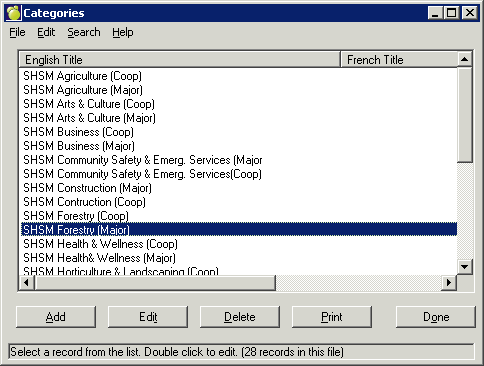
and click the "Edit" button
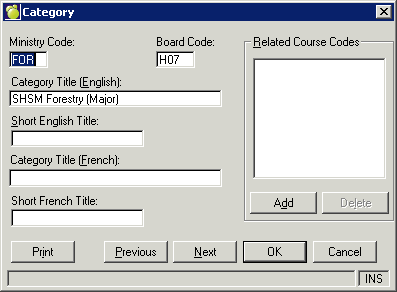
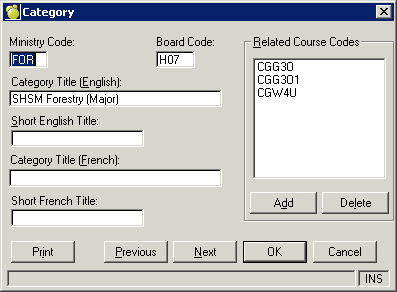
The 'Related Course Codes' for this category is where the user would add the Major courses that are associated with the particular SHSM Sector category. Please note that this does NOT include the 'Other' required courses - such as the English, Math, Science, Business or Canadian and World Studies etc. components just those that are referred to in the Ministry table as the "Major" credits - generally consisting of 2 grade 11 credits, and 2 grade 12 credits.
Select the Add button and a list of course codes will appear. This list is populated with all of the course codes that have been entered in the Codes file (File, School Setup, Codes). Users can select multiple codes at one time. Select all of the codes that the school offers pertaining to the Forestry Sector (Note: Do not select any co-op courses, or Other component courses - only the in Major school component should be selected). Once all of the codes have been highlighted, then select the OK button.
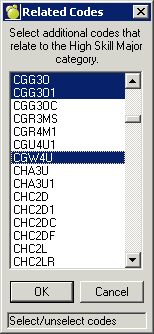
Now the selected codes will appear within the related course codes section.
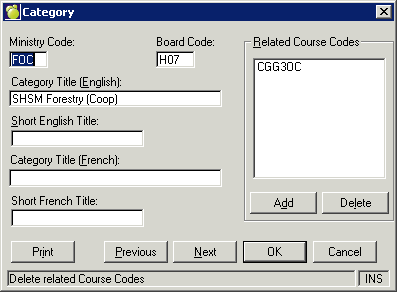
The cooperative Education component of the required credits, must be a coop that is associated with one of the 'Major' credits. For example, a coop in Drama cannot count towards the SHSM Forestry Sector coop. Using the same steps above, choose the SHSM Forestry (Coop) category, and select Edit.
Choose the related course codes where a coop is being offered for all of the 'major' credits that is offered at the school. This list will most likely be shorter than the SHSM Forestry (Major) related course codes list. As generally speaking schools do not offer a coop component for every course that is offered at the school.
Continue the process of adding related course codes for every SHSM that is being offered at your school.
Define SHSM Category Groups
The SHSM Category Group is used in the same way when the 'regular' category groups are used within Maplewood. Category groups are used to define a specific credit achieved within a group of possible credits. For the SHSM component, an example of this would be within the Forestry Sector where a student is required to earn either a Science or a Canadian and World Studies credit, but not both. This Category group could be defined as Sci/CWS Group. If the codes for these courses have the correct category assigned (Science and/or Canadian and World Studies), and this category is selected as a part of a category group, the course can be counted as filling the category group requirement for this Group.
2. Define Pathways
This table has been added to enable the tracking of each pathway. Within some SHSM Sectors, the requirements are different depending upon which Pathway the student is taking (note: this is not the case for all sectors, just some). The Forestry sector is one of these sectors. The Apprenticeship, College and University pathways require that a student earn a Grade 11 English and a Grade 12 Mathematics, whereas the Workplace pathway requires a Grade 12 English and a Grade 11 Mathematics.
|
Credits |
Apprenticeship Training |
College |
University |
Workplace |
||||
|
Gr. 11 |
Gr. 12 |
Gr. 11 |
Gr. 12 |
Gr. 11 |
Gr. 12 |
Gr. 11 |
Gr. 12 |
|
|
Forestry Major |
2 |
2 |
2 |
2 |
2 |
2 |
2 |
2 |
|
English |
1 |
|
1 |
|
1 |
|
|
1 |
|
Mathematics |
|
1 |
|
1 |
|
1 |
1 |
|
|
Science or Canadian and World Studies |
1 |
1 |
1 |
1 |
||||
|
Cooperative Education |
2 |
2 |
2 |
2 |
||||
|
Total Credits |
9 |
9 |
9 |
9 |
||||
In order to track the requirements more precisely, this 'Pathway' option has been incorporated within the Maplewood software, as these pathways are not incorporated in the 'Define Requirements' area.
3. Define SHSM Requirements
Course Requirements Tab
As discussed above the Specialist High Skills Major program requirements may differ depending on which pathway is selected for the student. Users are able to toggle between the different pathways by selecting a different option within the 'Pathway' pull down menu.
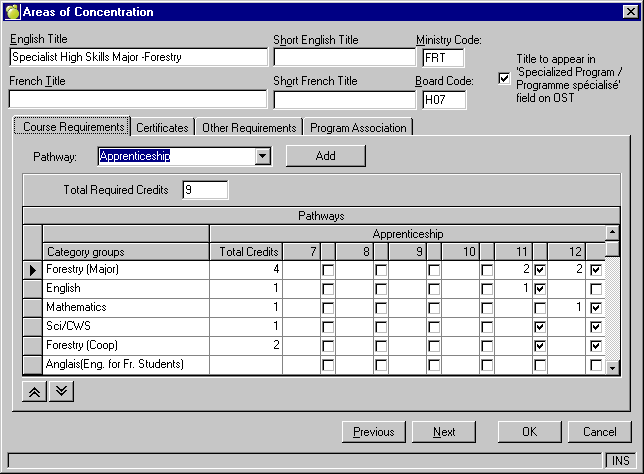
The  options allow the user to move the category groups up or down in the list.
The  represents an 'OR' if not accompanied with a credit value. For example looking at the Sci/CWS category group, the total credits required is 1.0. This can be obtained by taking a Grade 11 OR Grade 12 course.
The when accompanied with a credit value states that this category group must be fulfilled as defined. For example, the 'Forestry (Major)' group has a total of 4.0 credits required. This requirement must be met by taking 2.0 credits in Grade 11 AND 2.0 credit in Grade 12.
Certificates Tab
Within the Ministry's SHSM Sector guides, the certifications and training is broken down into Mandatory and Elective certifications and training.
Sector-Recognized Certifications and Training for the Forestry Sector.
|
Four (4)Compulsory |
|||
|
Standard First Aid |
Cardio-Pulmonary Resuscitation (CPR) Level A |
compass/maps/GPS training |
generic(i.e., not site-specific) instruction about the Workplace |
|
Three (3) electives from the list below |
|||
|
all terrain vehicle (ATV) safety |
bear safety |
personal protective equipment in forestry |
chainsaw safety |
|
fall protection |
harvesting equipment safety |
health and safety |
hoisting and rigging |
|
professional cable skidding |
propane safety |
skidder/loader safety |
suspended access equipment |
|
wilderness first aid |
safe tree cutting and logging |
|
|
|
This is how the above requirements will appear within Maplewood. |
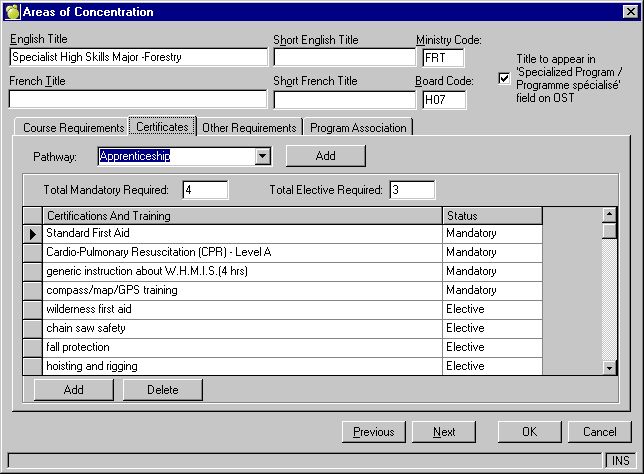
Although currently the certifications and Training requirements do not differ between sectors, Maplewood has enabled the ability to incorporate this distinction should the ministry decide to change these specifications in the future.
Other Requirements
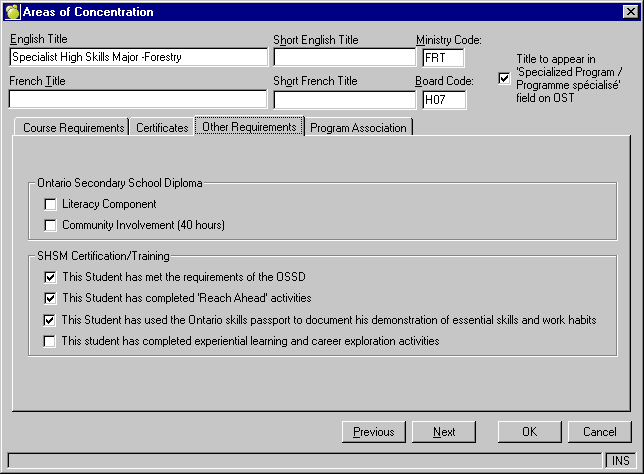
This tab allows users to specify any other areas that the student must complete in order to complete the requirement. In the case of the SHSM Program, students are required to complete 'Reach Ahead' activities, Ontario Skills Passport, experiential learning & career exploration, as well as all requirements of the OSSD.
Program Association
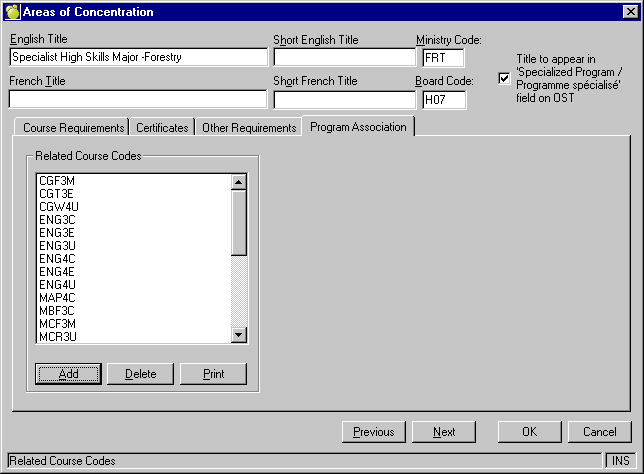
This tab works similar to the 'Define SHSM Categories' area where users can add all associated codes in one location (rather than stepping through each code in the code file). Users can add, delete or print the codes that are currently associated with the SHSM Sector.
The addition of related course codes SHOULD INCLUDE ALL ENGLISH, MATHEMATICS as well as any Other credits associated with the requirements for that sector (i.e. for Forestry this should include all approved Science and/or Canadian and World Studies course codes.
4. Define Certifications and Training
There are 2 types of certifications/training listed in the sector guides.
1) Items that are capitalized are the proper names of specific certifications or training courses/programs that are appropriate for the SHSM (i.e. Standard First Aid, CPR, and General Safety Awareness).
2) Items that are lowercased are names of the areas or categories. Schools/Boards may offer a specific certification or training program that pertains to this area. For example, MIN 011 - "customer service" is the area or category, in this case, a board may offer a certificate program called "Service Excellence" that fits into this category, whereas another board may have a program called "A+ Customer Care" that would fulfill this same requirement. Schools could also offer both options. If schools/boards have a scenario where multiple certifications fulfill a specific area (as listed above) they are able to enter both titles into the table. When doing so, the user must ensure that the OnSIS # (Min # should be a unique entry) are the same for both entries. OnSIS only wants to collect the area or category of these non-specific courses not the title itself.
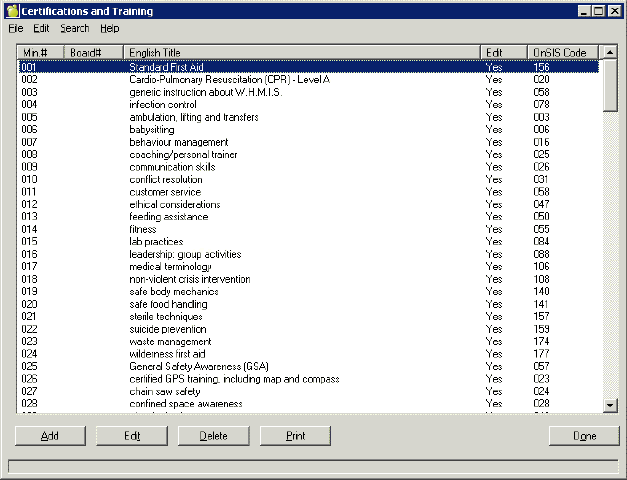
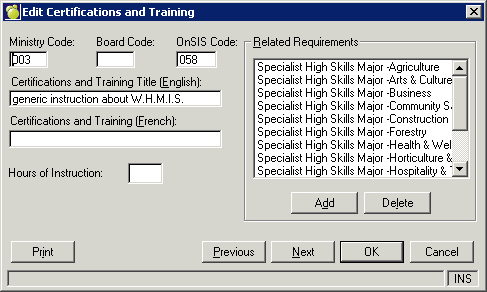
Users are able to create a Certificate to a related SHSM requirement. This can be done within the Edit Certificates/Training, or within the Define Requirements area. Maplewood has automatically linked the current Certificates/Training listed in the sector guides to all of the SHSM sectors. Here is how users can add additional entries to a related requirement.
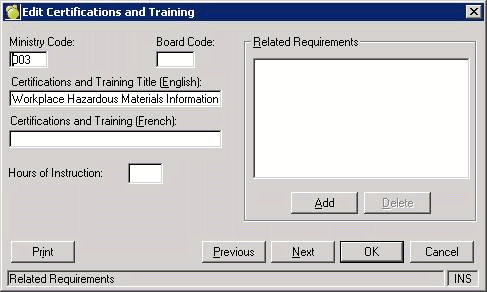
Click the Add button
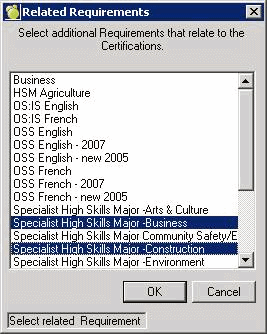
This is a multi-select area, so users can select all of the related requirements by highlighting each with one left click of the mouse, or by using the space bar and arrow keys. Once all related requirements have been highlighted, then select OK. All selected requirements will now appear in the 'Related Requirements' list.
5. Applying the Specialist High Skill Major Program to the Student Record
Assigning information to the student
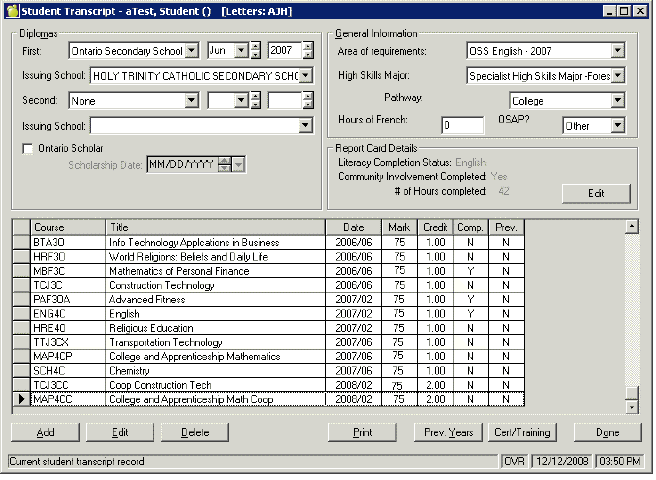
In order to assign a SHSM sector to a student, access that student record's and select the History Tab. Then select Edit. Under the 'General Information' area the user can select which High Skill Major sector the student is working toward completing, as well as the Pathway within that sector. Please note that the Pathway menu option is disabled until a High Skill Major has been selected.
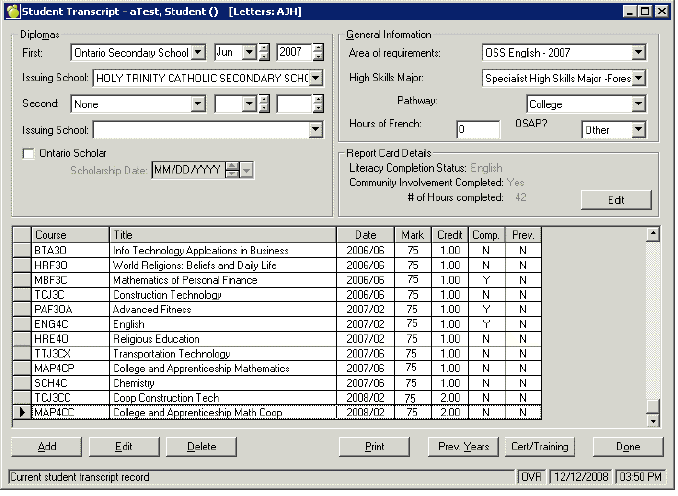
Once this information has been entered for the student click Done. Users will now see that a Requirements pull down menu is now available when viewing the History Tab. This menu option is only activated if the student has more than one requirement assigned (i.e. OSS English and a SHSM). Therefore when stepping through student records users will be able to distinguish between those students who are taking a SHSM and those that are not based on whether or not this menu option is active.
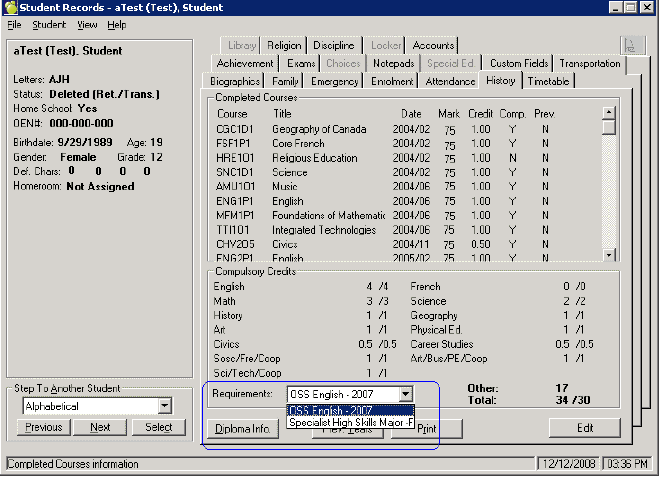
Choosing the SHSM requirement allows users to see which requirements the student has completed, and which areas still require completion. This not only includes the credit information, but also the Certifications and Training as well as the Other Requirements (using the scroll option on the left hand side to view all options).
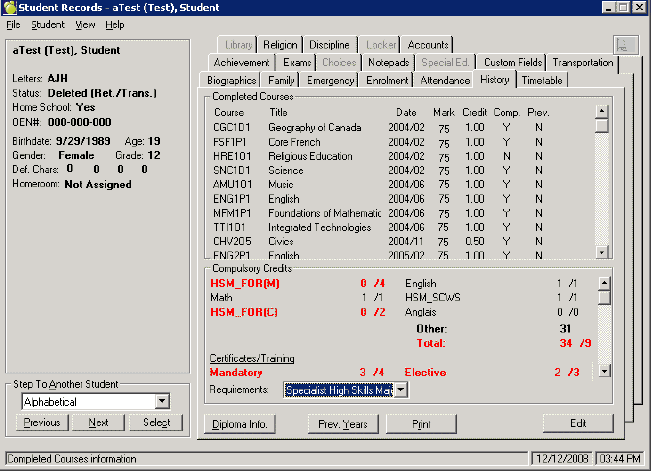
In order to add any certifications or training that the student has completed, go into the edit screen of the history tab. Here users will find a button called Cert/Training (appears just to the left of the Done button).
In this area users are able to enter in any certifications or training that the student completed, as well as the Reach Ahead activities and the Ontario Skills Passport requirements (checkboxes).
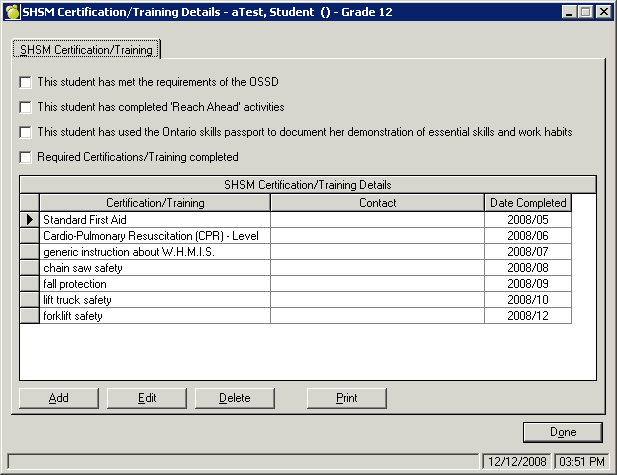
Note: For schools that have students attending another school within the board to complete any of the SHSM components, the main home school must record any certifications and training that are completed by the student. OnSIS will require that that the Main School submit this information in the file transmissions. More information with respect to the OnSIS submissions for Specialist High Skills Major will be available soon.
Report Cards and SHSM
For students who are enrolled in the Specialist high Skills Major Program, the 'Credits' page of the Ontario Provincial Report Card (Secondary version) - includes the SHSM credit totals. This information will only appear for those students registered in the program. Please note that these changes are based on the categories that have been assigned in the codes file. Therefore if your school is offering a course that has not been offered in previous years, please ensure that the course code has been added to the code file with the appropriate High Skill Major category.
Below is a sample printout of what the credits page will look like.
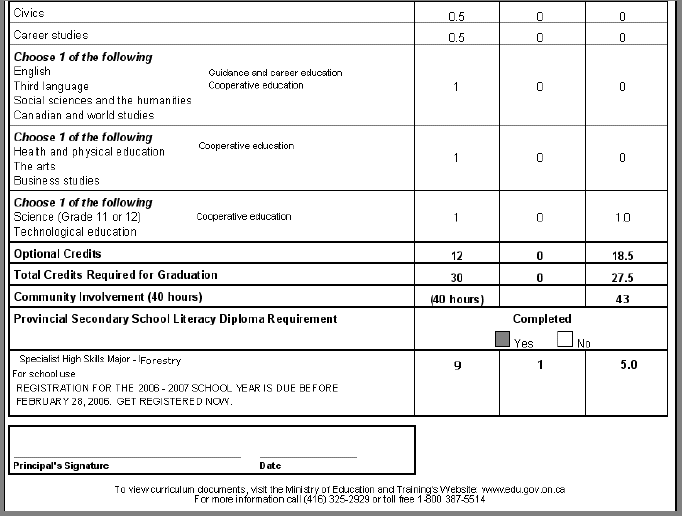
All students who are enrolled in a Specialist High Skills Major program will have features appear on the printing of the OST. This includes an indicator for each SHSM course that has been completed, as well as information regarding which SHSM the student is currently enrolled, and whether the requirements have been completed for this program (see sample below).
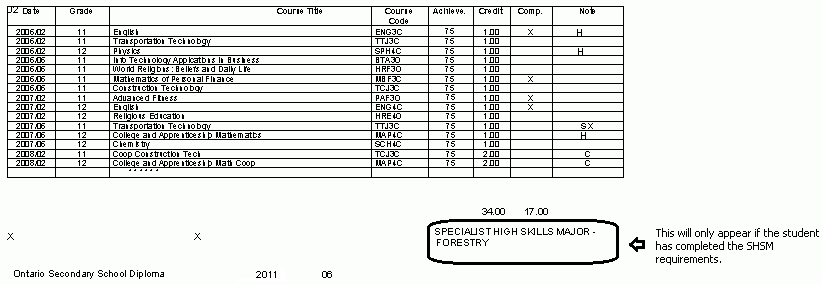
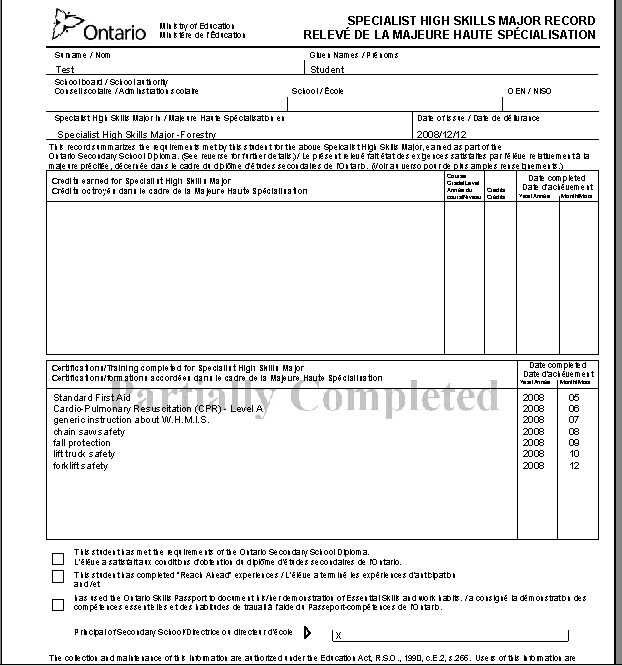
The printing of the Specialist High Skills Major Record can only be done once the student has completed the program, or is transferring to another school. An option within the Print Transcript settings screen has been added to allow users to print a copy of the official Specialist High Skills Major Record.
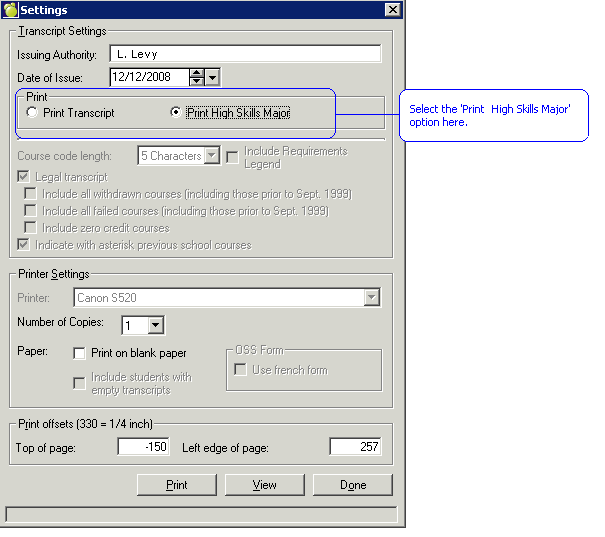
Select the Print on blank paper option to see the grid. A watermark of 'Partially Completed' will appear if the student has not completed all area of requirements for the SHSM program.