| T1 Record Type - File Header (Top) |
| Position |
Length |
Element Name |
Maplewood Location |
| 1 |
2 |
Record Type |
T1 - Automatically populated by Maplewood |
| 3 |
6 |
BSID Number |
File, School Set-up, School Information, Board Number |
| 9 |
12 |
Filler - Value must only be 12 '0's (zeros) |
Automatically populated by Maplewood |
| 21 |
19 |
File Creation Timestamp |
Automatically populated by Maplewood - based on computer date and time (on the computer the file was created)
Format: YYYY-MM-DD:HH:MM:SS
|
| 40 |
1 |
Transmission Type |
Automatically populated by Maplewood |
| 41 |
2 |
Vendor Code |
'19' - Automatically populated by Maplewood |
| 43 |
8 |
Vendor Software Version |
Automatically populated by Maplewood |
| 51 |
1 |
Destination |
Automatically populated by Maplewood |
| 52 |
30 |
Contact Surname |
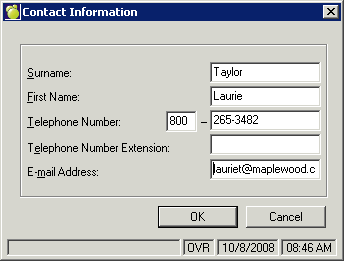
Reports, OCAS/OUAC, Send information to OCAS (or OUAC), Contact Info Button, Surname |
| 82 |
15 |
Contact First Name |
Reports, OCAS/OUAC, Send information to OCAS (or OUAC), Contact Info Button, First Name |
| 97 |
10 |
Contact Telephone Number |
Reports, OCAS/OUAC, Send information to OCAS (or OUAC), Contact Info Button, Telephone Number |
| 107 |
6 |
Contact Telephone Number Extension |
Reports, OCAS/OUAC, Send information to OCAS (or OUAC), Contact Info Button, Telephone Number Extension |
| 113 |
50 |
Contact E-mail Address |
Reports, OCAS/OUAC, Send information to OCAS (or OUAC), Contact Info Button, Email Address |
| 163 |
166 |
Filler - value must only be 166 uppercase 'X's |
Automatically populated by Maplewood |
| S1 Record Type - Demographics |
| Position |
Length |
Element Name |
Maplewood Location |
| 1 |
2 |
Record Type |
S1 - Automatically populated by Maplewood |
| 3 |
6 |
BSID Number |
File, School Set-up, School Information, Board Number |
| 9 |
12 |
Secondary Schools Student Number (SSSN) |
Students, Student Records, Enrolment, SSSN |
| 21 |
9 |
Ministry Identification Number (MIN) |
Students, Student Records, Enrolment, MIN# |
| 30 |
9 |
Ontario Education Number (OEN) |
Students, Student Records, Enrolment, OEN# |
| 39 |
30 |
Surname |
Students, Student Records, Legal Surname
If Legal Surname is not populated, then Surname field is sent.
|
| 69 |
11 |
OCAS Number |
Students, Student Records, Enrolment, OCAS# |
| 80 |
11 |
OUAC Number |
Students, Student Records, Enrolment, OUAC# |
| 91 |
15 |
First Name |
Students, Student Records, Given Name |
| 106 |
15 |
Second Name |
Students, Student Records, Middle Name |
| 121 |
30 |
Previous Surname |
Currently not populated by Maplewood |
| 151 |
8 |
Birth Date |
Students, Student Records, Birth Date |
| 159 |
1 |
Gender Code
- M - Male
- F - Female
|
Students, Student Records, Gender |
| 160 |
60 |
Street Address |
Students, Student Records, Family, Permanent Address, Street Number, and Street Name
If Permanent Address fields are not populated, then Student Address information is sent.
|
| 220 |
30 |
City |
Students, Student Records, Family, Permanent Address, City
If Permanent Address fields are not populated, then Student Address information is sent.
|
| 250 |
2 |
Province Code
- AB - Alberta
- BC - British Columbia
- MB - Manitoba
- NB - New Brunswick
- NL - Newfoundland and Labrador
- NS - Nova Scotia
- NT - Northwest Territories
- NU - Nunavut
- ON -Ontario
- PE - Prince Edward Island
- QC - Quebec
- SK - Saskatchewan
- YT - Yukon Territories
|
Students, Student Records, Family, Permanent Address, Province
If Permanent Address fields are not populated, then Student Address information is sent.
|
| 252 |
6 |
Postal Code |
Students, Student Records, Family, Permanent Address, Postal Code
If Permanent Address fields are not populated, then Student Address information is sent.
|
| 258 |
10 |
Telephone Number |
Students, Student Records, Family, Permanent Address, Telephone Number
If Permanent Address fields are not populated, then Student Address information is sent.
|
| 268 |
9 |
Filler |
Automatically populated by Maplewood - Value must only be 9 zeros |
| 277 |
1 |
Status in Canada Code
- 0 - Not Known
- 1 - Canadian Citizen
- 2 - Aboriginal Ancestry (Indian, Métis, Inuit), when indicated
- 3 - Permanent Resident or Landed Immigrant
- 4 - VISA Student
- 5 - In Canada on the authority of another VISA
- 6 - none of the above and attending an off-shore school
- 7 - Refugee Status
- 9 - Other
|
Students, Student Records, Enrolment, Citizenship |
| 278 |
3 |
Country of Citizenship Code |
Students, Student Records, Enrolment, Country of Origin
With the introduction of OnSIS, Maplewood will now be using the OnSIS number in the Country of Origin Table to populate this field. Exception: any 'CAN' values (for Canada) that are found in the OnSIS number (in the Country of origin table) are changed to a code of 800 when doing the OCAS/OUAC exports.
If Country of Origin is blank, then Maplewood will automatically send 800 (Canada) in the Transmission.
|
| 281 |
6 |
Date of Entry into Canada |
Students, Student Records, Enrolment, Entry Date to Canada |
| 287 |
1 |
First Language Code
- 1 - English
- 2 - French
- 3 - Other
|
Students, Student Records, Enrolment, First Language |
| 288 |
1 |
Language of Correspondence
- 1 - English
- 2 - French
|
Students, Student Records, Enrolment, First Language |
| 289 |
1 |
Grad Status Code
- 0 - Not Known
- 1 - OSSD already achieved under OS;IS
- 2 - Will achieve OSSD under OS;IS by the start of September of the current academic school year
- 3 - No the student has not already achieved their OSSD and no the student will not achieved their OSSD by the start of September of the current academic school year
- 4 - OSSD already achieved under OSS
- 5 - Will achieve OSSD under OSS by the start of September of the current academic school year
- 6 - No the student has not already achieved their OSSC and No the student will not achieve their OSSC by start of September of the current academic year.
7 - OSSC already achieved under OSS
8 - Will achieve OSSC under OSS by the start of September of the current academic year
If grad status code is 1, 4 then OSSD issue date cannot be a future date, because the student has already graduated.
If grad status code is 0, 2, 3, 5 then OSSD issue date must be '000000', because the student has not yet graduated.
Once OSSD has been entered, it may not be removed via an electronic transmission
|
Information sent is based on what is populated in the student's transcript.
To edit this information go to Students, Student Records, History, Edit
Area of Requirements will determine if student is under OSS or OS;IS.
If 'First Diploma' has OSSD as diploma selected (and has a date) then:
'1' - is sent if OS;IS has been selected under the Area of Requirements
'4' is sent if OSS (English of French) or OSS - new 2005 (English or French) has been selected under the Area of Requirements
If diploma has not been granted then:
'2' - is sent if OS;IS has been selected under the Area of Requirements
'5' is sent if OSS (English of French) or OSS - new 2005 (English or French) has been selected under the Area of Requirements
If 'First Diploma' has OSSC as diploma selected (and has a date) then:
'7' is sent if OSS (English of French) or OSS - new 2005 (English or French) has been selected under the Area of Requirements
If diploma has not been granted then:
'8' is sent if OSS (English of French) or OSS - new 2005 (English or French) has been selected under the Area of Requirements
|
| 290 |
1 |
Years in Ontario Secondary School
Number of years completed between '1' and '8' or '9' if more than 8 years. Partial years are rounded down (e.g. 4.5 years will be transmitted as 4)
|
Calculated based on Entry Date to Secondary School.
Students, Student Records, Enrolment, Entry Date to Secondary School
|
| 291 |
6 |
OSSD Issue Date |
Students, Student Records, History, Edit, First Diploma Date |
| 297 |
1 |
OSAP Assistance
- Y - Yes
- N - No
|
Students, Student Records, History, Edit, OSAP? |
| 298 |
1 |
Community Involvement Completed
- 0 - Not Reported
- 1 - Yes
- 2 - No
- 3 - N/A
|
Students, Student Records, View, Report Card Details & EQAO Tests, Community Involvement
N/A will be sent for OS;IS students. OSS students will be sent as 1 (Yes) or 2 (No).
|
| 299 |
1 |
SS Literacy Requirement
- A space - Not completed
- E - English
- F - French
- B - Both
- X - Not Applicable
- N - Not Reported
|
Students, Student Records, View, Report Card Details & EQAO Tests, Literacy Component Tab, Completion Status |
| 300 |
3 |
OSSC Issue Date |
Students, Student Records, History, Edit, First Diploma Date
Under Students, History, Edit, Diplomas - If Student has been assigned an - Ontario Secondary School Certificate (MIN 07) in First Diploma Field. Then Maplewood will populate this field.
|
| 306 |
1 |
Specialist High Skills Major (SHSM) Completion |
Specialist High Skills Major (SHSM) Program Completion
Valid entries:
A Space - Not Reported (students not enrolled in SHSM)
Y - Yes (student is enrolled and has met all SHSM requirements).
SHSM Completion will only be sent as Y (Yes) if the student has an SHSM Completion Date entered (Within History, Edit). If date is not populated (and student is enrolled in the program), then SHSM Completion will be sent as N (No).
|
| 307 |
3 |
Specialist High Skills Major (SHSM) Program Code |
Specialist High Skills Major (SHSM) Program Code is a code to identify the current SHSM program a student is enrolled in or has completed (based on OnSIS tables). This can be found on the History Tab (edit screen).
Maplewood will be sending the MIN of the SHSM Program (Marks, Specialist High Skills Major, Define Specialist High Skills Major Requirements).
Note: A validation check will be done on the Specialist High Skills Major Program Code to ensure that only valid SHSM codes are being included in the file. If an invalid code is found, then a warning will appear on the printout that appears at the end of the file creation.
|
| 310 |
1 |
Home School Indicator |
Code to identify if the reporting school (BSID Number) is the student’s home school.
This field will be populated based on the Main School Holder of the OSR field. If this field has 'This School' selected then Maplewood will send 'Y' (for yes) in the file.
Note: As with other areas within this program, Maplewood will only be looking at current status and will not be looking at residency internal transfers.
|
| 311 |
19 |
Filler |
Automatically populated by Maplewood - 18 uppercase X's |
| G1 Record Type - Grades |
| Position |
Length |
Element Name |
Maplewood Location |
| 1 |
2 |
Record Type |
G1 - Automatically populated by Maplewood |
| 3 |
6 |
BSID Number |
File, School Set-up, School Information, Board Number |
| 9 |
12 |
Secondary Schools Student Number (SSSN) |
Students, Student Records, Enrolment, SSSN |
| 21 |
9 |
Ministry Identification Number (MIN) |
Students, Student Records, Enrolment, MIN# |
| 30 |
9 |
Ontario Education Number (OEN) |
Students, Student Records, Enrolment, OEN# |
| 39 |
30 |
Surname |
Students, Student Records, Legal Surname
If Legal Surname is not populated, then Surname field is sent.
|
| 69 |
11 |
OCAS Number |
Students, Student Records, Enrolment, OCAS# |
| 80 |
11 |
OUAC Number |
Students, Student Records, Enrolment, OUAC# |
| 91 |
35 |
Course 1 |
See Course definition below |
| 126 |
35 |
Course 2 |
See Course definition below |
| 161 |
35 |
Course 3 |
See Course definition below |
| 196 |
35 |
Course 4 |
See Course definition below |
| 231 |
35 |
Course 5 |
See Course definition below |
| 266 |
35 |
Course 6 |
See Course definition below |
| 301 |
28 |
Filler - Value must only be 28 uppercase 'x's |
Automatically populated by Maplewood |
| where Course is defined as follows: |
|
|
|
| |
6 |
Course Code
Ontario Ministry of Education approved 'Course Code'
Default Value: 'NOTUSD'
|
Classes not yet completed (i.e. Mid-Term Marks and updated full year course marks) are pulled from Students, Student Records, Timetable
and
Completed courses are pulled from Students, Student Records, History
Timetable Course Codes may be edited through File, School Set-up, Courses
History or Transcript Course Codes may be edited through File, School Set-up, Codes
|
| |
1 |
Course Status
A Space - Not Reported
R - Repeated (The student repeated the course and that the final mark given for the successful attempt is the lower passing mark. Credit value must be 0.00 and the Grade Type must be F - Final)
W - Withdrawn ( The Student withdrew from the course. Credit value of 0.00 and the Grade Type must be F - Final)
D - Deleted (The student has dropped the course. No mark given and zero credit value. Grade Type must be P - Projected or C - Current.
X - Not Applicable (the student has completed the non-credit course with a passing mark and zero credit value - Grade Type must be F - Final)
|
Classes not yet completed (i.e. Mid-Term Marks and updated full year course marks) are pulled from Students, Student Records, Timetable
and
Completed courses are pulled from Students, Student Records, History
Deleted Courses are pulled from Students, Student Records, History, Edit, Register
|
| |
1 |
Course Delivery
- D - Day School
- N - Night School
- S - Summer School
- C - Correspondence
- O - Other
|
Classes not yet completed (i.e. Mid-Term Marks and updated full year course marks) are pulled from Students, Student Records, Timetable
and
Completed courses are pulled from Students, Student Records, History
To edit Timetable course information go to File, School Set up, Classes, Edit, Delivery
To edit courses that appear within the transcript (History) information go to File, School Set up, Codes, Edit, Delivery
|
| |
1 |
Course Type
- R- Regular
-
- O - Co-op Out of School Component (Co-op Courses identified as O must contain code C - Cooperative Education - in the Note field)
-
-
|
Classes not yet completed (i.e. Mid-Term Marks and updated full year course marks) are pulled from Students, Student Records, Timetable
and
Completed courses are pulled from Students, Student Records, History
To edit Timetable course information go to File, School Set up, Classes, Edit, Type of Course
To edit courses that appear within the transcript (History) information go to File, School Set up, Codes, Edit, Course Type
Note: All other Course Types assigned in Maplewood (including E-Learning) are to be sent as R - Regular as per instructions from OCAS/OUAC
|
| |
1 |
Language of Instruction |
Classes not yet completed (i.e. Mid-Term Marks and updated full year course marks) are pulled from Students, Student Records, Timetable
To change the Language of Instruction go to File School Setup Classes, Edit, Language
and
Completed courses are pulled from Students, Student Records, History
To change the Language of Instruction go to File School Setup Codes, Edit, Language
|
| |
1 |
Grade Type
- A Space - if and only if a course code is 'NOTUSD' then value of a space can be transmitted
- P - Projected
- C - Currently enrolled
- M - Midterm
- F - Final
|
- P - Classes that appear in timetable that have not yet begun (i.e. Transmission 1 - Semester 2 classes are sent as P)
- C - If no marks are being sent (i.e. Transmission 2, Sem 1 Final Marks, and Sem 2 classes are sent. Sem 1 classes are sent as a 'Grade Type' of F and Sem 2 Classes are sent as a 'Grade Type' of C)
- M - If marks have been selected to be sent (i.e. Transmission 2 - Full Year Classes with marks - if mark column is selected; or Transmission 3 - Semester 2 midterm marks - if mark column is selected)
- F - is sent for all courses that appear in the transcript
|
| |
3 |
Grade
If Grade Type of 'M' or 'F' then the grade field must contain a grade in an Ontario Ministry of Education approved format. For example:
- '075' = 75%
- '068' = 67.5% (no decimal places, round to the nearest percentage)
- 'EQV' = Equivalent
- 'N/A' = Not Applicable
If course code is 'NOTUSD' or grade type is 'P' or 'C', then value of all spaces can be transmitted.
|
Classes not yet completed (i.e. Mid-Term Marks and updated full year course marks) are pulled from Students, Student Records, Achievement, Mark (from specified mark column)
and
Completed courses are pulled from Students, Student Records, History, Mark
|
| |
4 |
Credit Value
Can only contain the Ministry assigned credit value for the course code in the specified format. For example:
0000 - 0.0 credits, used where course status is Deleted.
- 0100 - 1.0 credit
- 0150 - 1.5 credits
- 0050 - 0.5 credit
Implied decimal point after the 2 left-most digits.
|
Classes not yet completed (i.e. Mid-Term Marks and updated full year course marks) are pulled from Students, Student Records, Timetable
To edit Timetable course credits, go to File, School Set up, Classes, Edit, Credit Value
and
Completed courses are pulled from Students, Student Records, History, Credit Value
|
| |
6 |
Completion Date (YYYYMM)
The date that the 'Course Code' was completed or is expected to be completed.
If course code is 'NOTUSD' then send all zeros
|
Classes not yet completed (i.e. Mid-Term Marks and updated full year course marks) the completion date is based on the Semester End date.
To verify that the class is in the correct semester go to File, School Setup, Classes.
To change the end date of a semester go to File School Setup Calendar Edit...Edit, Semesters
For completed courses, this information is pulled from Students, Student Records, History, Completion Date
|
| |
1 |
Note 1
- 'S’ = Extraordinary circumstances
- ‘M’ = Modified curriculum expectations that do not lead to a credit
- ‘I’ = Interdisciplinary studies
- ‘F’ = Course taught in French Core, Extended or Immersion Program
- ‘C’ = Co-operative education
- ‘A’ = Alternative expectations, which do not lead to a credit
- ‘H’ = Specialist High Skills major
- ‘X’ = Substitution for a compulsory credit course
- 'B’ = Credit count adjusted, combined courses exceed maximum credit value
- 'P' - course taken at a Ministry Inspected Ontario Private School
-
'T' - Team Taught Dual Credit Course
|
Classes not yet completed (i.e. Mid-Term Marks and updated full year course marks) the 'Notes' information is populated as follows: Maplewood performs a search using comparing the classes file and the code file. If match is found between the class code and the code file, and OST notes exists, then the information will be sent in the OCAS/OUAC transmission files. If no match is found then no 'Notes' information will be sent.
Completed courses are pulled from Students, Student Records, History
To edit the information for a specific code, go to File, School Set-up, Codes, OST Notes Column
Note: Courses with a Note of A or M (no credit) must have a Course Status of "X" so that the OCAS/OUAC systems will accept them with zero credit.
|
| |
1 |
Note 2
- 'S’ = Extraordinary circumstances
- ‘M’ = Modified curriculum expectations that do not lead to a credit
- ‘I’ = Interdisciplinary studies
- ‘F’ = Course taught in French Core, Extended or Immersion Program
- ‘C’ = Co-operative education
- ‘A’ = Alternative expectations, which do not lead to a credit
- ‘H’ = Specialist High Skills major
- ‘X’ = Substitution for a compulsory credit course
- 'B’ = Credit count adjusted, combined courses exceed maximum credit value
- 'P' - course taken at a Ministry Inspected Ontario Private School
- 'T' - Team Taught Dual Credit Course
|
Classes not yet completed (i.e. Mid-Term Marks and updated full year course marks) the 'Notes' information is populated as follows: Maplewood performs a search using comparing the classes file and the code file. If match is found between the class code and the code file, and OST notes exists, then the information will be sent in the OCAS/OUAC transmission files. If no match is found then no 'Notes' information will be sent.
Completed courses are pulled from Students, Student Records, History
To edit the information for a specific code, go to File, School Set-up, Codes, OST Notes Column
Note: Courses with a Note of A or M (no credit) must have a Course Status of "X" so that the OCAS/OUAC systems will accept them with zero credit.
|
| |
1 |
Note 3
- 'S’ = Extraordinary circumstances
- ‘M’ = Modified curriculum expectations that do not lead to a credit
- ‘I’ = Interdisciplinary studies
- ‘F’ = Course taught in French Core, Extended or Immersion Program
- ‘C’ = Co-operative education
- ‘A’ = Alternative expectations, which do not lead to a credit
- ‘H’ = Specialist High Skills major
- ‘X’ = Substitution for a compulsory credit course
- 'B’ = Credit count adjusted, combined courses exceed maximum credit value
- 'P' - course taken at a Ministry Inspected Ontario Private School
- 'T' - Team Taught Dual Credit Course
|
Classes not yet completed (i.e. Mid-Term Marks and updated full year course marks) the 'Notes' information is populated as follows: Maplewood performs a search using comparing the classes file and the code file. If match is found between the class code and the code file, and OST notes exists, then the information will be sent in the OCAS/OUAC transmission files. If no match is found then no 'Notes' information will be sent.
Completed courses are pulled from Students, Student Records, History
To edit the information for a specific code, go to File, School Set-up, Codes, OST Notes Column
Note: Courses with a Note of A or M (no credit) must have a Course Status of "X" so that the OCAS/OUAC systems will accept them with zero credit.
|
| |
1 |
Note 4
- 'S’ = Extraordinary circumstances
- ‘M’ = Modified curriculum expectations that do not lead to a credit
- ‘I’ = Interdisciplinary studies
- ‘F’ = Course taught in French Core, Extended or Immersion Program
- ‘C’ = Co-operative education
- ‘A’ = Alternative expectations, which do not lead to a credit
- ‘H’ = Specialist High Skills major
- ‘X’ = Substitution for a compulsory credit course
- 'B’ = Credit count adjusted, combined courses exceed maximum credit value
- 'P' - course taken at a Ministry Inspected Ontario Private School
- 'T' - Team Taught Dual Credit Course
|
Classes not yet completed (i.e. Mid-Term Marks and updated full year course marks) the 'Notes' information is populated as follows: Maplewood performs a search using comparing the classes file and the code file. If match is found between the class code and the code file, and OST notes exists, then the information will be sent in the OCAS/OUAC transmission files. If no match is found then no 'Notes' information will be sent.
Completed courses are pulled from Students, Student Records, History
To edit the information for a specific code, go to File, School Set-up, Codes, OST Notes Column
Note: Courses with a Note of A or M (no credit) must have a Course Status of "X" so that the OCAS/OUAC systems will accept them with zero credit.
|
| |
1 |
Note 5
- 'S’ = Extraordinary circumstances
- ‘M’ = Modified curriculum expectations that do not lead to a credit
- ‘I’ = Interdisciplinary studies
- ‘F’ = Course taught in French Core, Extended or Immersion Program
- ‘C’ = Co-operative education
- ‘A’ = Alternative expectations, which do not lead to a credit
- ‘H’ = Specialist High Skills major
- ‘X’ = Substitution for a compulsory credit course
- 'B’ = Credit count adjusted, combined courses exceed maximum credit value
- 'P' - course taken at a Ministry Inspected Ontario Private School
- 'T' - Team Taught Dual Credit Course
|
Classes not yet completed (i.e. Mid-Term Marks and updated full year course marks) the 'Notes' information is populated as follows: Maplewood performs a search using comparing the classes file and the code file. If match is found between the class code and the code file, and OST notes exists, then the information will be sent in the OCAS/OUAC transmission files. If no match is found then no 'Notes' information will be sent.
Completed courses are pulled from Students, Student Records, History
To edit the information for a specific code, go to File, School Set-up, Codes, OST Notes Column
Note: Courses with a Note of A or M (no credit) must have a Course Status of "X" so that the OCAS/OUAC systems will accept them with zero credit.
|
| |
6 |
Course MIDENT (BSID)
The Ministry of Education assigned 6 digit MIDENT 9BSID) number of the school where the course was completed.
|
MIDENT number for courses completed at a Previous School will now be sent in the course information area of the file. Users now have the ability to select "Previous School Name' on any courses that have been flagged as 'Previous School' within the editing of Student transcripts (History Tab, Edit). This new pull-down menu is a reference to the list of "Schools" that have been defined by your school/board (File, School Setup, Schools). Please ensure that the correct MIDENT number for each school is correctly entered in the 'Number' field.
If course has been flagged as Previous School (or Private School) then Maplewood will send MIDENT of the school that course was completed at. If Previous school (or Private School) has been selected and there is no reference to the schools file then send 0000000 as the MIDENT.
If course has no MIDENT reference, the student will appear on the validation report printout (which will appear after the program attempts to create the OCAS/OUAC file).
|
| B1 Record Type - File Trailer (Bottom) |
| Position |
Length |
Element Name |
Maplewood Location |
| 1 |
2 |
Record Type |
B1 - Automatically populated by Maplewood |
| 3 |
6 |
BSID Number |
File, School Set-up, School Information, Board Number |
| 9 |
12 |
Filler - Value must only be 12 '9's |
Automatically populated by Maplewood |
| 21 |
19 |
File Creation Timestamp |
Automatically populated by Maplewood - based on computer date and time (on the computer the file was created)
Format: YYYY-MM-DD:HH:MM:SS
|
| 40 |
6 |
Total S1 Records |
Automatically calculated and populated by Maplewood |
| 46 |
6 |
Total G1 Records |
Automatically calculated and populated by Maplewood |
| 52 |
277 |
Filler - Value must only be 277 uppercase 'X's |
Automatically populated by Maplewood |