The Postal Codes Report program is used by publicly funded schools in Ontario to generate send postal code information to the Ontario Ministry of Education. The Postal Code Report includes a breakdown of the number of males and females living in each specified postal code in the school. The program requires that the school's MIDENT (Ministry of Education Number) be specified in the structure file. Please ensure this number is correct before creating the file. To verify the number within Maplewood, choose File, School Setup, School Information.
Create the File
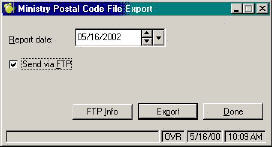
1. From the Maplewood Administration System, choose Reports, Postal Code Report. Elementary only users will see this Export box.
Maplewood Secondary users will have an option to create a postal code report for the elementary schools. This would only be used by schools having combined elementary and secondary schools in one set of Maplewood data.
Note: If the Elementary Report option is selected, enter the Ministry Identification Number for the elementary school in the school number box. A student's entry date to secondary school determines whether he/she counts as an elementary or secondary student.
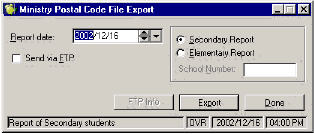
2. Enter the report date, or select it from the drop-down calendar.
3. Click Export to create the file.
4. Specify the destination location of the file (e, g, c:\ministry) and click Save. If the program detects invalid postal codes when it is creating the file, you will receive a message to View or Print Students with invalid codes upon completion. An invalid Postal Code means there is a blank value left in the code or it is not in the correct format of e.g. N6H 5L8. Correct the Postal Code errors by choosing Students, Student Records (select student from the list), Family tab. Repeat Step 3 until there are no invalid codes.
This is a Postal Code sample printout:
012345 N6H5L8 0017 0008
012345 N2X4K6 0012 0010
012345 uuuuuu 0003 0002
The first 6 numbers represent your school number (012345).
The next 6 characters represent the given postal code (N6H5L8).
The next 4 numbers represent females (0017).
The final 4 numbers represent males (0008).
Some postal codes may be unknown. This is represented by ( uuuuuu) in the file.
The file created during the export process may be send via FTP or Email. Depending on the infrastructure and permissions, select the method that best fits your school.
Sending Via FTP (File Transfer Protocol)
To send information via modem from one server to another:
1. Click the Send via FTP checkbox to enable the FTP Info button.
2. Click the FTP Info button for a setup box:
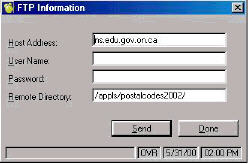
Host Address: ns.edu.gov.on.ca is the default to send to the Ministry. You can change this to your Board's FTP site.
User Name: if sending to the Ministry enter "anonymous".
Password: if sending to the Ministry enter your email address.
Remote Directory: this field defaults to the Ministry file path. If you are sending your report to your Board you will need to find out its file path.
4. Click Send.
5. If the prompt reports the transfer as unsuccessful, please check your connection to the internet, your password, your user name and the FTP address. The FTP attempt may also have been unsuccessful due to a file with the same name. In this case, contact the Ministry/Board to remove the original file.
1. Open your email program.
2. Create a new email message.
3. Address the email to "dana.d'amore@edu.gov.on.ca".
4. Enter the email subject:
"Postal Codes 2002 for Bxxxxx" (if you are a Board) or
"Postal Codes 2002 for Sxxxxxx" (if you are a School)
xxxxx = Board or School number
5. Attach the Postal Code exported file to the email message.