EQAO (Education Quality & Accountability Office) test results may be imported into the School Wide Assessment area in Maplewood and they are retained as part of the student's record for historical reference.
The following steps must be followed in order to import the EQAO results into Maplewood, from a file provided by EQAO:
Step 1: Central Office Defines the Assessment
Step 2: Central Office Imports the Assessment Results (if available)
Note: Access to Assessment functions depends on security rights.
Ontario Secondary School Literacy Test (OSSLT) scores may be imported into an assessment setup for this purpose (similar to the grade 3, 6 and 9 assessments), and/or the literacy test results (minus the student's score) may be imported into the student's Literacy test fields in the student's record. Please see OSSLT_(Ontario_Secondary_School_Literacy_Test)_Import for information on this process.
Note: The setup is done in Central Office and therefore, the options shown here are available through Central Office only.
Before defining the assessment, it may be necessary to create the appropriate table entries for the version, subject, strand, and time period. When creating a new assessment/test, the test version, subject, strand (optional), and time period are selected from the corresponding tables. These tables must be set up before defining the assessment. If these tables are already defined, proceed directly to step e._Define_the_Assessment/Test.
Important Note: Please use the identifiers/titles noted here. This will allow Maplewood's data mining views to find EQAO results, should you require them for other purposes.
i. When defining the subject, the title must be Reading, Writing or Math (b. Define the Subject).
ii. Grade 3, 6 and 9 EQAO Assessments must be defined using the identifier 3EQAO, 6EQAO or 9EQAO (step e._Define_the_Assessment/Test).
iii. All other titles/identifiers provided below may be changed to match the needs of the board.
iv. Ontario Secondary School Literacy Test scores may be imported into an assessment setup for this purpose (similar to the grade 3, 6 and 9 assessments), or the literacy test results may be imported into the student's Literacy test fields in the student's record.
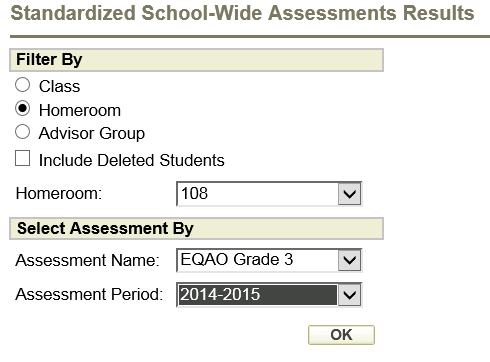
The example setup in this document will result in a set up similar to this in Maplewood connectEd, where teachers can access EQAO results after they are imported. In Maplewood connectEd, first the teacher selects the students (by class, homeroom, or advisor group) and then selects the assessment name and time period as shown here:
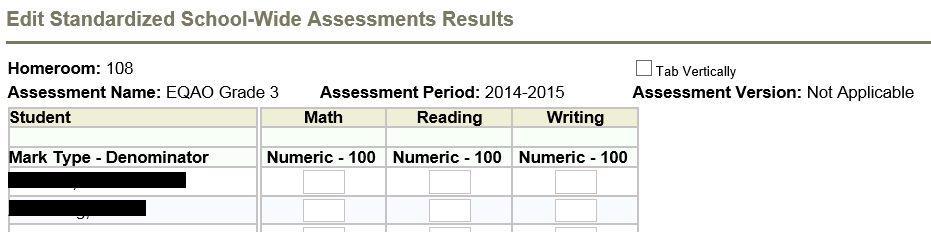
With the above selection, following the setup steps described below, will present the following interface in Maplewood connectEd. The students' EQAO results, once imported or manually entered, will appear in the cells for math, reading and writing.
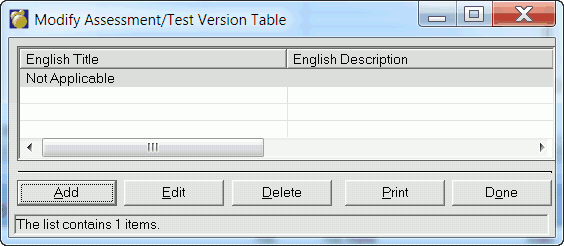
Every assessment test has a version, even if the version is something such as Not Applicable or Unknown. Versions are sometimes used when a test gets updated in subsequent years, and the version field can be used to track the version of the test that the student took. The version setup is completely user-definable, however, to simplify the setup, we are suggesting just create a version called Not Applicable.
Note: Each student's assessment also has a time period that can be used to indicate when the student took the time. If dates are added to the version titles, new assessments/test may need to be defined each year (step e) causing additional work.
From Central Office, select Marks, Assessment Results, Define Assessment/Test Version. If the version number of the test is not listed, use the Add button to add a new version to the table of versions. The description and identifier are optional.
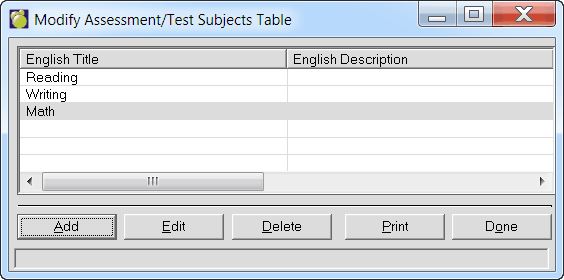
Select Marks, Assessment Results, Define Assessment/Test Subject. If the subject of the test is not listed, use the Add button to add a new subject to the table of subjects. For grade 3 and 6 EQAO tests, the subjects must be Math, Reading and Writing. Please set up the titles exactly as shown here since the title is used when extracting data using Maplewood's data mining views. The description and identifier are optional.
c. Define the Strand (optional)
Strands allow for further categorization of the above defined Subjects. Strands are optional, therefore it is possible to define Reading as a subject rather than a strand, as is required for the EQAO data mining views. No strands are required for EQAO imports.
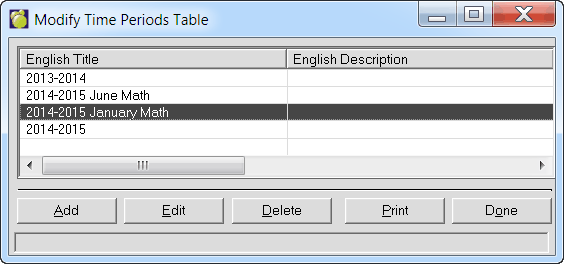
Each assessment has a time period, a user-definable time period that provides information as to when the student is assessed. The Title can be anything (e.g. 2013-2014, Spring 2014, Winter 2015, etc). Set the Start Date and End Date of the assessment. Dates can be any calendar range (does not have to fall within the school calendar). The description is optional. Time periods are not part of the definition of the assessment (step e), however the entry/import of student results will require the selection of the assessment (defined in step e) and the time period defined here. In this example, if a board wants to distinguish between the grade 9 Math that can be written in January vs those who write the test in June, then specific time periods may be setup for the January and June Math as shown here.
From Central Office, select Marks, Assessment Results, Define Assessment/Tests. Enter the title of the assessment, the starting grade (students in this grade and higher may be administered the assessment/test *), and an Identifier. Grade 3, 6 and 9 EQAO Assessments must be defined using the identifier 3EQAO, 6EQAO or 9EQAO (note the last letter is a capital "O", not a zero).
* All students in that starting grade will show that assessment in their student record regardless of whether any test results have been entered. For those in higher grades, the assessment/test will only appear in the student's record if the student has results entered.
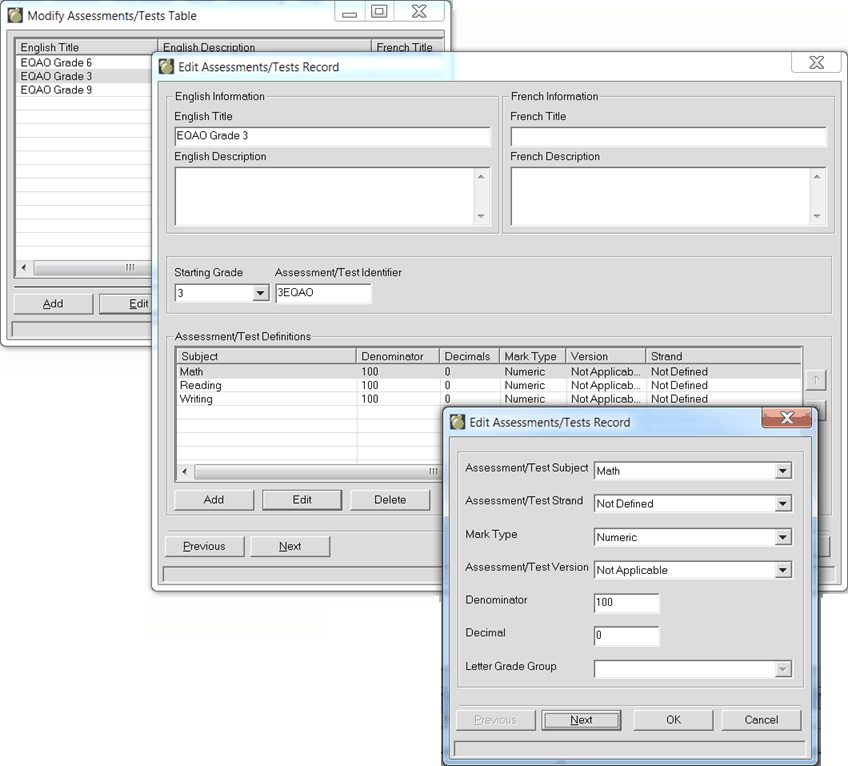
In this example, the same assessment definitions may be used each year since the assessments were defined without any date references. The time period is separate from the assessment definition, so the user selects the assessment and time period during the entry or import of the test results. Grade 3 and 6 are setup the same except for the grade reference of 3 vs 6 as shown here for EQAO Grade 3.
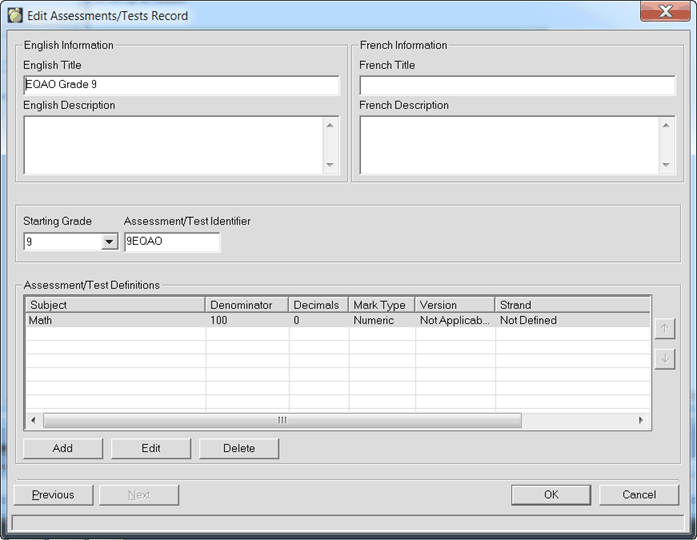
EQAO Grade 9 would be set up as follows:
After this information is done, the assessment/test is ready for the students' results as per Step_2:__Central_Office_Imports_the_Assessment_Results_(if_available).
Note: If you require additional information on the creation of assessments, please see chapter 5 – Marks, refer to the section titled School Wide Assessment/Test Results (Standardized Tests). It will explain the various Mark Type and Letter Grade Group options in the assessment setup. Since EQAO results are numeric, this additional information is not covered here.
If the EQAO results are available in a file, they may be imported into Maplewood. The results must be in a file format such as csv or txt, and there must be a common field delimiter between fields (e.g. tab or comma between each field in the file).
To import assessment/test results from a file, follow these steps:
i. The assessment/test must be set up following the instructions in Step_1:_Central_Office_Defines_the_Assessment.
ii. From Central Office, select Marks, Assessment Results, Import Assessment/Test Results.
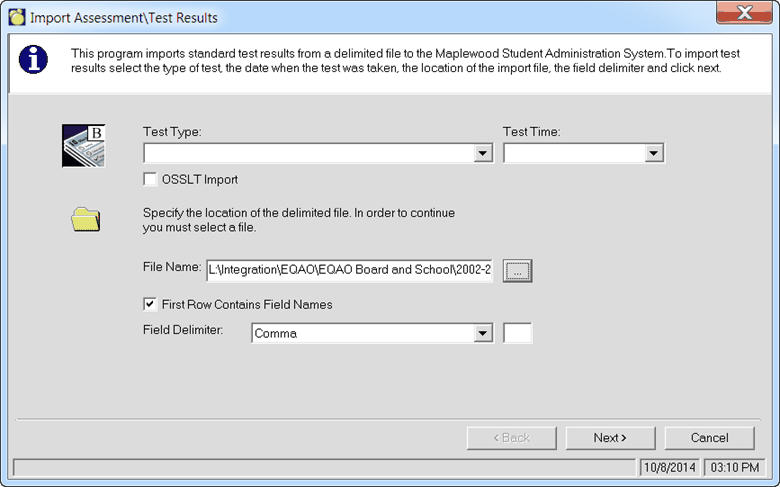
Select the Test Type and Test Time (as defined by the Central Office in step 1) and choose the file to be imported (click the '...' button to browse to the file). The “First Row Contains Field Names” is checked by default. If the import file does not contain the field names in the first row, uncheck this. The field names will help with the next step by showing the actual field names rather than just Field 1, Field 2, etc.
Click the Next button and then use the drop down list to select the fields in the file, corresponding to the fields requested by the program. Ideally, the import file should contain all of the requested fields (School Number, OEN, Student Number (school student number), Student Name, and the assessment/test results for the subject/strand(s) defined in the test. It may be possible to import without all of the requested fields (e.g. if only OEN is defined, the results will be imported into the student with the corresponding OEN).
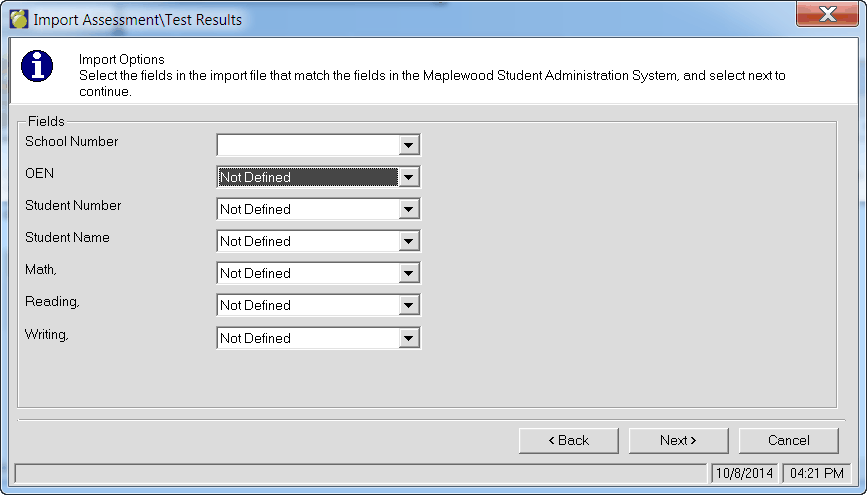
Click Next. After this screen you will be presented with a summary screen that will show you all the selections that you have made and if everything looks ok for the Data column (showing the data to be imported for the first student), click on Finish to import. If changes are needed click the Back button to make your changes.
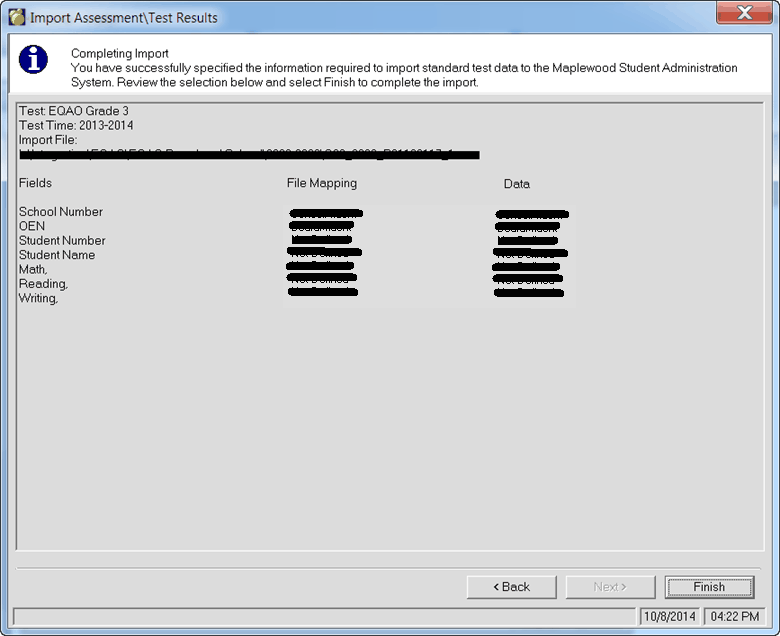
A log file (stdtst.log) will be generated and prompted for viewing at the end of the import. If the log file is empty, then the import was successful. The results in the file should now appear in the student's record. If a file is imported multiple times, the assessment/test results will overwrite the results previously imported for the student.
OSSLT (Ontario Secondary School Literacy Test) Import
There is a specific import for OSSLT, that allows the OSSLT status, test language, and test date to be imported from a file into the student's record where it can be seen using View > Report Card Details & EQAO tests > Literacy Component tab. The OSSLT Status, test language, and test date fields in the file are used to populate the Literacy Test Status, and Completed Date in the student's record.
If the student's score on the OSSLT is also to be imported, follow Step_1:_Central_Office_Defines_the_Assessment to create an Assessment such as OSSLT with a subject such as Literacy.
If the student's OSSLT score is not setup as an assessment, then select any assessment and time period such as the EAQO grade 3 shown in this example. By checking off the OSSLT import checkmark, it will trigger the OSSLT import fields rather than the standard assessment import. The OSSLT import will also provide the ability to import the assessment scores from the file into the subjects/strands of the selected test, but these settings can be set to Not Defined so that nothing is imported.
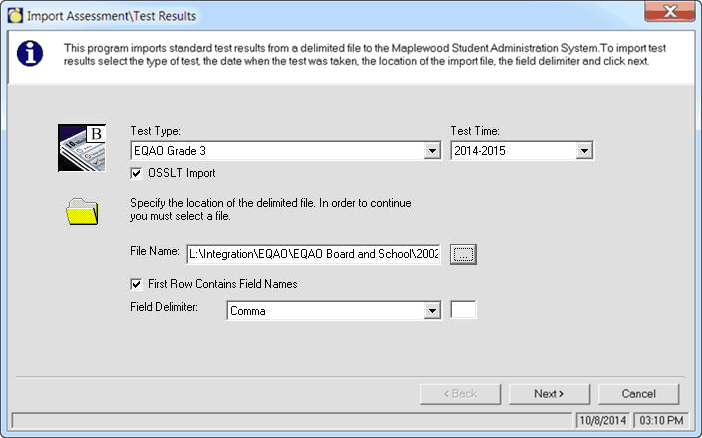
Click Next and then define the School number, OSSLT Status, OSSLT Test Language, OSSLT Test Date, and the subject/strands if applicable (not applicable in this example so the Math, Reading, and Writing are left as Not Defined).
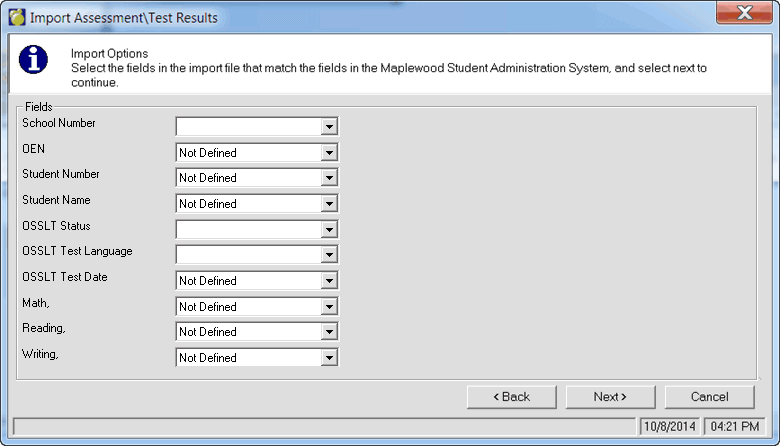
Click Next and proceed as directed on the screen.
Please note the following situations will not result in changes in the student's records:
i. If the current status is OSSLC - English or OSSLC - French, then the import will not change the status. An entry in the log file will be generated.
ii. If the reported outcome is 10 (withheld), then the import will not change the status. An entry in the log file will be generated.
Note: If the status is being changed from anything other than Not Reported (at the school where the test record is being imported from) to a different status, log entry will be generated indicating the previous and the new statuses. Also, if a student in the file is now in Past records, the OSSLT information will still be updated, however, if the student cannot be found in either current or past records at the school they took the test, the record will not be updated.