Saskatchewan Monthly Attendance Data Collection
The Saskatchewan Ministry of Education has a monthly Attendance Data Collection to collect absence information for every student enrolled in the division at some point during the month.
The data requested will include monthly summaries for individual students, in one of 2 files for each month:
-
Absence information for those students whose attendance is recorded by the day or half day (typically elementary schools)
-
Absence information by course number for those students whose attendance is recorded by period (typically secondary schools). At this time, only those students in grade 10 and higher will submit the attendance information by course. Although the Ministry can collect information by period for any grade, the course numbers are not typically recorded for the other grades and therefore the course information would not be using any standards.
The 2 files are created in Central Office using Attendance > Print Attendance Registers > Monthly Attendance Data Collection. It will automatically create the files for all the schools in the division, creating the elementary (EM) file first, followed by the secondary (Sec) file.
The Monthly Attendance Data Collection menu option exists in each school’s menu to allow a convenient way to test a single school’s file.
Maplewood will create the information required in the 2 files, however, the files will need to be opened in Microsoft Excel so that the first worksheet may be renamed to Records as required by the Ministry. Please be sure to follow the instructions below with respect to opening and saving the file in Excel. The resulting file must be saved using this naming convention:
SDName_group_month.xlsx where:
SDSName (school district short name as designated by the Ministry)
Group = EM if elementary attendance (AM/PM) or Sec if secondary attendance (period by period)
Creating the Monthly Attendance Data Collection Files
Prior to creating the files, ensure that the schools have been maintaining daily attendance information in Maplewood. Absence totals will be based on the definition of the attendance codes. Absent totals will only consider those codes defined as Absent in the register. Attendance codes may be defined at the Central Office, and schools may also have codes defined beyond those provided by the division. Divisions may want to ensure that schools are using attendance codes consistently across the schools, however, changing the meaning of the codes during a school year may impact attendance totals on other reports such as report cards.
-
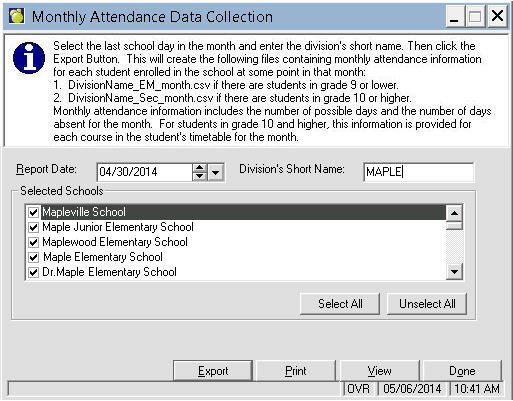
From Central Office, select Attendance > Print Attendance Registers > Monthly Attendance Data Collection. Select the last day of school during the month and enter the division’s short name (contact the Ministry if you do not know what it should be). If there are schools that do not have meaningful attendance recorded in Maplewood, those schools may be excluded by unchecking the box beside the school’s name.
-
Click Export. It will prompt a suggested file name, and unless a different name is desired, click Save. Maplewood’s default file name will be Divison Name_EM_3 LETTER MONTH.csv and it will be in the folder CENTRAL\EXPORT\ATTENDANCE.
It will process each of the schools and include students in grade 9 and lower in the EM file. It may generate a warning of students with potential issues with their data (e.g. missing DEN#s). If this appears, the students will require DEN#s otherwise the file will not be accepted by the Ministry. Re-create the file once the numbers have been entered.
It will then prompt a suggested file name for the file containing students in grade 10 to 12, and unless a different name is desired, click Save. Maplewood’s default file name will be Divison Name_Sec_3 LETTER MONTH.csv and it will be in the folder CENTRAL\EXPORT\ATTENDANCE.
It will process each of the schools and include students in grade 10 and higher in the Sec file.
-
Optionally, click View to see the resulting file. The contents of the file are described below.
-
Use Microsoft Excel to open the csv files created by Maplewood. Then do the following:
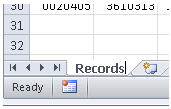
i. The first worksheet will need to be named Records. To do this, at the bottom of the worksheet, right click the first tab and choose Rename. Rename the worksheet to Records as shown here:
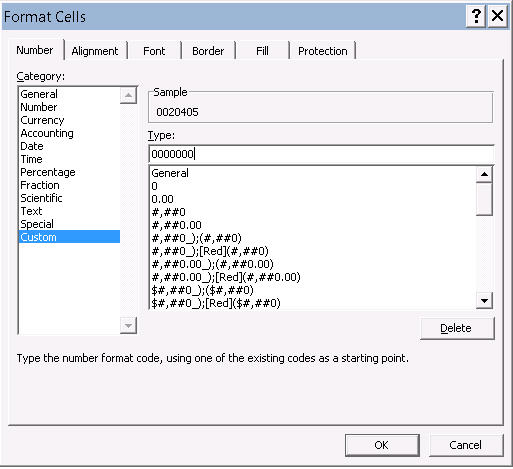
ii. Ensure that Excell has retained the leading zeros and dates are formatted in mm/dd/yyyy format. Below is the setting to use to format the division number to 7 digits (to retain leading zeros):
-
The resulting file must be saved using this naming convention:
SDName_group_month.xlsx where:
SDSName (school district short name as designated by the Ministry)
Group = EM if elementary attendance (AM/PM) or Sec if secondary attendance (period by period)
-
Each school division should submit two xlsx files (EM and SEC) for each month (except HFRCSSD which only submits an EM file). The files should be uploaded to the Ministry as per their instructions (upload to BlackBoard) and are typically due the second week after the month is completed.
File Layout
|
Field Name
|
Field Value Description
|
Description (Where to find in Maplewood)
|
|
SD DAN
|
Numeric
|
Ministry assigned 7 digit division number. Please contact Maplewood if this number is incorrect. (From Central Office: File, School Setup, Central Office Information).
|
|
School DAN
|
Numeric
|
Ministry assigned school number. Please contact Maplewood if this number is incorrect. (File, School Setup, School Information).
|
|
Student Number
|
Numeric
|
Ministry assigned student number (DEN#). (Student’s record, enrolment tab).
|
|
Student Birthdate
|
Numeric mm/dd/yyyy
|
Student’s birthdate. (Student’s record, Biographics tab, Edit button).
|
|
Enrolment Active Date
|
Numeric mm/dd/yyyy
|
Student’s entry date to this school (Student’s record, Enrolment tab, Edit button).
|
|
Enrolment Inactive Date
|
Numeric mm/dd/yy
|
Student’s Retirement Date. (Student’s record, Enrolment tab, Edit button). Future retirement dates are permitted.
|
|
Grade
|
PK, K, 1 to 12
|
Student’s current grade (Student’s record, Biographics tab, Edit button). Any grade below K is considered PK. The order of letter grades should be correctly setup in Central Office (Students, Custom Fields/Tables, Table of Grades).
|
|
Course
|
Alphanumeric
|
The course for which the student’s attendance totals will be sent. The course number, if setup, is used, otherwise it will use the course code. Course numbers are setup in File, School Setup, Courses.
This field only appears in the Sec, not EM group file (e.g. this field is not in the file for elementary schools taking am/pm attendance). If a class is flagged as "not reportable" (in File, School Setup, Classes), that class is excluded from the SEC file.
|
|
Possible
|
Numeric
|
The number of days or period (i.e., attendance blocks) the student could have attended that month. Students may have different numbers depending on whether they enrolled or withdrew from the school during the month.
|
|
Absent
|
Numeric
|
The number of times the student was absent during the month. This number cannot be greater than the number of possible days for the month. This field can be blank if the student does not have any absences during the month.
For the EM group, if a student is absent half a day when they are expected to attend the full day, then the absence would count as 0.5.
|
Notes:
• In the Sec group file, the fields will be repeated for every class in the student’s timetable.
• The division’s file will include all discrete occurrences of a student’s enrolment within the division during the attendance reporting month. For example, if a student attended School A during the first 10 days of the month and School B during the final 12 days of the month, records showing attendance at each of the schools would be submitted.
• The file will include records of all students who were enrolled for any part of the reporting month (e.g. includes those who were enrolled during the entire reporting month, those who enrolled at a point in the reporting month, and those who discontinued at some point during the month). These students will have more than zero possible attendance.
• The file will exclude those students who were not active during at least one day of the reporting month.