Saskatchewan Student Data System (SDS)
New for 2010-2011
The following new fields have been added to the SDS data transfer for the 2010/2011 school year:
Addition of Homebound Indicator, Immersion Type, Cumulative Folder and Tuition Status to the SchoolEnrollmentInfo Element.
Addition of Country of Origin and Saskatchewan Resident to the StudentInfo Element.
Addition of Permanent Physical Address Municipality and Land Location details to the StudentInfo Element.
Homebound Indicator: Indicates whether a student is Homebound or not. Default is No, if not included. On the Edit Enrolment screen there is a new field under the 'Programs' area. Please check the corresponding box if the student is Homebound.
Immersion Type: A new field called Immersion Type has been added to the Language Program area (under Enrolment, Other Fields). This new field will only be enabled if the Language Program selected is French Immersion/Bilingual Program (MIN = 12). The pull-down menu includes 4 hard coded values: Cree Immersion, French Immersion, Ukrainian Immersion, and Not Applicable. Users MUST enter an Immersion Type if a Language Program of French Immersion/Bilingual Program has been selected. If a Language Program of French Immersion/Bilingual Program is NOT selected - then the Immersion Type field will be disabled.
Note: The French Immersion entry (that has an assigned MIN code of 12) has had a title change, and will now be referred to as 'French Immersion/Bilingual Program' - SDS has updated this title description to French Immersion/Bilingual Program. The Language Program table, is a user defined table that can be accessed by selecting, Students, Custom Fields/Tables, Enrolment Tables, Language Programs. Please ensure that you update your tables accordingly. This will NOT automatically be done by Maplewood.
Cumulative Folder: Indicates whether the student cumulative folder is located at this school. This information is already stored in Maplewood within the 'Other Fields' tab in the Edit Enrolment screen.
Tuition Status Indicates an exception to provincial tuition status. There is a new field under the Residency area with Edit Enrolment, called Tuition Status. This field is only activated when a student has been selected as 'Non Resident'. The pull-down menu options for this field include:
If a Tuition Status has been selected, then a new area called 'Exchange Program' will become active. This area contains 3 fields for SDS, as well as a 'Notes' area to allow user to enter notes regarding the exchange program.
Program Name: This is a new user-defined table (now appears under Custom Fields/Tables, Enrolment Tables, Exchange Program Name), and includes the current 17 entries defined by SDS as allowable Exchange Programs. Note: The program name is required if the Tuition Status = Foreign Exchange or Reciprocal Exchange.
Code Exchange Program Name Code Exchange Program Name AS
ASSE
NA
NACEL
CE
CET Canada
OT
Other – Non Profit
CA
Camquest
RE
Rotary Exchange Program
CC
Canadian Cultural Exchange
SE
S.E.E. Canada
EF
EF Foundation
SQ
Saskatchewan-Quebec Exchange
ES
Education Share Foundation
WH
World Heritage
GE
German Exchange Program
FP
For Profit
IC
INTO Canada
GP
Global Partners
IS
International Student Program
.
Duration (months): The length of the exchange is entered here. The entry only allows for whole numbers (no decimals) and a maximum of 3 characters as defined by the SDS specifications. Note: The duration is required if Tuition Status = Foreign Exchange, Foreign Tuition, or Reciprocal Exchange
Tuition Collected: In Maplewood if the student has a Tuition Status selected, then the 'Tuition Collected' will automatically default to checked. If this is not the case, then please uncheck this field before exiting the screen
Place of Origin: This field is not a new field in Maplewood, but is now a required field if the Tuition Status = Foreign Tuition, Foreign Exchange or Reciprocal Exchange.
Saskatchewan Resident - This is a Yes/No field that Maplewood will automatically populate based on the student's mailing address. The program will look at Student Address information, if the student has the province entered as Saskatchewan (SK) then 'Yes' will be sent.
SDS will be discontinuing the 'Permanent Physical Address' tag in July 2011. In its place will be 2 new tags 'Permanent Physical Address - Municipality' and 'Permanent Physical Address – Land Location'. Maplewood has implemented these 2 new tags for this school year.
Permanent Physical Address - Municipality: If Physical Address format = Municipality then the format required is: Address line 1, 2 and 3, City, Postal Code, Province, Country.
Permanent Physical Address – Land Location: If Physical Address format = Land then required format is one of two valid land location combinations:
- Quarter section, section, township, range, meridian; Example 1: Quarter section SE, section 28, township 34, range 4 meridian 3. Example 2: Quarter section NW, section 36A, township 42A, range 24A, meridian 3S; OR,
- Riverlot, township, range, meridian. Example: Riverlot 48, township 51, range 7, meridian 3.
- Province and Country fields will be defaulted to “SK and “Canada for addresses with format=Land.
Valid Physical Land Location Value are:
|
|
|
|
|
|
|
|
|
|
|
|
Grade Codes – a warning message will be included in the XML Response file where the date of birth and the grade are inconsistent. Maplewood has included this warning message on the printout out that appears at the end of the file creation process.
This document explains how to use the Maplewood system to keep Saskatchewan Learning’s Student Data System (SDS) up to date with the information in your school, and vice versa. Although schools should refer to the Registrar’s Handbook for the exact SDS data transfer timelines for the school year, a summary is provided below.
| September | School term New Students: Enrolment & Demographic Information Deleted Students: Withdrawal Information All Students: Grade Enrolment All Students: Demographic Information |
Grades K to 12 |
| Start of each new semester (September & February) | Class information | Grades 10 to 12 |
| End of September and 1st Friday every month | Class registrations | Grades 10 to 12 |
|
Periodically send updates to address, emails, phone numbers as needed (particularly important before transcripts are mailed to students) |
All Students: Demographic Information | Grades K to 12 |
|
Periodically send updates to withdraw students that have left your school |
Deleted Students: Withdrawal Information | Grades K to 12 |
| When school final marks exist | Class Marks | Grades 10 to 12 |
| When transcripts are available from SDS | Request Course History Information | Grades 10 to 12 |
In Maplewood, the SDS Data Transfer options are in the Reports menu. The SDS Data Transfer menu has 3 options: Send Information to SDS, Import Response File From SDS, and SDS Response Log.
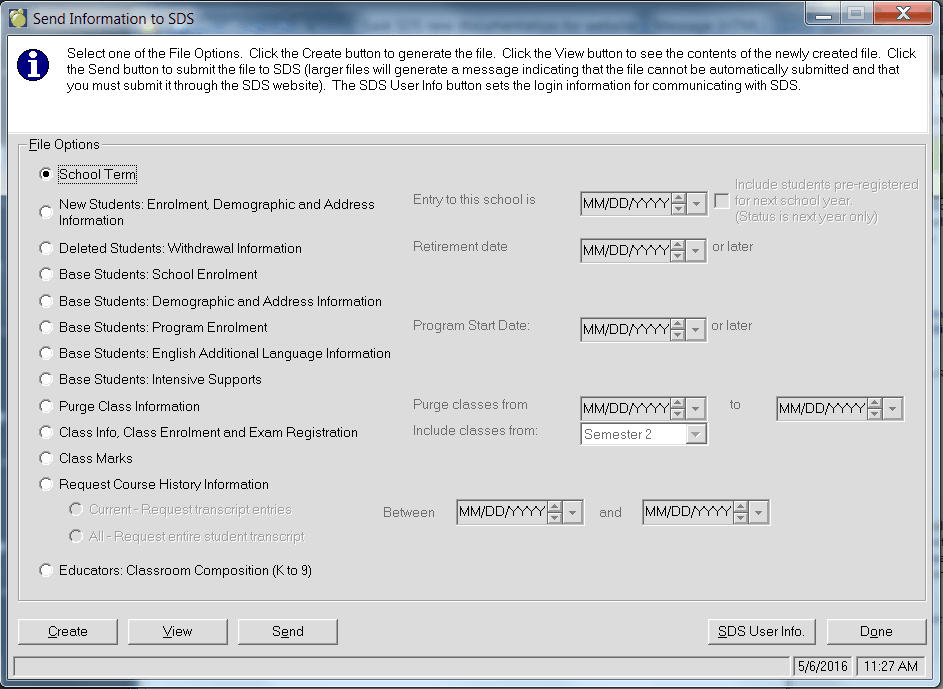
Choose Reports, SDS Data Transfers, Send Information to SDS to see this form:
Note: Only Maplewood Secondary users will see the file options Class Information, Class Registration, Class Marks, and Request Course History Information since these files contain information on grade 10 to 12 subjects which are only applicable to secondary schools.
Although each of the file options is explained separately, the user simply selects a file option then selects Create to generate the file, then View to see the contents of the file, and then Send to submit the file to SDS.
SDS will provide your school with a login name, password, and URL for accessing the SDS website. This information is entered using the SDS User Info. button prior to sending your first file. Once it is initially entered, it is retained for future use, and only requires editing if needed.
The SDS Electronic File Transfer has 2 different methods of receiving files. If a file is small (under 32KB), it may be sent to a “real-time internet address (URL) where it is processed immediately. If it is a larger file, it must be sent to a “batch URL where it is processed as soon as possible (it should be processed by the next day). In Maplewood, the Send option will detect the size and will display the appropriate messages.
If sending a small file, Maplewood will send the file to SDS where it will be processed immediately and a response will be returned automatically.
If sending a larger file, Maplewood will provide this message indicating that Maplewood cannot send the file automatically and that you will need to submit it using the SDS website:
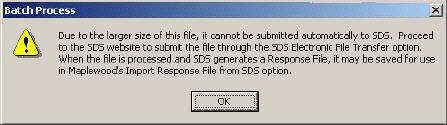
When this message appears, go the SDS website and use the Electronic File Transfer option to send the file.
A. School Term
At the start of each new school year (end of September), the SDS system requires an update to the information on the school’s term start and end dates. The term information is based on the semester start and end dates defined in your calendar. Before creating any of the files for SDS, refer to the School Term file description. All this information must be accurate before commencing with this process.
To create the file containing the term information,
This creates the file TRM123456_yymmddhhmm.XML in the Maplewood\Export\Realtime folder (where 1234567 is the school number, yy is the year, mm is the month, dd is the day, hh is the hour, and mm is the minute).
Select the View button to examine the information in the file. To transfer the file to Saskatchewan Learning’s SDS through the internet:
B. New Students: Enrolment & Demographic Information
At the start of the new school year, and throughout the year, a file containing the new students to your school must be sent to SDS so that they are aware of the student's enrolment at your school. If a Saskatchewan Learning ID (aka DEN#) is not entered in Maplewood, once this file is sent to SDS, new DEN#s are returned and automatically applied to the appropriate students.
Before creating this file for SDS, refer to the Student Information file description. All this information must be accurate before commencing with this process.
To create the file containing the student information,
This creates the file ENR1234567_yymmddhhmm.XML in the Maplewood\Export\Realtime or Batch folder (where 1234567 is the school number, yy is the year, mm is the month, dd is the day, hh is the hour, and mm is the minute).
If students are found with missing data for key pieces of information, a listing of affected students will appear with a column labelled "Tag with missing value" (the "tag" is the name of the field in the SDS system). Before sending the file to SDS, enter the missing information into the students' records and then recreate the file again. If students are missing key pieces of data, errors will result when the file is processed by SDS.
Optionally, select the View button to examine the information in the file. To transfer the file to Saskatchewan Learning’s SDS through the internet:
"Due to the larger size of this file, it cannot be submitted automatically to SDS. Proceed to the SDS website to submit the file through the SDS Electronic File Transfer option. When the file is processed and SDS generates a Response File, it may be saved for use in Maplewood's Import Response File from SDS option."
go the SDS website and use the Electronic File Transfer option to send the file. Periodically check the SDS website until your file is processed. Once the file status is successful, the response file must be saved so that new DEN#s may be automatically applied to the students in your Maplewood data. To do this,
- Right select the link for the response file (e.g. rENR1234567_yymmddhhmm.XML).
- Select Save Target As and save the file in the Maplewood IMPORT folder (e.g. admin\import).
- In Maplewood, use Reports, SDS Data Transfers, Import Response File from SDS and open the response file from the IMPORT folder.
Select OK to see the changes. The DEN# is referred to as the tag called "DepartAssignedPersonalID", and the old and the new DEN# will appear as follows:
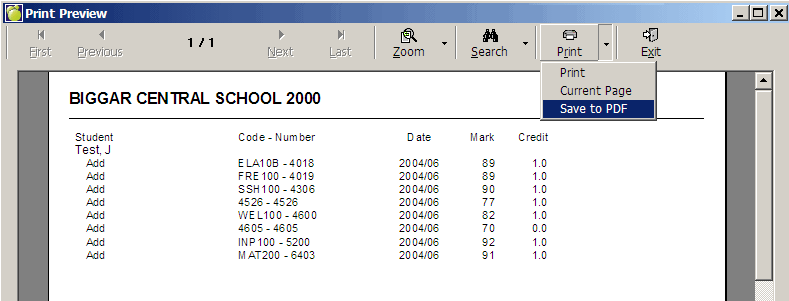
Surname, Given Name DepartAssignedPersonalID 000-000-000 123-456-789The DEN# for the listed students will now appear in their student records. Select the Print button if you want this information printed for reference.
C. Deleted Students: Withdrawal Information
In September, the SDS system needs to be updated with the withdrawal information for all the students who left your school. All deleted students must have an enrolment result (the reason they left your school), and the retirement/transfer date (the date they left your school). Deleted students in both Student Records and Past Students will be considered for inclusion in the file. Note for high schools: withdrawing a student does not automatically remove a student from the class registration in SDS. Be sure to include deleted students in the Class Registration file so that they are withdrawn from the classes.
To create the file containing the withdrawal information,
This creates the file DEL1234567_yymmddhhmm.XML in the Maplewood\Export\Realtime or Batch folder (where 1234567 is the school number, yy is the year, mm is the month, dd is the day, hh is the hour, and mm is the minute).
If students are found with missing data for key pieces of information, a listing of affected students will appear with a column labelled "Tag with missing value" (the "tag" is the name of the field in the SDS system). Before sending the file to SDS, enter the missing information into the students' records and then recreate the file again. If students are missing key pieces of data, errors will result when the file is processed by SDS.
Optionally, select the View button to examine the information in the file. To transfer the file to Saskatchewan Learning’s SDS through the internet:
"Due to the larger size of this file, it cannot be submitted automatically to SDS. Proceed to the SDS website to submit the file through the SDS Electronic File Transfer option. When the file is processed and SDS generates a Response File, it may be saved for use in Maplewood's Import Response File from SDS option."
go the SDS website and use the Electronic File Transfer option to send the file. Periodically check the SDS website until your file is processed. If errors result were included in the response file, make any necessary corrections, recreate the file, and then resend it.
D. All Students: Grade Enrolment
In September, the SDS system needs to be updated with the new grades. New students should have their new Learning IDs (DEN#s) recorded in Maplewood prior to sending this file. Note: SDS considers grades as part of the enrolment information, not demographic information. Grades are not included in the All Students: Demographic Information file. To create the file containing the student's grades,
This creates the file GRENR1234567_yymmddhhmm.XML in the Maplewood\Export\Realtime or Batch folder (where 1234567 is the school number, yy is the year, mm is the month, dd is the day, hh is the hour, and mm is the minute).
Optionally, select the View button to examine the information in the file. To transfer the file to Saskatchewan Learning’s SDS through the internet:
"Due to the larger size of this file, it cannot be submitted automatically to SDS. Proceed to the SDS website to submit the file through the SDS Electronic File Transfer option. When the file is processed and SDS generates a Response File, it may be saved for use in Maplewood's Import Response File from SDS option."
go the SDS website and use the Electronic File Transfer option to send the file. Periodically check the SDS website until your file is processed. If errors result were included in the response file, make any necessary corrections, recreate the file, and then resend.
E. All Students: Demographic Information
At the start of the new school year, and as needed through the year, the SDS system needs to be updated with the students' addresses, phone numbers, and emails. High schools should make sure that SDS has accurate address information prior to their transcript mailings. To create the file containing the students' address, phone and email information,
This creates the file DEM1234567_yymmddhhmm.XML in the Maplewood\Export\Realtime or Batch folder (where 1234567 is the school number, yy is the year, mm is the month, dd is the day, hh is the hour, and mm is the minute).
If students are found with missing data for key pieces of information, a listing of affected students will appear with a column labelled "Tag with missing value" (the "tag" is the name of the field in the SDS system). Before sending the file to SDS, enter the missing information into the students' records and then recreate the file again. If students are missing key pieces of data, errors will result when the file is processed by SDS.
Optionally, select the View button to examine the information in the file. To transfer the file to Saskatchewan Learning’s SDS through the internet:
"Due to the larger size of this file, it cannot be submitted automatically to SDS. Proceed to the SDS website to submit the file through the SDS Electronic File Transfer option. When the file is processed and SDS generates a Response File, it may be saved for use in Maplewood's Import Response File from SDS option."
go the SDS website and use the Electronic File Transfer option to send the file. Periodically check the SDS website until your file is processed. If errors result were included in the response file, make any necessary corrections, recreate the file, and then resend it.
F. Class Information (Secondary Schools Only)
At the start of each new school year (end of September), the SDS system requires an update to the information on the grade 10 to 12 classes offered at your school. The class information is based on the information in the classes file (File, School Setup, Classes). A class will NOT be included in the file for any of the following reasons:
Before creating this file for SDS, refer to the Class Information file description. All this information must be accurate before commencing with this process.
To create the file containing the class information,
This creates the file CLS1234567_yymmddhhmm.XML in the Maplewood\Export\Realtime or Batch folder (where 1234567 is the school number, yy is the year, mm is the month, dd is the day, hh is the hour, and mm is the minute).
Select the View button to examine the information in the file. To transfer the file to Saskatchewan Learning’s SDS through the internet:
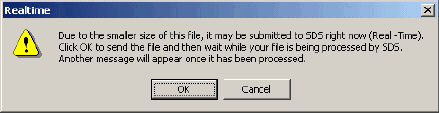
"Due to the smaller size of this file, it may be submitted to SDS right now (Real-Time). Select OK to send the file and then wait while your file is being processed by SDS. Another message will appear once it has been processed."
then select OK then wait for the file to be processed. A message should be returned indicating that the file was successful, and no further steps are required.
"Due to the larger size of this file, it cannot be submitted automatically to SDS. Proceed to the SDS website to submit the file through the SDS Electronic File Transfer option. When the file is processed and SDS generates a Response File, it may be saved for use in Maplewood's Import Response File from SDS option."
go the SDS website and use the Electronic File Transfer option to send the file. Once the file status is successful, no further steps are required. If errors result, make any necessary corrections, recreate the file, and then resend it.
G. Class Registration (Secondary Schools Only)
The SDS system requires the information on the courses in the students’ timetables for those students enrolled in grade 10 to 12 courses. Prior to sending the class registration information to SDS, the process of sending Class Information must be completed. This ensures that the classes being offered at your school are already set up in SDS. A class must exist in SDS before students can be registered in it. Note: When selecting the students to be included in the file, you should include deleted students. Any classes in their timetable will be recorded as drops in the file to SDS, therefore removing the student from the class registration in SDS.
A class will NOT be included in the file for any of the following reasons:
Before creating this file for SDS, refer to the Class Registration file description. All this information must be accurate before commencing with this process.
To create the file containing the class registration information,
This creates the file CLSREG1234567_yymmddhhmm.XML in the Maplewood\Export\Realtime or Batch folder (where 1234567 is the school number, yy is the year, mm is the month, dd is the day, hh is the hour, and mm is the minute).
Select the View button to examine the information in the file. To transfer the file to Saskatchewan Learning’s SDS through the internet:
Select OK then wait for the file to be processed. A message should be returned indicating that the file was successful, or that there were errors. If errors exist, make corrections to the data, recreate the file and then resend it.
"Due to the larger size of this file, it cannot be submitted automatically to SDS. Proceed to the SDS website to submit the file through the SDS Electronic File Transfer option. When the file is processed and SDS generates a Response File, it may be saved for use in Maplewood's Import Response File from SDS option."
go the SDS website and use the Electronic File Transfer option to send the file.
Once the file status is successful, no further steps are required. If errors result, make any necessary corrections, recreate the file, and then resend it.
H. Class Marks (Secondary Schools Only)
Once final school marks have been determined for the students, SDS will need to obtain these marks. Final marks must be stored in the 6th marking column in Maplewood prior to creating this file. If final marks are stored elsewhere, contact Maplewood support for assistance in moving them to column 6. For full year courses, only the final marks in column 6 in the second semester are included.
A class mark will NOT be included in the file for any of the following reasons:
Before creating this file for SDS, refer to the Class Marks file description. All this information must be accurate before commencing with this process.
To create the file containing the mark information,
This creates the file MRK1234567_yymmddhhmm.XML in the Maplewood\Export\Realtime or Batch folder (where 1234567 is the school number, yy is the year, mm is the month, dd is the day, hh is the hour, and mm is the minute).
Select the View button to examine the information in the file. To transfer the file to Saskatchewan Learning’s SDS through the internet:
"Due to the smaller size of this file, it may be submitted to SDS right now (Real-Time). Select OK to send the file and then wait while your file is being processed by SDS. Another message will appear once it has been processed."
select OK then wait for the file to be processed. A message should be returned indicating that the file was successful, or that there were errors. If errors exist, make corrections to the data, recreate the file and then resend it.
go the SDS website and use the Electronic File Transfer option to send the file.
Once the file status is successful, no further steps are required. If errors result, make any necessary corrections, recreate the file, and then resend it.
1. Request Course History Information (Secondary Schools Only)
After department exams are marked, students' final transcript marks are available from SDS. Using the Request Course History Information option, the students' final marks, after departmental exams, can be automatically transferred into the Maplewood transcript records. This option can also be used to import the student's entire transcript from SDS into Maplewood.
There are 2 basic steps to requesting the transcript information:
I. Create a "Request Course History Information" file within Maplewood.
Using Reports, SDS Data Transfers, Send Information to SDS, select the new option called Request Course History Information. Then you need to decide if you want to request transcripts for a specific date range using "Current - Request transcript entries", or "All - Request entire student transcript". Generally, at the end of the semester when SDS has issued transcripts, you will use the "Current" option. The "All" option would be recommended if you have not kept your transcripts up to date in Maplewood and you want to compare your Maplewood transcript information to the records at SaskLearning.
The resulting request file is sent to SDS. If the file is too large to send using the Send button, the file is submitted to the SDS website using their Electronic File Transfer option. The resulting response file will be saved in the Maplewood IMPORT folder.
II. Process the response file in Maplewood
If the file was submitted through the SDS website, you must first save the results file from SDS into the Maplewood Import folder, and then use Reports, SDS Data Transfers, Import Response File from SDS, to open the response file downloaded from the SDS website. If the file was sent real-time, these steps are done automatically.
Maplewood will automatically make a backup of the transcript data.
If importing a "Current" response file, any changes/updates to the transcripts will appear on a printout at the end of the process.
If importing a "All" response file, Maplewood will analyze the transcript entries for each student in the file based on what is currently in Maplewood and what is being sent from SDS. If the data differs from what is currently stored in Maplewood, an option appears to add differences in MW with the transcript from SDS. The courses that differ will appear in Red.
Users are able to step through each student in the response file and update only those students that they deem necessary. Use the Update All button to copy the SDS transcript into the Maplewood transcript for the student on the screen. Use the Ignore button to skip that student and proceed to the next student. At the end, or if you interrupt the process, a list of all the changes will appear.
2. Import Response File From SDS
When files have been uploaded to the SDS website using their Electronic File Transfer option, the Maplewood system is not able to automatically obtain the response file. The response file contains information such as successful transactions (i.e. the data was updated in SDS without any errors), along with errors. There will also be times when the response file contains information that needs to be transferred to the school's Maplewood data, such as when new DEN#s are assigned to new students.
Although the response file is only required to be imported when DEN#s may be returned, you can use this option to make the errors appear in the Maplewood SDS Response Log, which is often easier to read than the file generated by SDS. You can select which transcript records to import from the SDS file, and to specify whether or not to replace the student's entire transcript.
To import a response file from SDS into Maplewood:
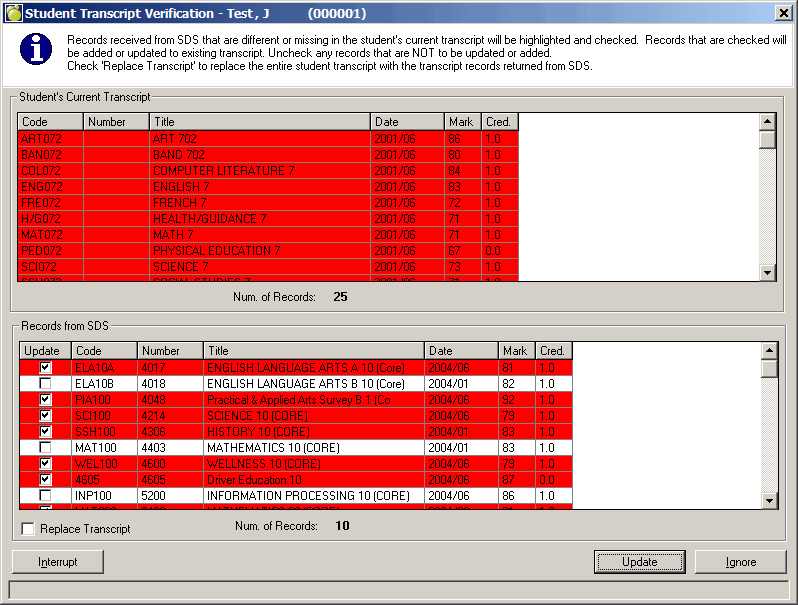
The program will display the students whose transcripts are different from the contents of the SDS file.
To see the responses from SDS, choose Reports, SDS Data Transfers, SDS Response Log.
The log includes any responses returned as a result of "real-time" files sent automatically from Maplewood to SDS. The log will also include the results from response files imported into Maplewood using Import Response File from SDS.
Use the Purge Log File button to periodically clear out the contents of the log file.
Appendix A: Electronic File Transfer within SDS
From the SDS website, select the Electronic File Transfer option and login, if needed. The screen should be similar to this one:
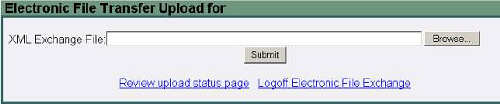
Select Browse to find the file to be sent to SDS (it will normally be found in the Maplewood Export\Batch folder) and then select the Submit button. A message should appear indicating that the file was successfully uploaded. Select the Review Upload Status Page link to see the files that have been sent through the “batch method.
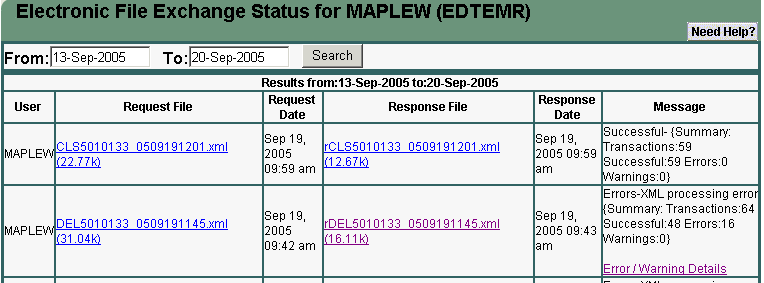
The Message column will indicate Pending until it has been processed by SDS. Periodically check back to this site to see if the Status has changed (hint: F5 key will "refresh" the page without having to leave and then come back). When the Message column includes a link to Error/Warning Details, select the link to see detailed descriptions of the errors. This link is not provided for all file types in which case selecting on the Response file will open it (or right select it and select Open In New Window) to provide more information. At times, the response file doesn't provide specific detail as to who or what class has the error, in which case it must be saved and imported into Maplewood to provide more detailed information.
There will be times when the Response File may need to be processed by Maplewood (e.g. if it contains DEN# for new students). By saving the response file and then importing into Maplewood, the DEN#s are automatically recorded in Maplewood. The instructions for each of the Maplewood options will inform you when it may be necessary to save the response file.
To save the response file, follow these steps:
Appendix B: File Descriptions (currently under further revision)
The following file descriptions provide information on some of the elements that are found in each file. Although other information may be included in the files, these are the items that should be correct in your Maplewood data prior to creating the file. The "Where it can be found in Maplewood" column contains the information that should be checked.
| Element | Information Required | Status | Where it can be found in Maplewood |
| Term Information | School Year | Required | Calendar (required format 2003-2004) |
| Start Date | Required | File, School Set-Up, Calendar, Edit. From the Calendar choose Edit, Semester, Term Start Date. |
|
| End Date | Required | File, School Set-Up, Calendar, Edit. From the Calendar choose Edit, Semester, either day before next term starting date, or last day in the Calendar. |
|
| Descriptions | Optional | i.e. Semester, 1 Term 1 |
Class Information File Description
| Element | Information Required | Status | Where it can be found in Maplewood |
| Class Identification | School ID | Required | File School Setup, School Information, School Number. |
| Class ID | Required | File, School Setup, Classes, Class Code (Course Code + Section Letter). | |
| Start Date | Required | File, School Set-Up, Calendar, Edit. From the Calendar choose Edit, Semester, Term Start Date. |
|
| End Date | Required | File, School Set-Up, Calendar, Edit. From the Calendar choose Edit, Semester, either day before next term starting date, or last day in the Calendar. |
|
| Class Information | Department Assigned Course ID | Optional and Repeatable | File, School Setup, Course, Course Number |
| Educator Certificate Number (for Teacher of Class - is a 7-digit number) | Optional and Repeatable | Staff, Staff Records, Edit, Personal, Name, Number (Use Staff Number). | |
| Mode of Instruction | Required | File, school set-up, Classes, Edit, Delivery.
Mode of Instruction Values:
This still needs to be added into Maplewood. |
Student Information File Description
| Element | Information Required | Status | Description/Notes | Where it can be found in Maplewood |
| Student Identification | DeptAssignedPersonId (Department of Education Number - DEN) | Optional (If DEN not sent, then must send Name information) | Enrolment, Edit, DEN#. | |
| Birth Date | Required | Biographics, Edit, Birthdate. | ||
| Student Information | School Assigned Personal ID | Optional | Biographics, Name, Student Number . | |
| HSN - Saskatchewan Health Service Number (Must be 9 digits and pass the check digit edit) | Optional | Students, Emergency, Insurance Number. | ||
| Name Type | Required (If DEN has not been sent) | If Surname differs from Legal Surname - required to send both Legal and Alias: Legal - send Legal Surname. Alias - send Surname. |
||
| Last Name | Required (If DEN has not been sent) | Biographics, Name, Surname . The program uses the legal name first. If this name is not there, then it will use the surname. |
||
| First Name | Required (If DEN has not been sent) | Biographics, Name, Given Name. |
||
| Middle Name | Optional (If DEN has not been sent) | Biographics, Name, Middle Name(s). | ||
| Suffix (i.e. II or Jr.) | Optional (If DEN has not been sent) | Currently not stored in Maplewood. | ||
| Preferred Name | Optional (If DEN has not been sent) | Biographics, Name, Usual Name. | ||
| Optional and Repeatable | Can be found on Family Tab. | |||
| Email Type | If email is sent then Email Type is Required | Required Field - required to send both Primary and Alternate (see ministry sample export for details - Page 19 of Manual). | Can be determined based on where the email is pulled from (i.e. Student's email address would be the Primary address, all others would be alternate). | |
| Demographics | Gender | Optional | Biographics, Edit, Gender. | |
| Country of Birth | Enrolment, Edit, Enrolment, Place of Birth. | |||
| CountryOfOrigin | Optional | The student's country of origin. Required for students who have a Tuition Status other than Interdivision Tuition or NA. | Enrolment, Edit, Enrolment, Place of Origin. | |
| Country of Citizenship | Optional and Repeatable (If student has more than one citizenship send all applicable) | Enrolment, Edit, Enrolment, Citizenship. | ||
| Language - Language(s) the student uses in the home | Optional and Repeatable (If student has more than one language send all applicable) | Enrolment, Edit, Other Fields tab, Language(s) Spoken (drop-down menu). Up to 2 languages may be entered. | ||
| Aboriginal Status | If Applicable | Enrolment, Edit, Native tab, Aboriginal Status used to be stored in Enrolment, Edit, Aboriginal. |
||
| Treaty Status Number | If applicable, only accepted from Band Schools * | Enrolment, Edit, Native, Treaty Number.
Note: Funding Type must be Native and Native Operation must be Band Operated. In order for information to be sent in the file extract. This can be found under File, School Setup, School information, on the Configuration tab. |
||
| Start Date | Optional | Not currently available in Maplewood. | ||
| End Date | Optional | Not currently available in Maplewood. | ||
| Band Affiliation Code | If applicable, only accepted from Band Schools * | Enrolment, Edit, Native, Band of Residence, Band Number. The Band Number is stored in the MIN area of the Band of Residence table.* File, School Setup, School information, Configuration. Funding Type must be Native and Native Operation must be Band Operated. |
||
| Start Date | Optional | Not currently available in Maplewood. | ||
| End Date | Optional | Not currently available in Maplewood. | ||
| Reserve Residency | If applicable, only accepted from Band Schools * | Enrolment, Edit, Native, Reserve of Residency. If the field is populated with any MIN greater than 00 then Send On (for living on reserve) If field is populated with MIN of 00 then send Off (for living off reserve). * File, School Setup, School information, Configuration. Funding Type must be Native and Native Operation must be Band Operated. |
||
| Start Date | Optional | Not currently available in Maplewood. | ||
| End Date | Optional | Not currently available in Maplewood. | ||
| Student Address | Student Address | Optional and Repeatable | Permanent Address | |
| Address Type | Optional | Mailing - Permanent mailing address (default if not specified) TempMailing - Temporary mailing address Physical - Permanent physical address (to be discontinued July, 2011) PhysicalMun - Permanent physical address - municipality PhysicalMun - Permanent physical address – land location |
PhysicalMun: If NO information is populated in Quarter, Section, Township, Range, and/or Meridian - then address information will be sent as PhysicalMun PhysicalLand: If information is populated in Quarter, Section, Township, Range, and/or Meridian - then address information will be sent as PhysicalLand |
|
| Start Date | Optional | Not currently available in Maplewood. | ||
| End Date | Optional | Not currently available in Maplewood. | ||
| Street | Required | Can be expressed as one or more address lines or as discrete elements. SK. Learning will always send one or more address lines and will also send as discrete elements if the address was received if the address was received as discrete elements. |
||
| Line 1 | Required if discrete elements are not included | Maplewood will be sending discrete elements rather than Line 1, 2 and 3. | ||
| Line 2 | Optional | Maplewood will be sending discrete elements rather than Line 1, 2 and 3. | ||
| Line 3 | Optional | Maplewood will be sending discrete elements rather than Line 1, 2 and 3. | ||
| Complex | Optional | Not currently available in Maplewood. | ||
| Street Number | Optional | Family, Edit, House | ||
| Street Prefix | Optional | Not currently available in Maplewood. | ||
| Street Name | Optional | Family, Edit, Street. | ||
| Street Suffix | Optional | Not currently available in Maplewood. | ||
| Apt Type (e.g. Suite) | Optional | Not currently available in Maplewood. | ||
| Apt Number Prefix | Optional | Not currently available in Maplewood. | ||
| Apt Number | Optional | Family, Edit, Apartment. | ||
| Apt Number Suffix | Optional | Not currently available in Maplewood. | ||
| QSec | Optional | Quarter Section. Only accepted for Address Type of Permanent Physical Land. Either Quarter Section or River Lot must be included if address type is Permanent Physical Land | Family, Edit, Quarter | |
| Sec | Optional | Section is Required if Quarter Section is provided | Family, Edit, Section | |
| RL | Optional | River Lot. Only accepted for Address Type of Permanent Physical Land. Either Quarter Section or River Lot must be included if address type is Permanent Physical Land. | Not currently stored in Maplewood. Please contact Maplewood Customer Support if you require this field to be sent. | |
| Twp | Optional | Township is required if Address Type is Permanent Physical Land | Family, Edit, Township | |
| Rge | Optional | Range is required if Address Type is Permanent Physical Land | Family, Edit, Range | |
| Mer | Optional | Meridian is required if Address Type is Permanent Physical Land | Family, Edit, Meridian | |
| City | Optional | Family, Edit, City. | ||
| State/Province | Required for North American addresses | Family, Edit, Student, Province. Convert to 2 letter code (as used by Canada Post) i.e. Saskatchewan = SK. |
||
| Country | Optional (assumed to be Canada if not Provided | Family, Edit, Country. |
||
| Postal Code | required for mailing addresses but not physical addresses | Family, Edit, Postal Code. | ||
| Phone Number | Optional and repeatable | Format required (###) ###-#### for North American numbers. | ||
| Phone Number Format | Required | Send NA - for North American - if format is (###) ###-#### Other wise send FF - for Free form. |
||
| Phone Number Type | Optional | Always send Home. | ||
| Start Date | Optional | Not currently available in Maplewood. | ||
| End Date | Optional | Not currently available in Maplewood. | ||
| Saskatchewan Resident | Yes or No will be sent.
Student will be No under any one of the following conditions: 1. student's address has a province other than SK (Saskatchewan or SK). |
|||
| Student Information | ||||
| SchoolId | Required | File School Setup, School Information, School Number. | ||
| School Enrollment Information | Membership Type | Optional | Always send Base for Base School unless the student is concurrent in which case the membership type is Other for Other school. | |
| Entry Date | Optional when changing the enrollment Required when enrolling a student |
Enrolment, Edit, Entry Date to This School. | ||
| Entry Type | Optional when changing the enrollment Required when enrolling a student |
Enrolment, Edit, Enrollment Reason. | ||
| Grade | Optional |
1. Grade N (Nursery) in Maplewood = P3 (Pre-kindergarten - age group 2 ½ to 3 ½ year olds) Grade J or P (Junior Kindergarten or Pre-Kindergarten) = PK (Pre-kindergarten - age group 3 ½ to 4 ½ year olds) Grade K (Kindergarten) in Maplewood = 0K in the SDS submission 2. Students > Custom Fields/Tables > Table of Grades is used to add any grades not already available in Maplewood. |
||
| ImmersionType | Optional | The type of immersion the student is enrolled in. Default is NA, if not included. | Enrolment, Edit, Other Fields, Immersion Type.
A new field called Immersion Type has been added to the Language Program area. This new field will only be enabled if the Language Program selected is French Immersion/Bilingual Program (MIN = 12). The pull-down menu includes 4 hard coded values: Cree Immersion, French Immersion, Ukrainian Immersion, and Not Applicable. Users MUST enter an Immersion Type if a Language Program of French Immersion/Bilingual Program has been selected. |
|
| Homebound | Optional | Indicates whether a student is Homebound or not. Default is not if not included. | Enrolment, Edit, Homebound (checkbox) | |
| CumulativeFolder | Optional | Indicates whether the student cumulative folder is located at the school. Default is No if not included. | Enrolment, Edit, Other Fields Tab, Student Record Request. | |
| TuitionStatus | Optional | Indicates an exception to the provincial tuition status. Indicate the type of tuition status that is being collected. Default is NA, if not included. | In order to enter the tuition information for a student, the student must have a residency status (Enrolment, Edit, Residency) of 'Non Resident'. | |
|
TuitionStatus/
|
Code | Required | Only required for Foreign and Reciprocal Exchange | Enrolment, Edit, Tuition Status (under Residency area).
This is a hard coded pull-down menu, that includes 'Foreign Exchange, Foreign Tuition, Reciprocal Exchange, Inter-Divisional Tuition, Not Applicable, and Unknown. |
| Length | Optional |
Length of Exchange – in months (3 digit field) Not required for Tuition Status of Interdivision Tuition. |
Enrolment, Edit, Duration (Months).
A numeric entry field that allows only whole numbers (to a max. of 3 characters) and is required to be entered if the tuition status selected is Foreign Exchange, Foreign Tuition or Reciprocal Exchange. |
|
| Collected | Optional | Are tuition fees being collected - default is Yes | Enrolment, Edit, Tuition Collected
This checkbox will automatically be defaulted to checked, as this is the SDS default. Please uncheck as required. |
|
| Previous Province/State | Required if applicable | This field is enabled when the student’s Place of Origin is set to Canada or USA. | Enrolment, Edit, Previous Province/State | |
| Previous Country | Required if applicable | Enrolment, Edit, Place of Origin | ||
| Exit Date- Ending date of this enrollment | Optional | Enrolment, Edit, Transfer/Retirement Date. | ||
| Exit Type | Optional | Enrolment, Edit, Enrollment Result. | ||
| DeptAssignedProgramId | The department-assigned number of the program the student is currently enrolled in, if applicable. | |||
| ProgramName | The Name of the program the student is currently enrolled in. | Enrolment, Edit, Other Fields Tab, Language Program
The Language Program table, is a user defined table that can be accessed by selecting, Students, Custom Fields/Tables, Enrolment Tables, Language Programs. |
Class Registration File Description
Note: The exam mix code determines whether a class has a departmental exam. If the exam mix code is not applicable, or School 100%, the exam registration element is not included. If the exam mix code is Department 100% or Blended, the exam registration element is included.
| Element | Information Required | Status | Where it can be found in Maplewood |
| Student Identification | Department of Education Number | Optional (If DEN not sent, then must send Name information) | Enrolment, Edit, DEN#. |
| Class Identification | School ID | Required | File School Setup, School Information, School Number. |
| Class ID | Required | File, School Setup, Classes, Class Code (Course Code + Section Letter). | |
| Start Date | Required | File, School Set-Up, Calendar, Edit: Edit, Semester, Term Start Date. | |
| End Date | Required | File, School Set-Up, Calendar, Edit. From the Calendar choose Edit, Semester, either day before next term starting date, or last day in the Calendar |
|
| Class Enrollment Info | Mark Source | Optional | File, School Setup, Classes, Edit, Exam. If the exam mix code is Dept./School 40/60% then the mark source is Blended, and when the exam mix code is School 100%, then the mark source is School. |
| Dropped | Optional | Yes if the student has dropped the course. | |
| Exit Date | Optional | Date the student dropped the course. From student's records, Timetable tab, Edit. From the Change Student's Timetable window choose Edit, Register. | |
| ExamRegistration Info |
Type | Optional | If the exam mix code is Department 100% or Blended, the exam type (Class, Supplemental, or Adult) is included based on File, School Setup, Classes, Edit, Exam, Exam Type.
Note: if the exam type is “class” and the class end date is January or June, then exam registration info (type and exam period end date) is excluded and defaults will be set by SDS. |
| Exam Period End Date | Required | Date the departmental exam is to be written. File, School Setup, Classes, Edit, Exam, Examination Date.
Note: if the exam type is “class” and the class end date is January or June, then exam registration info (type and exam period end date) is excluded and defaults will be set by SDS. Make sure the exam date is accurate for for classes that end in dates other than January or June Adult and Supplemental exams. |
| Element | Information Required | Status | Where it can be found in Maplewood |
| Class Enrollment Information | Override | Required | Not currently available in Maplewood |
| Class Info Override/Mode of Instruction | Required | Not currently available in Maplewood | |
| Mark Source | Final Mark Source | Required | File, School Set-up, Classes, Exam, Exam Mix Code Send Blended for blended school and departmental Marks (60/40) and School for 100% school mark. Note: Currently on Main interface of Code file, Exam Mix Code will need to add to exam interface, once button has been activated for SK. |
| Dropped Code | Required if applicable | Student, History, Edit. Send: -Yes -No Based on whether or not the course appears in the Transcript with a mark of W. |
|
| Exit Date | Optional | Not currently available in Maplewood. | |
| Exam Registration Information | Type | Required if applicable | File, School Setup Classes, Exam, Examination Send: Class - with class (default and only valid value in object StudentClassEnrollment, not allowed in object. Supplemental - Supplemental exam Adult - Adult Challenge |
| Exam Period End Date | Required | File, School Setup, Classes, Exam, Completion Date | |
| Exam Location | School ID | Required | File, School Setup Classes, Exam, Writing Centre. Send the MIN number of the school that has been selected from the schools file. SDS only requests exam location for supplemental and adult challenge classes. |