Schools may be required to keep enrolment records of all students in attendance at the school.
Note: Only some Ontario schools will see 6 report types. The School Name in your structure file will determine if you see all 6 report types, or only 3.
Please note that until Ministry approval has been granted, the school must keep a manual record of enrolment. Contact your local Ministry office for more information.
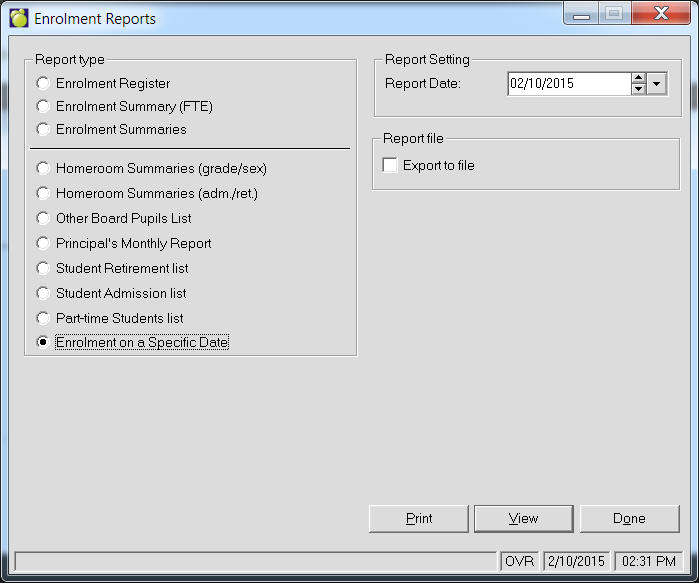
You can print Enrolment Registers and Enrolment summaries by choosing Reports, Enrolment Reports. For secondary schools, Maplewood can produce the following Enrolment Reports as may required by the Ministry:
Separate Enrolment Registers for Full-time, Part-time, and Independent Study students which identify adult students*
Separate Enrolment Summaries for Full-time (school aged), Full-time (adult), Part-time (school aged), Part-time (adult), Independent Study (school aged), and Independent Study (adult) students.
Consecutive Absences Report - a report that lists pupils that have been absent for a specific number of days (i.e. 15 or more). This report (required along with other retention records by the Ontario Ministry of Education) is accessed through Attendance, Print Attendance Registers, Consecutive Absences. Users should choose the Start Date and End Date of the Report, as well as the number of Consecutive absences that should be considered in the calculation. The ability to include deleted students is also available.
*Students aged 21 years or older on December 31st are considered adult students. On the Enrolment Registers they are marked with an 'A' in the Adult column. These reports are provided:
Difference Between Enrolment Registers And Summaries
Enrolment Registers print detailed information on every student who has ever been enrolled in the register during the current school year. For example, printing a Full-time Register for school aged students (under 21), would print the following information for each student who has ever been full-time:
name, adult, gender, grade, homeroom
internal admission or external admission date (see below for definitions)
internal transfer or external transfer or retirement date for students that have left the register (see below for definitions)
retirement date
If there are two sets of dates printed for one student, this indicates that the student has previous enrolment dates entered. Only students who have attended your school, left, and returned in the same school year should have two sets of dates printed.
Enrolment Summaries print a one page statistical summary of the numbers of students in the register. No student names are printed. Beside each month, the numbers of students in each classification and then calculates the net enrolment on the last day of school as follows:
Previous month's enrolment + (plus) internal admissions for the month + (plus) External admission for the month - (minus) Internal transfers for the month - (minus) External transfers for the month - (minus) - Retirements for the month= (equals) Net Last Day for the month.
A signature line is provided after October and March for the school Principal's signature. By signing this, the Principal accepts responsibility for the information in the reports for those months and indicates compliance to the enrolment instructions. For these months only, the number of resident and non-resident students on the last school day of the month are also printed.
Although the summaries may be printed in order by homeroom (one summary for each homeroom), the Ministry generally prefers secondary schools to print them for the entire school (in alphabetical order). Under Enrolment Summary you can choose to print for each homeroom or for the entire school. You also have the option to specify the age of the student either school-age or adult.
Full-time Enrolment Register
Full-time Enrolment Registers can be printed alphabetically, by homeroom, by a specific defined character orby an Inquiry list.
The register includes any student currently in that homeroom that has been full-time at some point this school year.
The admissions (the students that have been admitted into the full-time register) are broken into two categories; internal (within the school), and external (not within the school).
Internal Admissions
This column records the date on which the student first became a full-time student at your school this year. For the majority of the students, it is the first day of school for this year. If a student changes from a part-time student to a full-time student after the start of the school year, the date of this change is printed. Every student has an internal admission date and the date is never prior to the first day of school.
External Admissions
This column is used for those full-time students who come to your school from outside the school (e.g. from another school). The transfers and retirements (the students that have been removed from the full-time register) are broken into three categories; internal transfers (transferred from the full-time register to the part-time register of your school), external transfers (left to go to other schools), and retirements (left the school system entirely).
Internal Transfers
This column records the date on which a student was removed from the full-time register but the student is still in your school. This is only used for those students who moved from the full-time register to the part-time register.
When a student has an internal transfer, the absentee dates should be recorded in his original homeroom, not in his new homeroom. The school has to edit the internal transfer so that the student's 1st day of return is the 1st day in the new homeroom.
External Transfers
This column is used to record retirement dates for those full-time students who have left your school to go to another school.
This column is used to record retirement dates for those full-time students who leave the school system entirely.
If a student has left school and then returned, this student has more than one admission date. Each set of entry and retirement dates appears on a separate line below the student's name and the dates appear in chronological order for easy comprehension.
Part-time Enrolment Register
Part-time Enrolment Registers may be printed for the students alphabetically, by grade, by homeroom, by a specific defined character, or they may be printed for students in a list compiled by Inquiry.
The admissions (the students that have been admitted into the part-time register) are broken into two categories; Internal (within the school), and external (from another school).
Internal Admissions
This column records the date on which the student first became a part-time student at your school this year. If the homeroom primarily consists of part-time students, it is the first day of school for this year. If a student changes from a full-time student to a part-time student after the start of the school year, the date of this change is printed. Every student has an internal admission date and the date is never prior to the first day of school.
Who is included in an Internal Admission
a) a student who attended your school on the last day of the previous school year. In Maplewood, this includes any student with an entry date to this school which is before the first official school day for that student (based on the school's calendar). The internal admission date corresponds to the current year's first official school day for the student or
b) a student who changes attendance types during the school year. If a student has an internal transfer recorded on 10/15 from full-time to part-time, the full-time register would count the student as an internal transfer on 10/15. The part-time register would count the student as an internal admission on 10/15.orc) a student who changes homerooms (not applicable for schools who print registers alphabetically). In Maplewood, if you print the enrolment reports in order by homeroom, the date that a student changes homerooms is reflected in the registers of the old and new homerooms. For example, if a student has an internal transfer recorded on 10/15 from homeroom 100 to homeroom 200, the register for homeroom 100 would count the student as an internal transfer on 10/15. The register for homeroom 200 would count the student as an internal admission on 10/15.Note to elementary schools with students who attended the school the previous year and whose official first school day is later than rest of the school: Many schools have students who attended junior kindergarten the previous year but these students are not expected to start school this year until the middle of September (later than the first official school day in the calendar). For these students, enter * for the attendance for each day prior to their first official school day. The program will then record the student as an internal admission on the students' first official school day (e.g. 09/16).
External Admissions
This refers to a student who entered your school this year (they were not attending the school on the last school day of the previous year). In Maplewood, this includes any student with an entry date to this school which is on or after the first official school day for that student. For example, if a student's entry date to this school is 10/15, the student would appear as an external admission on 10/15. Note to elementary schools with half-time students attending on alternate days: If the student is new to the school, his entry date should be the first day the student is expected to attend school. For example, if alternate day group 1 (i.e. kindergarten) first appears in the calendar on 09/15, the students in this group should have 09/15 as their entry date.
Internal Transfers
This refers to a student who:
a) changes attendance types during the school year. See example in b) of Internal Admissions, or
b) changes homerooms (not applicable for schools who print registers alphabetically). See example c) of Internal Admissions.
External Transfers
This column is used to record retirement dates for those part-time students who leave your school to go to another school.
Retirements
This column is used to record retirement dates for those part-time students who leave the school system entirely.
Full-time Enrolment Summary
A summary of the admissions, transfers, and retirements on the Full-time Register is printed using the Enrolment Reports from the Reports menu. A summary may be printed considering the entire school, or it may be printed for each homeroom.
Please refer to the Full-time Enrolment Register for further information on where the numbers are derived. The previous month column contains the number of full-time students in the homeroom (or in the entire school) at the end of the previous month, therefore indicating the number of students at the start of this month. The net last day column contains the number of student in the homeroom (or in the entire school) at the end of the month.
Enrolment Summaries print a one page statistical summary of the numbers of students in the register. No student names are printed. Beside each month, it prints the numbers of students in each classification and then calculates the net enrolment on the last day of school as follows:
Previous month's enrolment + (plus) Internal admissions for the month + (plus) External admission for the month - (minus) Internal transfers for the month - (minus) external transfers for the month - (minus) Retirements for the month=Net Last Day for the month
Part-Time Enrolment Summary
The Part-Time Enrolment Summary feature generates the same printouts as the Full-Time Summary feature (explained on the previous page) except that the numbers are based on the students that have been part-time at some time during this school year.
Viewing/ Editing Enrolment Tables
You can view and edit Enrolment Tables dates by choosing Students, Custom Fields/ Tables, Enrolment Tables.
Maplewood Data Which Impacts The Enrolment Reports
The school calendar impacts the enrolment register in two ways:
it contains information which determines the first official day of school for each student.
it indicates the current school date (Maplewood's Change Date function is used daily to actually indicate the current date). The enrolment report printouts do not include information for dates in the future. For example, if you realize in February that you forgot to print December's summary, you can change the date back to December 31st and print the summary.
Maplewood's enrolment reports are affected by the following enrolment information for each student:
You also have the option to print the following reports:
Principal's Monthly Report, Admissions List, and Retirement List are based on a month selection. Students who have an admission/retirement based on the month selected will appear on the printouts. This change has been made to avoid confusion around which students should/should not be included based on a date selection.
Enrolment registers
Each enrolment register, Full-time, Part-time, or Independent Study may be printed for students alphabetically, by grade, by homeroom, with a specific defined character, or in a list compiled by Inquiry.
The Full-time register includes any student who is currently in full-time attendance or has been a full-time student at some point during the school year. Each student's name, sex, grade, and homeroom are printed. The date the student started full-time attendance is printed in one of the admission columns and, if the student has left, the retirement date appears under one of the transfer columns or the retirement column. If there are two sets of dates printed for one student, this indicates that the student has previous enrolment dates entered. Only students who have attended your school, left, and came back again should have two sets of dates printed.
The Part-time enrolment register includes the names of students enrolled in part-time study at your school and is similar to the Full-time register.
Likewise, the Independent Study enrolment register includes the names of students enrolled in independent study at your school and is also similar to the Full-time register.
Enrolment Registers now print the student's OEN beside the student's name. For provinces outside Ontario, the OEN is replaced with the equivalent provincial student number.
Enrolment summaries
Each enrolment summary, Full-time, Part-time, or Independent Study may be printed for each homeroom or for the entire school. It prints a month by month tally of the admissions, transfers, and retirements.
The net last day total for the month is calculated as the total from the previous month plus the number of admissions minus the number of transfers and number of retirements.
If the numbers on the summary appear incorrect, check the enrolment information for students who have recently entered or left your school, or who have recently changed their attendance type.
Statistical Enrolment Reports
Schools who are required to submit a Statistical Enrolment Report can do so by choosing Reports, Statistical Enrolment Report.
Adding New Students
When a new student is added to the system, the information on the enrolment screen should be entered accurately. Specifically, the enrolment status should be "Both Current and Scheduling", the entry date to this school should be the first date the student is in attendance at school, and the attendance type should accurately reflect the student's attendance at your school.
Deleting or Retiring a Student
When a student leaves your school, the enrolment status for that student should be changed to "Deleted". Students who attended your school at any time during the school year should NOT be completely removed from the system.
When a student is deleted or made current only, the retirement date should be recorded as the first day the student does not attend your school. Be sure to enter the destination type when it is known since it controls whether the student is recorded as a retirement or an external transfer. A student who leaves your school for another school is recorded as an external transfer, but a student who leaves school and does not enrol in another school is recorded as a retirement. For semestered schools, a student who finishes first semester and is not returning for second semester is to be removed from the enrolment of the school as of the last day of the first semester.
Returning Students
Some students who were in attendance at the school the previous year, do not attend first semester, but are enrolled for second semester. These students should have an enrolment status of Both Current and Scheduling, they should have previous enrolment dates, and the latest entry date to this school should be the first day of the second semester.
Changing Attendance Types
If a student changes his or her attendance type, the change is recorded as an internal transfer and is shown on the enrolment reports of both the former attendance type and the new attendance type.
Example - A student who leaves full-time attendance and becomes a part-time student will appear on both the full-time register and the part-time register. The full-time register will indicate the date the student started full-time attendance under one of the admission columns, and the date the student left full-time attendance will show under the internal transfers column. The part-time register will show the date the student started part-time under the internal admissions column.
Please note that the computer does not automatically determine whether a student is full-time or part-time according to the number of courses. If a student changes his or her attendance type due to timetable changes (i.e. adding or dropping courses), this change must be entered in the student's attendance type field on the enrolment screen. This change is then automatically recorded as an internal transfer on the date the change is made.
Principal's Monthly Report (Alberta)
Total number of students (per Grade), Total number of Actual attendance - Add Student 1 attendance + Student 2 attendance etc), Total number of Possible days (Student 1 possible attendance + Student 2 possible attendance etc)
Percentage of Elementary Attendance (Grade E to Grade 6)
Percentage of Jr and Sr High Attendance (Grade 7 to Grade 12)
Total Percentage
When this option is selected, any date may be selected for the report date. It will then generate a list of students enrolled on that date. The list may be viewed or exported. The past students (if applicable) will appear first, along with a subtotal, followed by the current students and a subtotal, and the overall total. The list may also be exported, so that the list may be sorted in other ways if appropriate. The default file name is the school number_yyymmdd.txt
For each student on the list, in addition to the student's name, the report includes the student's ministry number and status right now (e.g. Deleted, This Year & Next Year). Some provinces may also have additional fields included as noted below:
Ontario - Board Resident Status *
Manitoba - Enrolled Pupil *
Saskatchewan - Base School *
* based on the student's status on the report date (e.g. it takes into account internal transfers for when these fields change).
For K to 12 schools, the new option is under both Elementary and Secondary Enrolment Reports, and therefore, will only count those students who are elementary or secondary on that date.