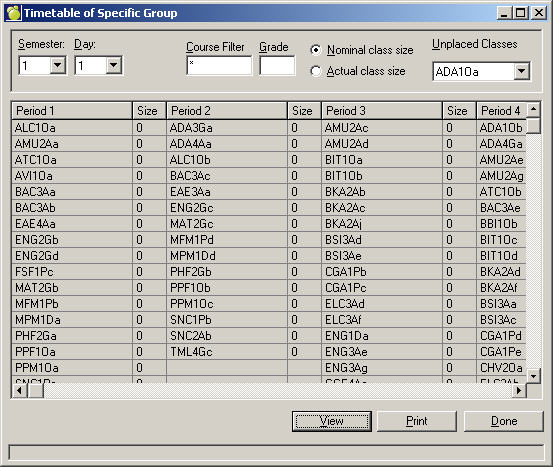
You can view the period and semester assignments for the classes that you just scheduled by choosing Scheduling, Master Builder, Timetable of Specific Group.
Under Semester and Day, you can click on the drop-down arrows and select the semester and day that you want to view. For each period of each semester, the classes assigned to that period are listed as well as the enrolment of the class. Each period has a total number of students assigned to that period at the bottom of the list.
The Nominal Class Size is the number of choices divided by the number of classes. This is the ideal size for each class. The Actual Class Size is how many students are enrolled in the classes. For the Actual Class Size to be accurate, ensure that Load Students was run recently to place the students into the classes in the timetable.
You can view the list of Unplaced Classes by clicking the drop-down arrow. To print click the Print button at the bottom the screen.
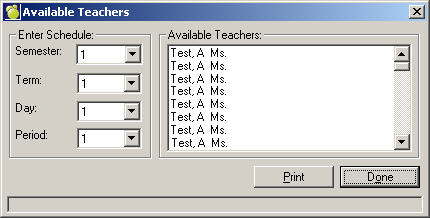
To see available teacher information choose Scheduling, Master Builder, Available Teachers. Enter the Schedule information and click Refresh List to narrow down the available teachers list. Clicking on the Print button will print the list automatically with no Print Preview.
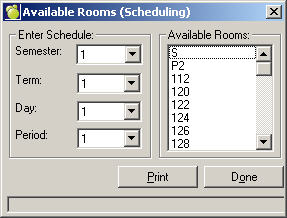
To see available room information choose Scheduling, Master Builder, Available Rooms. Enter the Schedule information and click Refresh to narrow down the available rooms list.
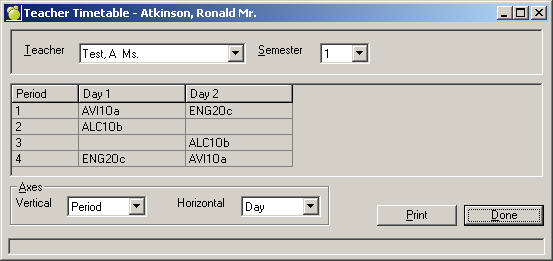
For teacher timetable information choose Scheduling, Master Builder, Teacher Timetable. Select a teacher and a semester from the drop-down lists and specify various printing options.
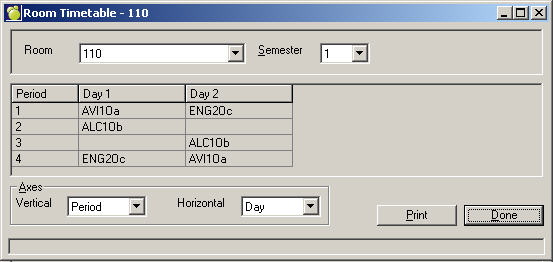
To change viewed information headings, select a vertical and horizontal option from the drop-down list in the Axes frame.
To see a room's timetable information choose Scheduling, Master Builder, Room Timetable. Select a room and a semester from the drop-down lists.
To change viewed information headings, select a vertical and horizontal option from the drop-down list in the Axes frame.