Once a classes have been timetabled and the students requesting those courses have been loaded into the individual classes, you can analyze the results.
Grouped classes are considered together to keep the total students in these classes balanced. A student in a blocked course is placed in the same section of each course in the block.
Number of Students Assigned to Each Class
To print the number of students assigned to each class, choose Scheduling, Modify Files, Classes, Print.
In the Classes File, you can see where each class has been placed, the teacher and occupancy.
The Classes File may be printed by clicking the Print button. Information that may be included on the printout includes the Semester Pattern, Period Pattern, Teacher, Room, Loading/Seats, and Credit Value.
Conflicts Information
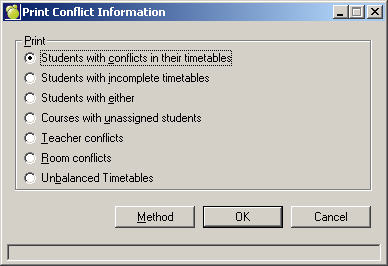
To print students with conflict information, choose Scheduling, Print Conflict Information and you will see this box:
Note: This is only as accurate as the last load.
Students With Conflicts in Their Timetables
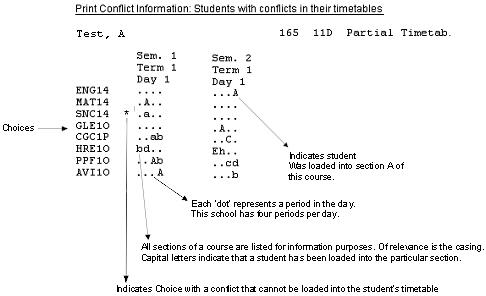
Only students who have conflicts in their timetables will be printed. For best results, be sure when Loading Students, to check Load Partial Timetables where Single Conflict Exists. This will enable you to better analyze the conflicting choices (the resulting information indicates the period assignments for each course in the student's choices). If a single conflict is found in the student's timetable, the choice which was not placed into the student's timetable is marked by an '*' asterisk, meaning the choice conflicts with a loaded choice or "s" meaning the choice was not loaded due to sequencing constraints as defined in the scheduling courses file. Students with multiple conflicts will also be printed here (marked as Conflict in Timetable).
Upper and lower case letters may be found beside each choice. Upper case letters represent the section letter of the class where the student has been loaded. If a student with 2 or more of the students' choices cannot be placed, then the student will not have a timetable created. If the student has a multiple conflict, only lower case letters appear beside each choice indicating that the student has not been placed into any of the classes. The locations of both the upper and lower case letters indicate the periods in which the courses are offered.
***Click to enlarge thumbnail.***
If the master timetable is not to change, the students must make different choices (i.e. replace one of the conflicting courses).
Students With Incomplete Timetables
Students with Incomplete timetables are defined as having chosen courses that have not yet been placed.
Students With Both
This will print students who have either conflicts in their timetables or incomplete timetables. Be sure to pay particular attention to the title above each student for an explanation of why the student is included.
Courses With Unassigned Students
This is a list of courses indicating, for each course, the number of students who have chosen the course, the number of classes offered, and the number of students who were not successfully placed into those classes. It can sort by the actual number of unplaced students, by the percentage of unplaced students (i.e. number of unplaced students divided by the number of students selecting the course).
Depending on the sort order, the first courses in the list are the courses creating most of the conflicts in the master timetable. These courses should be considered for alternate semester and period placement through Master Builder. The Manual Placement feature of Master Builder may be most helpful to determine the best location of each class.
Teacher Conflicts
This printout will tell you which teachers have conflicts, and will name the conflicting classes.
Room Conflicts
This printout will tell you which rooms have conflicts in them, and will name the conflicting classes.
Unbalanced Timetables
This shows the totals of the weighting factors for all the courses the students are taking in each semester. Only those which are not equal are printed.
Note: where there are more than 2 semesters, the difference column is the difference between the highest and lowest numbered semester. Only students with a difference greater than 1 is printed.