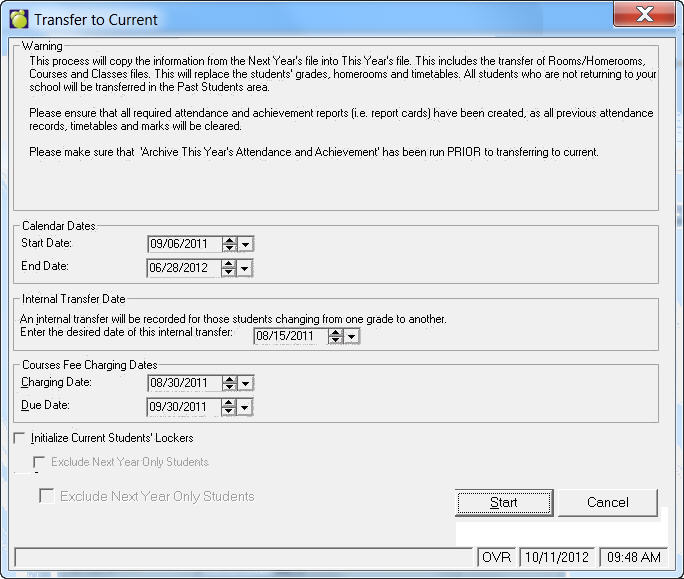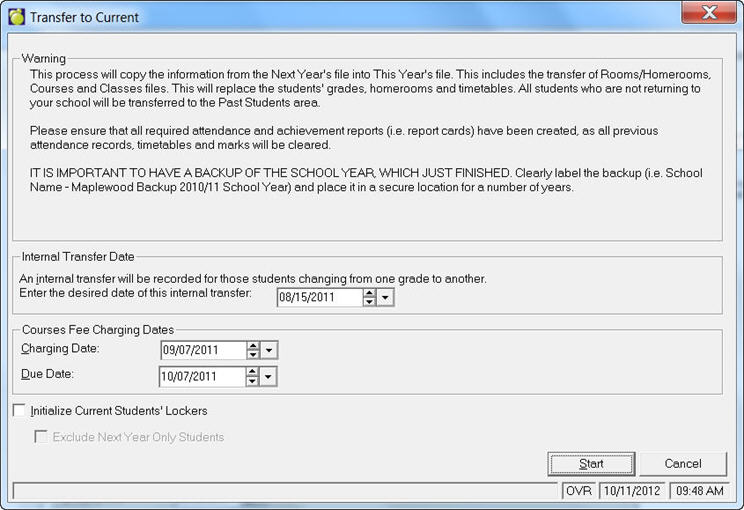
Since the transfer process replaces all the attendance and mark reporting information presently entered into This Year's directory, please ensure that the following information has been printed:
The Monthly Attendance Register and, optionally, the Individual Attendance Cards: Choose Attendance, Print Daily Registers, Monthly Attendance Register or Individual Attendance Cards.
The Mark Book: Choose Marks, Print Mark Book.
The Final Report Cards: Choose Marks, Print Report Cards, Final Report.
Note: When you transfer to current the attendance type does not change based on the new timetable. You will need to run Calculate FT/PT Attendance option under Students menu. This will give you a report of the students who should be changed, however, it will not change the data. The school/you will have to change the appropriate students.
The new master timetable and the students' timetables may be transferred to This Year's directory when you are satisfied that the scheduling process is complete and the current school year is finished. The Transfer To Current choice will transfer these files. Choose Scheduling, Transfer to New Year, Transfer to Current.
When the new checkbox to 'initialize student lockers' on Transfer To Current is checked, the program will do the following:
- lockers are removed from all students
- locks owned by school (assigned to lockers) are removed from students
- locks owned by students who are transferred to past are removed from Locks table
- locks owned by students who remain in current will stay with the students.
Note: If you use the option to exclude Next Year only students, it will leave any lockers assigned to those who are next year only.
Note: Transfer to New Year, Transfer to Current will run the backup of the school by default. If the school has a Library account, the program will generate two backups - one for administration and one for the library.
An Internal Transfer may be recorded for students changing from one grade to another automatically. When prompted, enter the date for these Internal Transfers.
Any students who are not returning to your school (e.g. status of Deleted or This Year Only) are automatically transferred into the Past Students area under Students. All the other students have the enrolment status changed to Both This Year and Next Year.
Once you have transferred to Current, all changes to the Room/Homerooms, Courses, and Classes Files should be made under File, School Setup. The students' timetables may be changed using the Timetable tab within the students' record (make sure that This Year is checked at the bottom of the tab).
The Transfer to New Year screen will look slightly different. Selecting a Calendar Start and End date is the only difference.