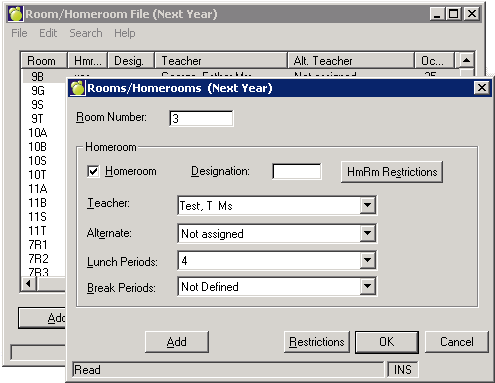
Enter all rooms into the Rooms/Homerooms File where classes will be taught, along with all of next year’s homerooms. The entry of rooms into this file is not mandatory at this point, but only rooms in this file may be assigned to classes. The Room/Homeroom File is modified by choosing Scheduling, Modify Files, Rooms/ Homerooms File. You can add next year’s homerooms and any homeroom teacher changes.
Note: You will see a message that says "The Changes you have made may impact room or teacher conflicts. Please run Teacher/Room Conflicts to ensure that no conflicts do exist."
This file serves two purposes; it contains the physical rooms list as well as the homeroom list. Of particular interest for scheduling purposes are the Restrictions. Generally speaking, restrictions are set to prevent a class from being scheduled into an undesirable period. Restrictions can be set for teachers, rooms, courses (e.g. the subject), classes (e.g. a specific class of the subject), and the homeroom (e.g. the group of students taking the class). When the application must find a period for a class, it will be unable to schedule it in a period that has a restriction. Within this file the HmRm Restrictions and Restrictions are available. Click the Print button to access a form to print out the homerooms or all the rooms entered into the Room/Homeroom File. The above view option is now available for all Courses, Classes, and Codes (Current and Scheduling).
Enter all rooms where classes may be taught into the Room/Homeroom File, along with all of next year’s homerooms. The entry of rooms into this file is not mandatory at this point, but only rooms in this file may be assigned to classes. The Room/Homeroom File is modified using Scheduling, Modify Files, Room/ Homeroom File.
Room Number: Record the room number found on the door. The room number may include up to four characters (e.g. 1, 12, 123, 1234, CAF., LIBR, GYM., GYM2).
Note: The room number may not be three letters only (e.g. CAF, GYM) since the Maplewood system reserves three letter combinations for the Student Letters.Homeroom: If the room is to be used as a homeroom, click the check box. These are set up under File, School Setup, Rooms/Homerooms.
Homeroom Teacher: Select from the drop-down list.
Homeroom Designation: A homeroom designation is a code used to define a homeroom but this code is not the room number (e.g. 9A, 9B, 9C, 10B2, RED, BLUE, JR.1, INT2, SR.3). The homeroom designation has no restriction except the four character limit. Many schools use the convention grade, then letter, such as 9C where the 9 represents grade 9, and the C represents the third homeroom of that grade. This only allows 1 digit.
In most areas of the Maplewood system, the room number of a homeroom and the homeroom designation may be used interchangeably. Be sure that all room numbers and homeroom designations are unique. By doing this, entering either the room number or the homeroom designation will indicate the correct homeroom.
Report Card: (Available if the user has access to change Modify Files). Click the Report Card button to set up Weights and Terms. The homeroom must be saved before entering the Report Card setup. Do you want to save changes and setup the homeroom for the Report Cards? If the user selects yes the homeroom must be saved and then the Report Card setup can be loaded.
Room/Homeroom Restrictions Available for Caribbean Jurisdiction and some BC Schools
Room and Homeroom Restrictions are used to if there are restrictions that are specific to this teacher’s group of students.
Room Restrictions: Restrictions are specific to the particular physical. Typically, a room would not have any restrictions. An example of when a room restriction might be required would be that the school allows another school or community group to use the room during a specific period or periods, therefore it is not available to be used by any classes during the specified time frame.
To set a room restriction, click the Restrictions button. From the Room Restrictions screen, click the checkboxes in applicable periods and days. Click in the editing area beside the checkboxes to see a drop down menu.
To add a new room restriction click the drop down arrow and select Add new. If you have room restrictions set up already, they will be displayed in this menu. To review and edit your restrictions and reason choose File, School Setup, Restriction Reasons. Click here for information on how to review and edit your list of room restrictions.
The “All Semesters/Terms Alike” at the top of the chart defaults as checked. If it is unchecked, different restrictions for different terms and semesters may be indicated.
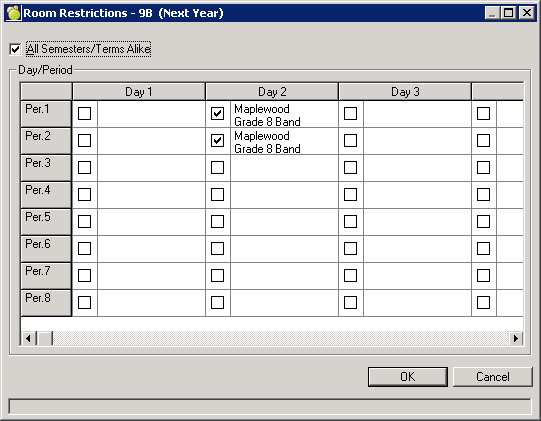
Homeroom Restrictions: Typically, a homeroom would not have any restrictions; an example of when a homeroom restriction might be required is the students in grade 8 travel to another school to use their facilities. The students travel to that school on day 2, in periods 1 and 2. The students in grade 8 are in homeroom 8A, therefore a homeroom restriction is applied to homeroom 8A. Indicate if the homeroom has a Lunch Period and/or Break Periods from the drop downs.
To set a homeroom restriction, click the HmRm Restrictions button. From the Homeroom Restrictions screen, click the checkboxes in applicable periods and days. Click in the editing area beside the checkboxes to see a drop down menu.
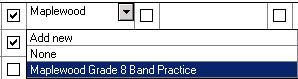
To add a new homeroom restriction click the drop down arrow and select Add new. If you have homeroom/room restrictions set up already, they will be displayed in this menu. To review and edit your restrictions and reason choose File, School Setup, Restriction Reasons. Click here for information on how to review and edit your list of room restrictions.
The “All Semesters/Terms Alike” at the top of the chart defaults as checked. If it is unchecked, different restrictions for different terms and semesters may be indicated.