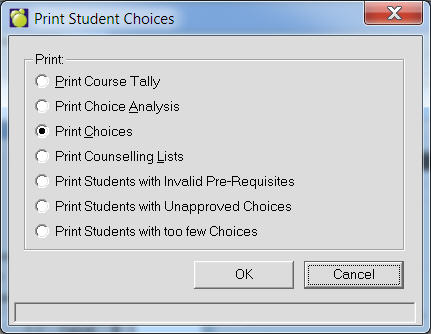
You can print and distribute choice verification lists to the homeroom teachers for students to verify that the correct choices have been entered. Choose Scheduling, Print Students Choices, and click Print Choices. See the Print Student Choices box. Often the Homeroom method if chosen for this feature so that the office can give each homeroom teacher the list to have their student's verify.
Print Course Tally
Choose Scheduling, Print Students’ Choices click the Print Course Tally option.
Enter an asterisk (*) for a list of all scheduling courses and how many students have chosen each course or
Specify a particular grade to see a list of scheduling courses of that grade and how many students of any grade have chosen each course. When specifying a particular grade, the program considers the grade field in the Courses file, not the 4th character position.
The tally also includes the following information:
A total for each course based on the number of students in any grade who have chosen a course. Each total includes mandatory and electives, but not alternate choices.
Total Students shows the total number of students involved in the scheduling process (i.e.: students with a status of This Year & Next, Next Year Only). In brackets is the number of students who have one or more choice entered.
Total Choices shows how many individual choices have been entered altogether for courses of the specified grade or for all grades if an asterisk was used.
A list of 5th characters and the total number of choices entered for all courses with that 5th character.
Some schools use the 5th character to represent ‘advanced’ or ‘open’ courses, this gives them an indication of how many students have chosen advanced or open courses. E.g., If 3 students have chosen ENG2A and 4 students have chosen MAT3A. the tally will print: ‘A’:7 because there are 7 choices entered for courses that have an A in the 5th character position.
Print Choice Analysis
Choose Scheduling, Print Students’ Choices and click the Print Course Choice Analysis option.
This prints a gender/grade breakdown of student choices. The user can ask to see a breakdown of mandatory and electives or a breakdown of alternates. The user can have the breakdown by grade based on this year’s grade or next year’s grade.
It includes the following information for each course:
A total on the far left next to each course code representing the total number of students in any grade who have chosen the course.
The totals of females within a grade, the total of males within a grade, the total of both males and females within a grade, and so on, for grades 7, 8, 9, 10, 11, 12, 13. The grades shown are hard-coded.
The overall total of females between grades 7-13, the overall total of males between grades 7-13.
The number on the far right represents the total of both males and females between grades 7-13.
An asterisk will appear next to the last number if it does not agree with the first total on the far left. This means that one or more students have chosen the course but have a grade that does not fall between 7-13. E.g.: a grade of ‘S’.
Print Choices
Choose Scheduling, Print Students’ Choices and click the Print Choices option.
This prints a list of all of a student’s choices, including mandatory, alternates and electives. This is a good view/printout to ensure that students have all their choices entered, that they are the right ones and specified correctly as mandatory, electives or alternates
.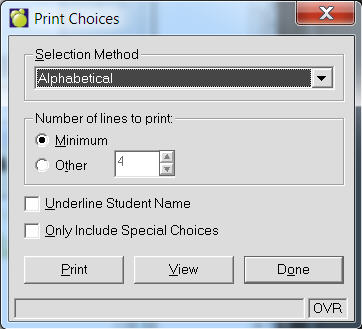
Specify the selection method: alphabetically, by current homeroom, by origin school, or individually.
Specify the number of lines of spacing between student names (between 4 and 20 lines) or select minimum (no spacing) to save paper.
Only Include Special Characters - A special choice is when you designate a specific section for a choice in edit choices (if you want the student in section A for some specific reason, you designate that in their choices, and then that is the section they get scheduled into.
It displays the following information for each student:
Mandatory courses.
Electives are listed with the word ‘elective’ at the start.
Alternates are listed with the word ‘alternate’ at the start.
Print Counselling lists
Choose Scheduling, Print Students’ Choices and click the Print Counselling Lists option.
This prints a list of student names who have chosen a particular course and how many students have chosen each course.
Specify which courses to include. Multiple courses can be selected. Specify if alternates are to be included. By default it will print students who have chosen this course as mandatory or as an elective. Specify if additional info is to be included: students’ other choices, homeroom and grade.
When these methods generate incorrect numbers:
Make sure the correct printing options have been selected. Some printouts do not include alternates, some include them if you ask for them specifically, etc.
Run a Count of student choices and Alphabetize next year’s courses. Have your correct choice options have been selected?
Make sure the choices have been entered with mandatory, elective or alternative specified correctly.
Print Students With Too Few Choices
This feature prints students whose choices are equal to or less than the selected number of choices. If the student has choices it will display the current choices.