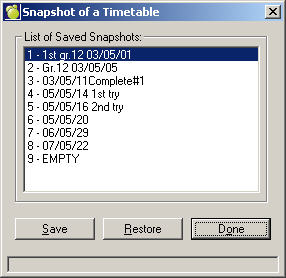
At any time during the scheduling process, if changes are going to be made which may not be beneficial to the timetable, a snapshot of the timetable may be saved using this feature. Choose Scheduling, Rebuild Classes, Snapshot of a Class. A snapshot saves the master timetable (next year's classes file) at this point in its development, thereby allowing the timetable to be subsequently restored to the point at which the snapshot was taken.
Saving a Snapshot of a Timetable
To save a next year's classes file (the master timetable), highlight an Empty slot or an existing snapshot to overwrite it then click Save. The title will default to today's date but you can enter a new title with a maximum of 20 characters. Click OK to save the snap shot. You are allowed nine snapshots. These snapshots are not deleted from year to year.
Note: The snapshot does not include the students' timetables. If you need to restore a snapshot, you must run Load Students to get students' timetables. If you need to save all the scheduling information, do a complete backup rather than a snapshot. (link to Maplewood backup)
Restoring a Snapshot of a Timetable
A snapshot is only a copy of next year's classes file. It does not contain the students' timetables. To restore a snapshot, select a timetable from the list and click the Restore button. This will replace the existing next year's classes file with the saved one that you selected.
After a snapshot is restored, you must run Load Students to give the students timetables.
Please note: If any students' timetables have been manually edited through student records, running Load Students again will wipe out all of those manual changes.