Note: This step may be done after step 2, but should be done before step 3.
This menu option is available in Central Office, for Enterprise boards/divisions, and can be run for a group of schools at one time. It can also be run at the school level. Boards/Divisions may choose to have schools run this option, or it may be run centrally for a group of schools.
By running this option, schools will be able to easily access this information directly within Maplewood:
The Transfer to Current process does not archive this information as part of the process. Since the archive process was very time consuming, it is now a separate option that can be run at any point upon the completion of the current school year (e.g. once all the attendance and achievement information has been entered for the year). Therefore, this step should be done prior to running Transfer to Current at the school.
Hint: the menu option is still enabled so it is possible to select it again which will run the archive process again (it will not create duplicate information so there is no need to be concerned if it is run multiple times). The new Select Schools screen for Transfer to Current has the date and time that the process was last run for each school.
Notes:
A. For hosted customers – If you wish to run Archive Attendance and Achievement for multiple schools in sequence with no user interaction please contact the Maplewood hosting team prior to starting this process so that your session timeouts can be temporarily extended.
B. It is technically possible to archive this data after the transfer to current process using the complete archive database as the source of the data. Maplewood will need to be involved in this process. Please contact Maplewood for a cost of this additional service. Archiving the data before transferring to current will avoid any unnecessary work and cost.
(Single Private Schools may skip this step)
Before transferring Central Office to current, central office will need to establish the year end backup specifications for the current school year, including the naming conventions, locations, and groupings of schools that will be transferring to current at the same time.
There can be multiple year end backup data sets per board/division, corresponding to the times when groups of schools will be transferred. If all schools are transferring at the same time, only one backup data set is required. Each backup data set is essentially a copy of the Maplewood Enterprise database at a specific point in time. Although the data set contains all the schools, its main purpose is to provide access to the year end data (just prior to transferring to the new year) for those schools who are being transferred at the same time.
If there is a need to run the Transfer to Current at different times for different groups of schools, multiple data sets are required. For example, a division may want to transfer all the elementary schools at the end of June, then transfer all the secondary schools at the end of July, followed by summer/continuing education schools at some point in the fall.
For those customers using Maplewood’s data hosting service, a maximum of 3 data sets for the year end may be created, and specifications of those data sets are predefined by Maplewood. Hosting customers simply need to define what schools belong in which data sets (if more than 1 is required).
These backup data sets will be replacing the traditional archive that was created prior to the 2014/15 school year by Maplewood.
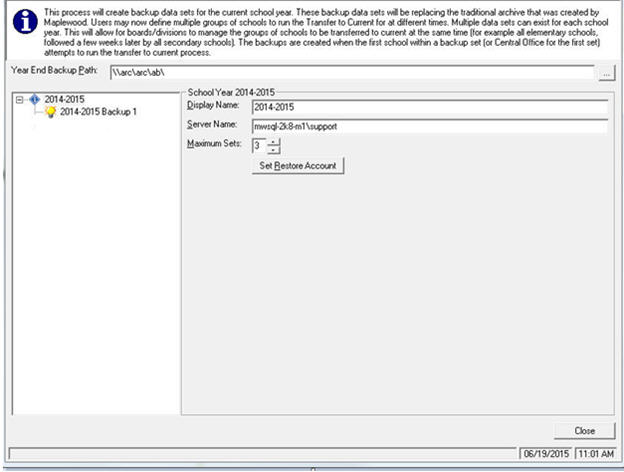
To establish the datasets, from Central Office select:
Scheduling > Transfer to New Year > Manage Year End Backups
A screen similar to the one below will appear, including defaults for all hosting customers and non-hosting customers who created archives last year.
When you go into this option for the first time, an initial Backup set will be defined. This backup set will serve as the backup from where your 2014-2015 year end backups will be created.
In the above example, up to 3 sets may be created, however only 1 set is currently setup and it is called 2014-2015 Backup 1. If more than 1 backup set is required, or to see the schools included in this first backup, Click ‘2014-2015 Backup 1’ from the tree on the left as shown here:
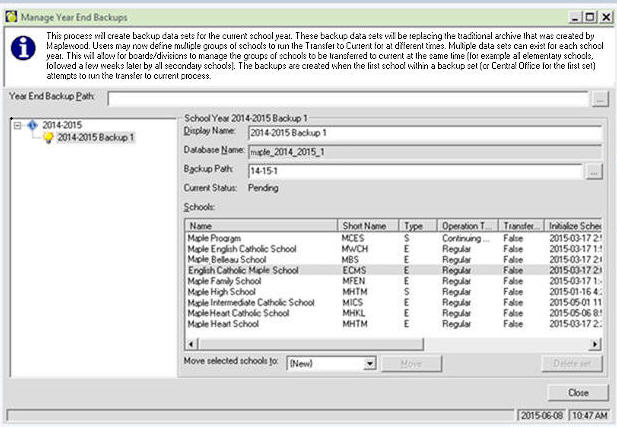
The 2014-15 Backup 1 in the above example will include all schools in the database. If more than one year end data backup set is required, select the schools to be moved from the first backup set, into a second backup set (New). Once they are selected, click the Move button. This will automatically create a new set called 2014-15 Backup 2, and this will be the defaulted set where the schools will be moved.
Once the backup sets are defined, click Close.
Note to Non-hosted customers: You may want to take advantage of the Set Restore Account button available on the first screen (select the top level in the tree on the left e.g. 2014-2015).This allows the database administrator to save a SQL Server user name and password to be used for the restore of the new archive database(s). When the year end backups are actually created (next steps), the Enterprise data is first backed up and then restored. A user with restore permissions is needed to perform this step, and if the backups will be done at a time when the database administrator may be on holidays, the login information may be recorded here (encrypted). If a specific user is created for this account, Maplewood can provide a script that will provide the minimum user permissions needed to restore the database.
(Single Private Schools may skip this step)
Note: Do not run this option until you are ready to run transfer to current on the first group of schools. This step will trigger the creation of the year end data set for the first group of schools. The data as it stands right now will be the data in the year end backup for those schools.
In Central Office, make sure the Central Office date is set to the last day of the 2014-2015 school year. Then select:
Scheduling > Transfer to Current
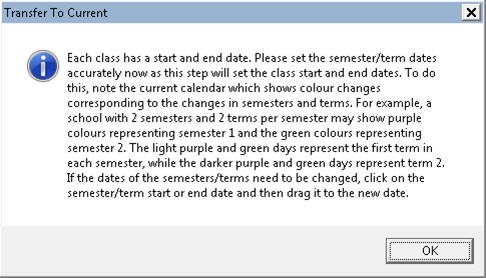
From the Transfer to Current screen, TAKE CARE to ensure that the correct calendar start and end dates are entered. These dates will be used to prompt the start and end dates for all schools as they transfer to current.
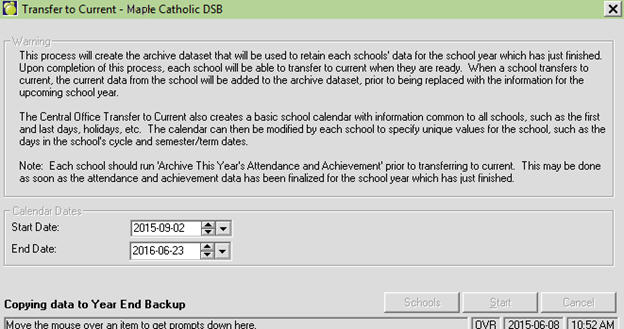
Upon completion of the transfer to current, the Central Office can use File, School Setup, Calendar, Edit to setup the non-school days in the calendar (e.g. holidays, PD days, etc). That information will appear in each school’s new calendar when they transfer to current. Once the school has transferred, they will still need to setup the days in the cycle, semester/term dates and exam dates as needed.
4. Run Transfer to Current for Each School
(Single private schools should use the Transfer to Current option within the school’s menu: Scheduling > Transfer to New Year > Transfer to Current as per usual. The information below may be ignored by single private schools.)
*Note: Schools must have their calendar set to the last day of school, and have run initialize scheduling In order for Transfer to Current to run. Secondary schools need to have run Automatic Transcript Update, Add Current Courses to Transcripts.
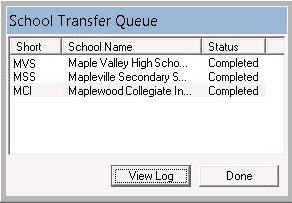
Once Year End backups are defined, and the Central Office is transferred to current, you can begin transferring schools to current. You will notice that only the schools selected to be in Backup 1 for the current school year are available to be transferred to current. The first group of schools must all be transferred before the second group of schools may be transferred.
Individual schools (with the exception of single campus private schools) no longer have the option to transfer to current. The ability to transfer a single school, or a group of schools has been added to Maplewood Central Office. Only schools of the same license type can be transferred at the same time (e.g. a group of Secondary schools, or a group of Elementary schools).
Boards/Districts/Divisions must use the Transfer to Current option within Central Office. From Central Office, select:
Scheduling > Transfer to New Year > Transfer to Current.
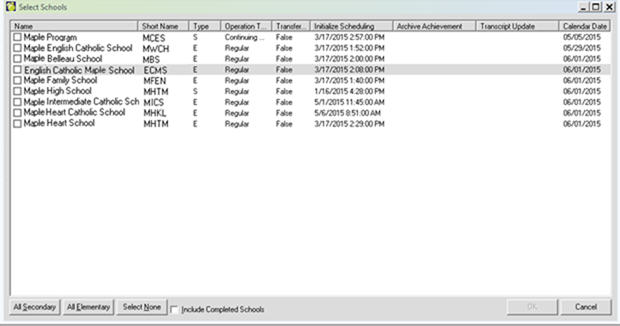
You will notice a new “Select Schools” screen for the Transfer to Current process. This screen serves to provide the user with more information on whether or not schools are actually ready to transfer to current. Here is an example of the Select Schools interface during transfer to current:
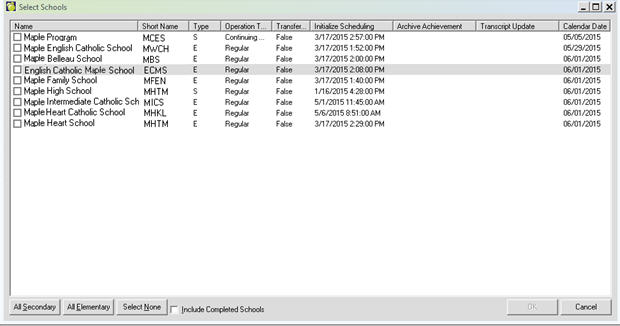
The following information is available in the Select Schools interface:
School Name, Short Name, Type and Operating Type: These fields serve to provide more exact information on which schools the user is selecting.
Transferred: Should always be “False” as schools are transferred to the current school year, they are removed from the list
Initialize Scheduling: If this field is populated by a date, this indicates Initialize Scheduling has been run. If this field is not populated by a date, Initialize Scheduling has not yet been run and the school will not be allowed to transfer to current.
Archive Achievement: If this field is populated by a date, this indicates Archive Attendance and Achievement has been run. If this field is not populated by a date, Archive Attendance and Achievement has not yet been run. We strongly advise that this process is run before transferring to current and is dated on or after all attendance and report card information is entered.
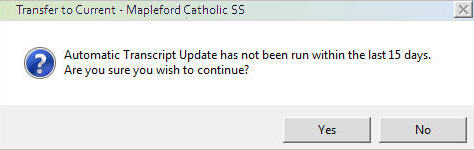
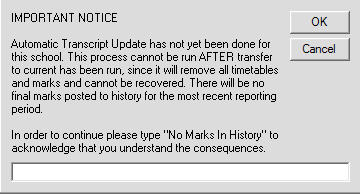
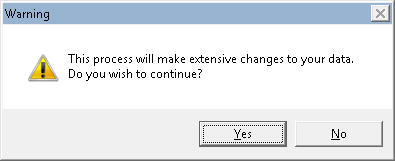
Transcript Update: This field will never be populated for Elementary schools. For secondary schools, this field MUST be populated. If this process has not been run, schools will NOT HAVE HISTORY MARKS for the current school year. Maplewood has spent many support hours populating the history data for schools who have forgotten this step in the transfer to current process. In order to prevent transfer to current from proceeding without this step being completed, the following warnings (see below) have been added:
If you chose to continue, you will be forced to acknowledge that you are proceeding with the update, and are fully aware that there will be no marks in history for the final semester of the school year.From the Select School interface, select the school, or the group of schools for which you wish to run the Transfer to Current.