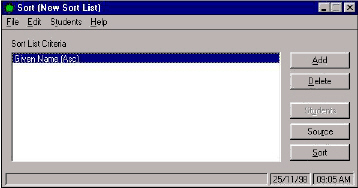
Click the Add button to call up the Criterion Selection Tree.
Note: The Sort program is not available in the Maplewood Enterprise system.
Double-click tree branches and leaves to access a specific criterion. As you double-click a level of the tree, it expands to show another level. Continue to double-click until you find the criterion field you want, then double-click. Sometimes you will need to enter more information.
Click the Source button. This step selects which students in the school will be sorted (e.g., all or specific in a grade). Select from the provided list and click OK.
Select the student status and click OK.
Click the Sort button on the main screen.
If your list has not been saved, you will be prompted to save.
Click Students to see the list, or
Click Done to return to the main screen.
Click Students on the main screen to access the printing screen.
Click Print.