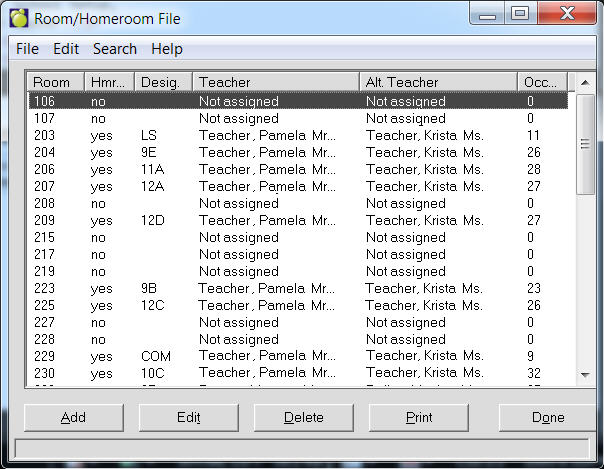
All rooms in the school that are used as classrooms or homerooms must be entered into the Room/Homeroom File. Before rooms may be assigned to classes in the Classes File, they must be entered into this file by choosing File, School Setup, Rooms/Homerooms. A list of Rooms/Homerooms will appear.
Use the option buttons at the bottom of the screen to add, edit, print or delete rooms/homerooms.
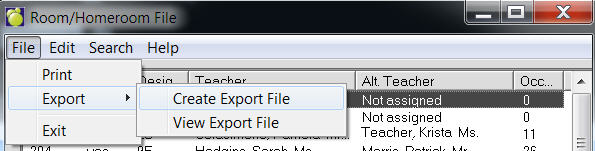
Room/Homeroom Tables can now be exported to a file. To do this, use the menu at the top to select File, Export, Save. Once the file is created, it may be viewed by selecting File, Export, File Export View. The file is in comma delimited format (csv) and includes headers. For hosting customers, if you want to use the file in Excel (as an example), use the View option to find the file and then copy and paste it to a local machine licensed for Excel.
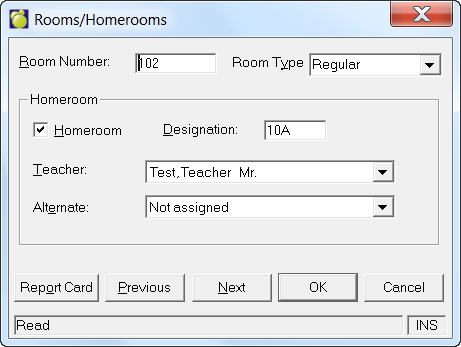
Room Number: Record the room number found on the door. The room number may include up to four characters (e.g. 1, 12, 123, 1234, CAF1, LIB1, GYM1).
Homeroom: If the room is to be used as a homeroom, click the check box.
Homeroom Teacher: Select from the drop-down list.
Homeroom Designation: A homeroom designation is a code used to define a homeroom but this code is not the room number (e.g. 9A, 9B, 9C, 10B2, RED, BLUE, JR.1, INT2, SR.3). The homeroom designation has no restriction except the four character limit. Many schools use the convention grade, then letter, such as 9C where the 9 represents grade 9, and the C represents the third homeroom of that grade.
In most areas of the Maplewood system, the room number of a homeroom and the homeroom designation may be used interchangeably. Be sure that all room numbers and homeroom designations are unique. By doing this, entering either the room number or the homeroom designation will indicate the correct homeroom.
Choose File, School Setup, Rooms/Homerooms and click the Print button for a print form. Use this form to print out the homerooms or all the rooms entered into the Room/Homeroom File. The above view option is now available for all Courses, Classes, and Codes (Current and Scheduling).
Any rooms that are used as classrooms can also be added to this file. Choose File, School Setup, Rooms/Homerooms. A list of rooms/homerooms will appear. Use the option buttons at the bottom of the screen to add, edit, print or delete rooms/homerooms. This illustration shows an adding box.
Note: A homeroom may not be deleted if there are students in the homeroom. When you change the homeroom teacher to not assigned and you attempt to delete the class, it now displays the message "There are ## students assigned to the room. You may not delete it before removing those students."