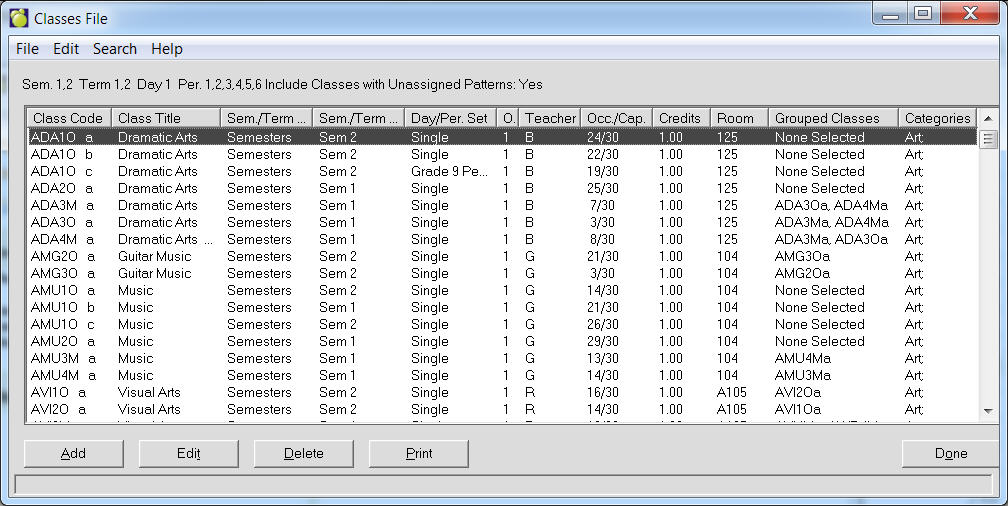
Enter classes that are available in the school. To access the Classes File list, choose File, School Setup, Classes to see a list of classes. On this box there is a menu and option buttons.
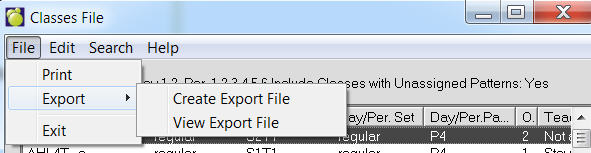
Classes Tables can now be exported to a file. To do this, use the menu at the top to select File, Export, Save. Once the file is created, it may be viewed by selecting File, Export, File Export View. The file is in comma delimited format (csv) and includes headers. For hosting customers, if you want to use the file in Excel (as an example), use the View option to find the file and then copy and paste it to a local machine licensed for Excel.
For each course, a class is created for each unique group of students taking that course. The Classes File contains the classes and provides the information for the school’s master timetable. To access the Classes File, for the current year, use File, School Setup, Classes (next year’s classes file is under the Scheduling menu).
Caribbean Community and Common Market Users Note
Classes in St. Lucia do not follow any repeatable “pattern” and therefore, each class is considered a special schedule. When adding a new class, select the course (the section letter will automatically prompt the next unique letter as this letter is the unique identifier for each offering of a subject). The teacher and room is entered (teachers must have the Teach box checked in staff records and rooms must be in the room/homeroom file). The Special Schedule box is checked and then click Yes box to the resulting warning message.
Menu
Note: When the user opens a table, the program will select (highlight) the first item on the table. Without using the search menu, the user can enter e.g. "S" and the focus will move to the first item starting with "S".
Option Buttons
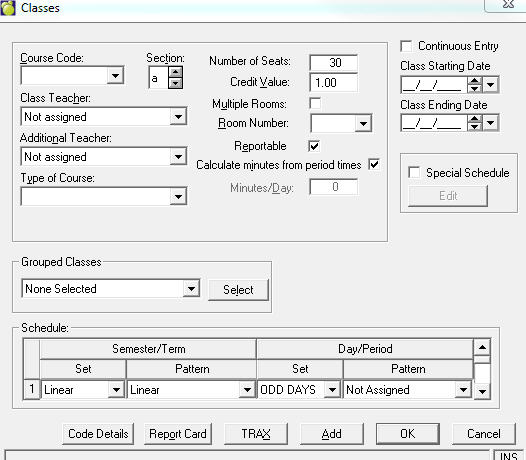
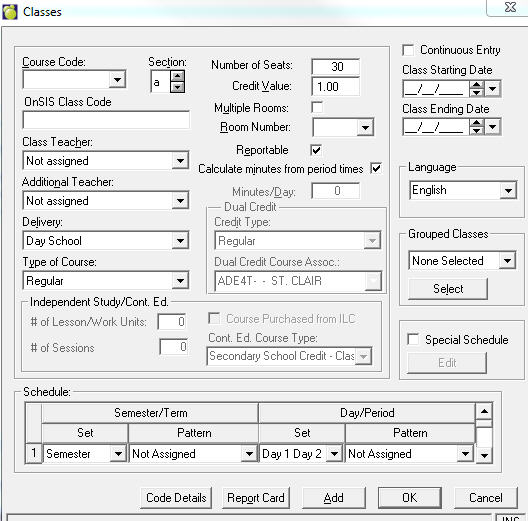
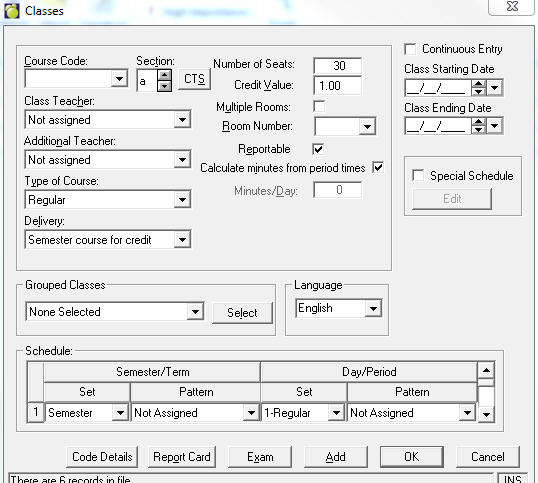
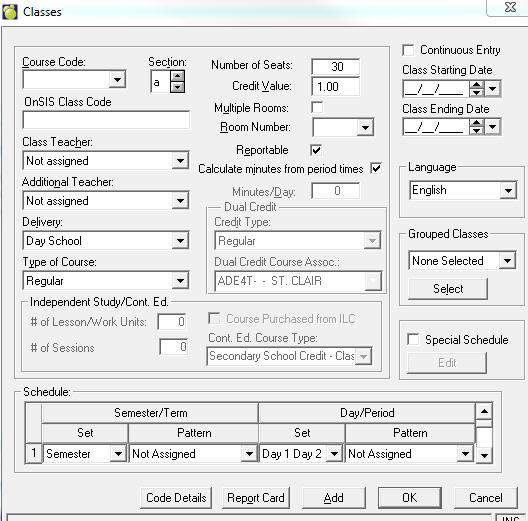
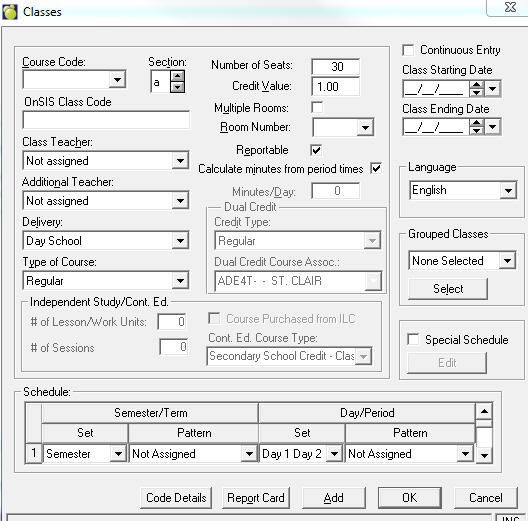
If the students’ timetables will be recorded in each student's record, the classes must be entered into the Classes File. Before you can enter classes, the corresponding course codes must be entered into the Courses File. For example, if there were two classes of MAT1A1, the Courses File would require the course code MAT1A1 and the Classes File would contain the two classes MAT1A1a and MAT1A1b. Note that the class name is comprised of the course code and the section letter. The first class has the section letter 'a', the second class has 'b', and the third class would have the section letter ‘c’, etc. Each course may have up to 26 sections (a through z). The following information may be recorded for each class in the Classes File.
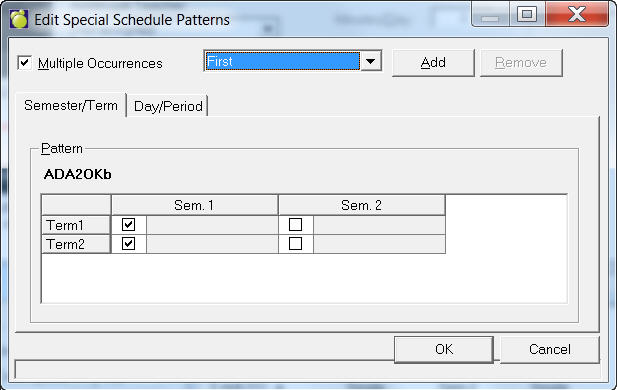
Schools on patterns will notice a Special Schedule checkbox when they edit a class. This box should be checked only when the class is taught in a unique semester/term/day/period schedule. When checked, the current pattern assignment will be lost upon confirmation of the warning. Then the Edit special schedule button is available to setup the schedule by checking the boxes corresponding to the semesters and terms (on the first tab) and days and periods (on the second tab) where the class is taught.
The class will be assigned to a Special Schedule set with a corresponding pattern name representing the class code. Although the pattern will exist in School Information, it is only viewable (any edits must be done in the classes file). Special Schedule classes may still be grouped (all classes in the group will have the same special schedule, even if the pattern name corresponds to each of the different classes). Clicking Special Schedule will enable the Edit button (see below Classes window), where you can set up when the class is offered.
In some schools, a class' schedule does not follow any specific pattern, and the Special Schedule button allows the school to specify where the class is taught. In some rare cases, the class' period assignment changes between semesters or terms. For these situations, check the new "Multiple Occurrences" box within Edit Special Schedule. Once checked, the first occurrence is defaulted so that the user can select the semester/term and day/period boxes representing when the class is taught. The Add button can then be selected to add the second occurrence, again selecting the required semester/term and day/period boxes. Up to four occurrences may be added. The class is then scheduled in all the semester/term and day/period combinations selected.
Continuous Entry Class
Mark the course as Continuous Entry if it is e.g. an online course where there is no set entry or completion date and students can sign up and work at their own pace until the course is completed.
Ontario
Alberta
Manitoba
Saskatchewan
BC