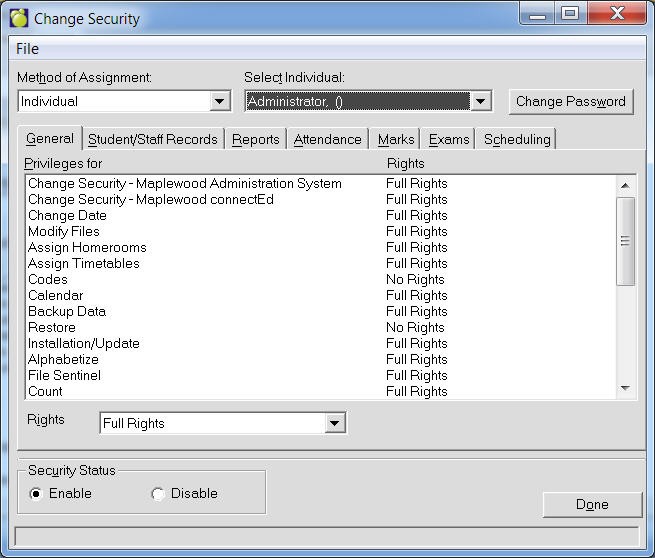
The option under File, Change Security allows any staff member with the privilege of Change Security to modify the privileges for any staff member, including their password. Initially all staff members will have this option disabled except for the 'Supervisor'. This feature is only available if security is enabled.
If you wish to reset rights to Disable as a default, click Disable in the Security Status frame to disable all users' security rights for all programs.