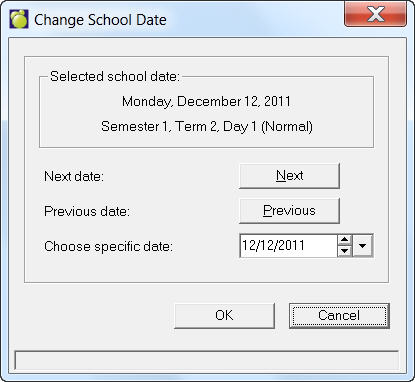
At the beginning of the school year, a calendar outlining the school days, days of the cycle, examination dates, and special days such as holidays will need to be created. Do this by choosing File, Change Date.
This is the data on which all Change Date entries will be based. Remember to change the date for the system at the start of each day. This action changes the system's internal calendar to indicate the current date.
Next Date moves the calendar pointer from the date indicated on the screen to the next date that has been entered on the school calendar. For example, on Wednesday May 1, selecting Next Date changes the date to Thursday May 2.
Previous Date moves the calendar pointer from the date indicated on the screen to the previous date that has been entered on the school calendar. For example, on Wednesday May 1, selecting Previous Date changes the date to Tuesday, April 30.
Choose Specific Date - To use the spin buttons, first select the day, month or year displayed, then click the up or down arrows. To use the calendar, click the single drop-down arrow and select the date.