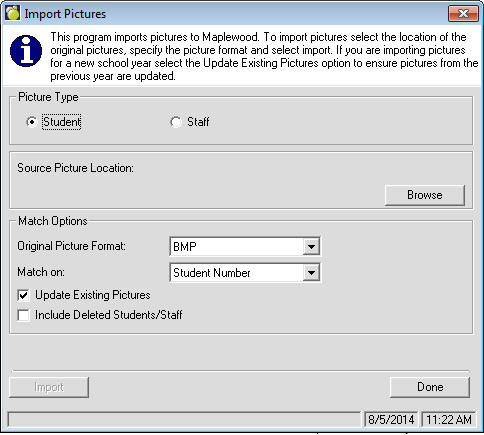
Choose File, Import, Student/Staff Pictures to import pictures into Maplewood.
First select Student or Staff so the program knows where to save the pictures.
Next click Browse and navigate to the import from picture location.
Original Picture Format: select the file type of the images to be imported into Maplewood (BMP, JPG/JPEG, GIF).
Match On: Each image should be given a filename that corresponds with either the student’s student number, (list options here). Select the appropriate file naming convention from the “Match on” field.
For example, if a student’s student number is 12345, and the file containing that student’s name is 12345.BMP, then select BMP as the original Picture Format, and set the Match On field to Student Number.