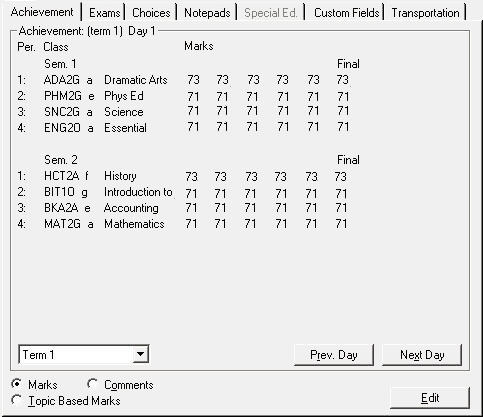
Choose Students, (select student), Achievement tab. The Achievement tab is one of many ways to enter/view Topic-based report card information. Once the school has run the steps to prepare for report cards, the Topic-based option on the Achievement tab can be used to view the information (typically entered elsewhere by the teachers).
Use the Prev. Day and Next Day buttons to see next and previous days' achievements. From this screen you can move between Marks and Comments by clicking the option buttons at the bottom of the box. Highlight the achievement value that you want to change and enter a new one. You cannot change Course Names or Descriptions here.
Note: To access achievement records for an entire class, choose Marks, Enter Marks, Enter Marks/Comments or Enter Marks By Scanner.
Edit Achievements
To edit achievements, first select the Marks or Topic Based Marks option button, and then click the Edit button to access this editing window:
Marks
From the main student records screen, achievement tab, click the Topic Based Marks option button and then select a Class/Homeroom from the drop-down list.
Topic Based Marks
From the main student records screen, achievement tab, click the Topic Based marks option button and then select a Class/Homeroom from the drop-down list.
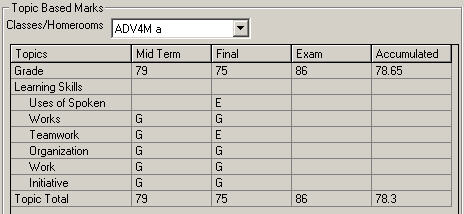
Note: You can enter a mark for a class that is in period x. (i.e. for classes that are not part of the regular timetable).
Edit Comments
To edit Comments, first select the Comments option button and then click the Edit button to see this editing window:
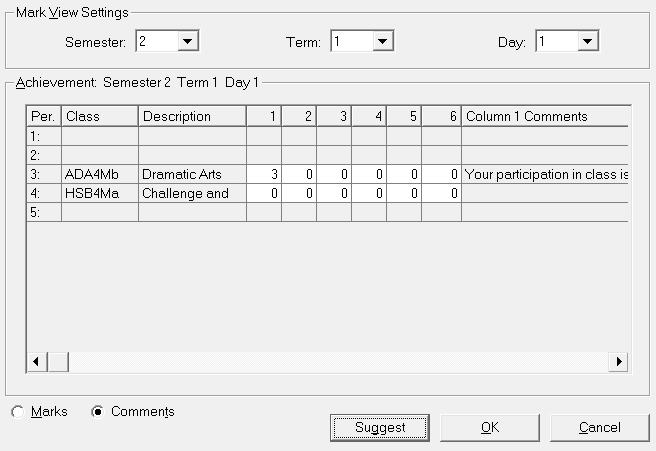
Click the Suggestion button for a list of premade comments that your school has entered.