Assign All Of A Field is helpful when the same field entry (i.e., same item of information) needs to be recorded for many students. It may also be helpful when a field needs to be replaced or exchanged with another field for many students. A field is an item of information which is recorded for the students in the Maplewood system. Use this option during the initial entry of data for the school to input common shared information quickly. To access this option, choose Students, Assign All of a Field and choose Current Students or Past Students.
The field may be assigned a new value or, if appropriate, the field may be replaced with another field or exchanged with another field. For example, you may wish to:
change the current grade to 10 for all students who are currently in grade 9.
change the homeroom number to 24 for all students in a particular grade or homeroom.
change the phone number to ' (123) 555- ' for all students (and therefore only the last four digits of the phone number need to be entered).
replace List Field 12 (e.g. Permission for Trips) with 'Yes' for all students with a specific defined character.
change List Text 9 (e.g. Licence Plate) to the field value of blank for individual students (specify each student)
Note: Ontario Report Card Details for Literacy Test Completion Information has been added to the Assign All of a Field program. The proper Completion Status must be selected first for a particular student, before any of the other options may be assigned (example, a Status of Not Applicable must be assigned to the student before a Non-Participation Status can be assigned to that same student).
SHSM - Use the checkbox to populate the SHSM Completion Date (where applicable) when assigning diplomas/diploma dates to students. If checked the program will perform a validation to ensure that the student has completed all SHSM requirements and, if he/she has, will assign the student an SHSM Completion Date that is the same as the diploma date.
1.Indicate Field
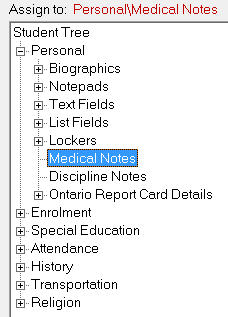
The first step in Assign All Of A Field is to indicate the field to be changed by selecting from the drop-down list. The field may be the data in Biographics, Text Fields, List Fields, Enrolment, History, Notepads, Transportation, Special Education.
Note: Depending on which fields are selected to be changed, the information/assignment options will change. Do not be concerned if certain areas remain grayed out (unavailable).
Enter the new value for the field to be changed or, if appropriate for the field.
2. Replace Field With
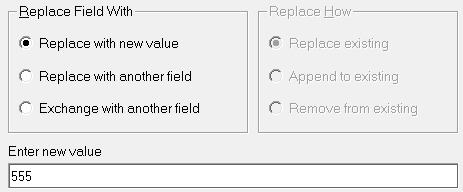
Replace with new value: A new value for this field must be entered, which will replace any previous entries for: A new value for this field must be entered, which will replace any previous entries for this field. For example, it may be used to replace the telephone field with "(123) 555-".
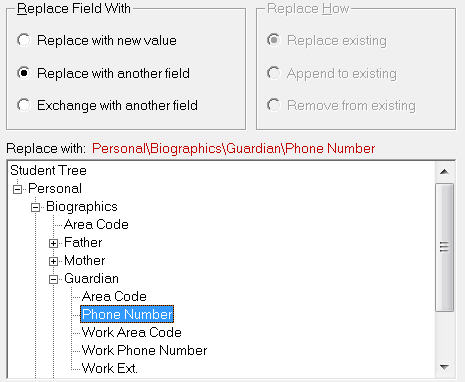
Replace With Another Field: The field to replace this field must be indicated. For example, this choice may be used to replace Defined Character 1 with Defined Character 4 (and therefore both Defined Characters 1 and 4 would contain the value which was originally contained in Defined Character 4).
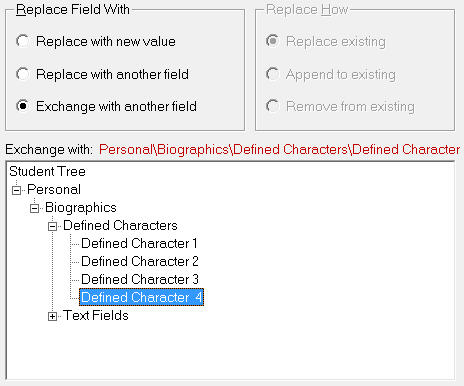
Exchange With Another Field: The field to be exchanged with this field must be indicated. For example, this choice may be used to exchange Defined Character 1 with Defined Character 4. This is like swapping fields. The field to exchange will appear in red.
3. Select Students
Assign All Of A Field will change the field for all or selected students upon selection of the group of students from the following choices:
Alphabetically (All Students)
The field will be changed for all students alphabetically. The starting student must be indicated. Therefore, if all the students in the school are to have the field changed, the starting student may be determined by entering the Partial Surname "A" then selecting the first student in the list.
In a Specific Grade
The field will be changed for all students in a specific grade upon entering the desired grade.
In a Specific Homeroom
The field will be changed for all students in a specific homeroom upon entering the desired homeroom. When changing a student's homeroom using Assign All of a Field, and there are topic-based marks/comments in the original homeroom, those marks and comments will now be automatically transferred to the new homeroom, providing that new homeroom is expecting those same terms and topics.
With a Specific Defined Character
The field will be changed for all students with a specific Defined Character upon entering the desired Defined Character number (1 through 4) and the desired Defined Character value.
In a List Compiled by INQUIRY
The field will be changed for all students whose names appear in a list compiled by Inquiry.
Individually (Specify Each Student)
Individual students may have the field changed upon selecting the desired student (usually by the entry of the desired student's Partial Surname or Student Letters).
Notes: If Text or List Fields are to be replaced or exchanged, only the field value is replaced or exchanged. The title of the field remains unchanged. If you have to change the title of a Text or List Field, use File, System Maintenance, Custom Fields/Titles.
4. Assignment
There will be a warning before the assignment begins. Please be sure to heed this warning as significant amounts of data will change. If you are at all unsure press No and review your procedure. We recommend, as a precaution, that schools complete a backup before running this application.