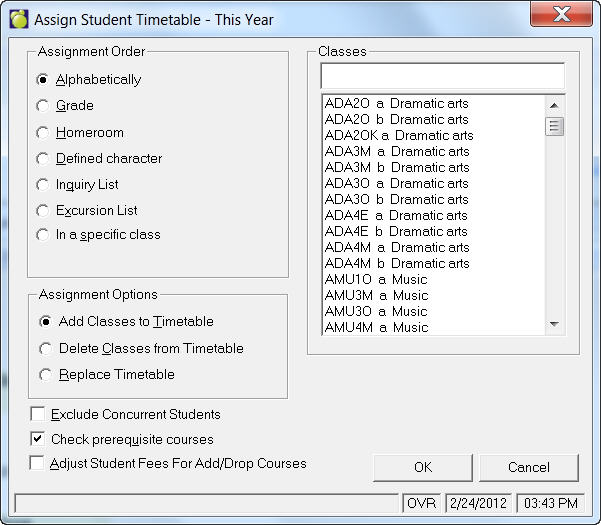
This option can be used to enter students’ timetables quickly. It does not schedule timetables, instead, it assigns selected classes to groups of students. You can assign classes by adding, deleting or replacing classes. To access this option, choose Students, Edit Timetables, Assign Timetables by Group, enter the class, press enter and use these commands.
Assign Student Timetables by Group allows for wildcard options. If there are * or ? in the input text - then it will select all the classes answering to that condition, e.g. if all students in homeroom 1A get the classes with the pattern 1******a, you can have them all selected using the wildcards rather than holding the CTRL key and clicking each class individually). This feature will be helpful at the start of the year when schools are assigning timetables to elementary students by homeroom. For example, if the students in homeroom 5A all have classes setup using a similar pattern such as 5MATHa, 5LANGa, 5PED.a, 5SCIEa, etc, entering 5****a in the entry box will automatically highlight all the classes matching that pattern upon hitting the Enter key or selecting the OK button.
Note: The selection of classes will occur when either the Enter key is used or when selecting the OK button to continue.
Select an order from the following options:
Alphabetically (All Students)
The classes will be added to all students' timetables alphabetically. The starting student must be indicated. Therefore, if all the students in the school are to have the classes added, the starting student may be determined by entering the Partial Surname "A" then selecting the first student in the list. Deleted students may optionally be included.
Grade
The classes will be added to the timetables of all students in a specific grade upon entering the desired grade. Deleted students may optionally be included.
Homeroom
The classes will be added to the timetables of all students in a specific homeroom upon entering the desired homeroom. Deleted students may optionally be included.
Defined Character
The classes will be added to the timetables of all students with a specific Defined Character upon entering the desired Defined Character number (1 through 4) and the desired Defined Character value. Deleted students may optionally be included.
Inquiry List
The classes will be added to the timetables of all students whose names appear in a list compiled by Inquiry. Click OK and select an Inquiry list from the drop-down menu.
Excursion List
The classes will be added to the timetables of all students whose names appear in an Excursion list. Click OK and select an Excursion list from the drop-down menu.
In a Specific Class
The classes will be added to the timetables of all students in a specific class upon entering the desired class. Deleted students may optionally be included.
Select from the following types of assignments:
Add Classes to Timetables
This choice will add the specified classes to the students' timetables. The classes may be added to all students' timetables alphabetically, in a specific grade, in a specific homeroom, with a specific defined character, in a specific class, in a list compiled by Inquiry, or they may be added to individual students' timetables. Once you have selected the Assign Student Timetables option, the classes which will be added to the students' timetables must be entered. Upon entering the classes, press the Escape key to continue, then choose Add Classes To Timetables from the menu.
The option Only those in the students' choices will add any of the specified classes that are among a student's choices to that student's timetable. For example, if MAT1Aa, ENG1Ac and HIS1Aa are to be added, but a student has only MAT1Aa and ENG1Ac among his or her choices, the HIS1Aa class will not be added to that particular student's timetable.
Delete Classes From Timetable
This choice will delete the specified classes from the students' timetables. The classes may be deleted from all students' timetables alphabetically, in a specific grade, in a specific homeroom, with a specific defined character, in a specific class, in a list compiled by Inquiry, or they may be deleted from individual students' timetables.
Once the Assign Student Timetables choice has been selected, the classes which will be deleted from the students' timetables must be entered. Upon entering the classes, press the Escape key to continue, then choose Delete Classes From Timetables from the menu. The classes will be deleted from selected students' timetables upon selection of one of the following choices:
Replace TimetablesThis choice will remove all the classes previously assigned to a group of students and then will add the specified classes to the students' timetables. The classes may be replaced in all students' timetables alphabetically, in a specific grade, in a specific homeroom, with a specific defined character, in a specific class, in a list compiled by Inquiry, or may be replaced in individual students' timetables.
Once the Assign Student Timetables option has been selected, the classes which will be replacing all classes previously recorded in the students' timetables must be entered. Upon entering the classes, press the Escape key to continue, then choose Replace Timetables from the menu.
Check Prerequisite Courses
- The program will check the student's history to ensure that the student has passed the required classes. The prerequisites are set up in the Courses Table.
Adjust Student Fees for Drop/Add Courses
- If current course has a fee charge the interface has a new checkbox that when checked, will assign the charge to the student's Account. If the checkbox remains unchecked, then the program will not enter the charge in Accounts.
- When you select Yes, the program will charge/credit the fee to the student's account.
- If the fee was never charged, then the program will inform the user that a credit can not be given to the student when the course is dropped.
- If a class is dropped after the allowable refund time the program will not send a message to the user but drop the class and not deduct the charge.
If current course has a fee charge and the following options for refund (No Refund After (days): field), the program will react in one of the following ways:
a) Refund field: a specific number of days
- If course was originally charged and is dropped within * + 1 days, the refund will be given when the user checks the option to allow refund.
- If course was not charged and is dropped within * + 1 days with the checkbox checked for refund, the program will give a No.
- Course Fee' message saying that "A course fee does not exist to be refunded" and refund will not be given.
- If checkbox is not checked, then refund is not given.
- If course is dropped after the refundable time, then refund will not be given.
- Program will refund up to 255 school days.
- If the checkbox is checked, the student will be charged according to the fee set up in the courses file.
- If the checkbox is left unchecked, no charge will be made to the student.
- If the checkbox is checked and a class is being deleted, the program will deal with this function as follows:
- If class was charged and dropped within the allowable refund time parameter, the account will be credited.
- If class was charged and dropped after the allowable refund time parameter, the account will not be credited.
- If class was never charged and dropped, the program will not credit the account. A 'No Course Fee' message will be appear informing the user that 'A course fee does not exist to be refunded'.
b) Refund field: zero
- - if the course was originally charged, refund will not be given.
c) Refund field: blank
- - if the course was originally charged, refund will be given at any time.
Note: Refund days are calculated on Maplewood's Administration calendar, active school dates, not Operating System calendar.