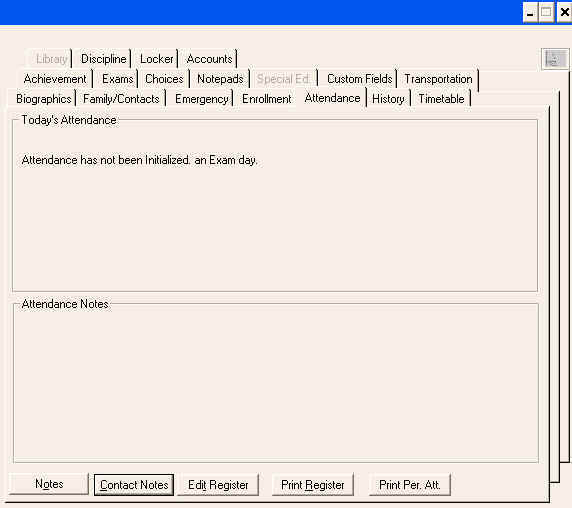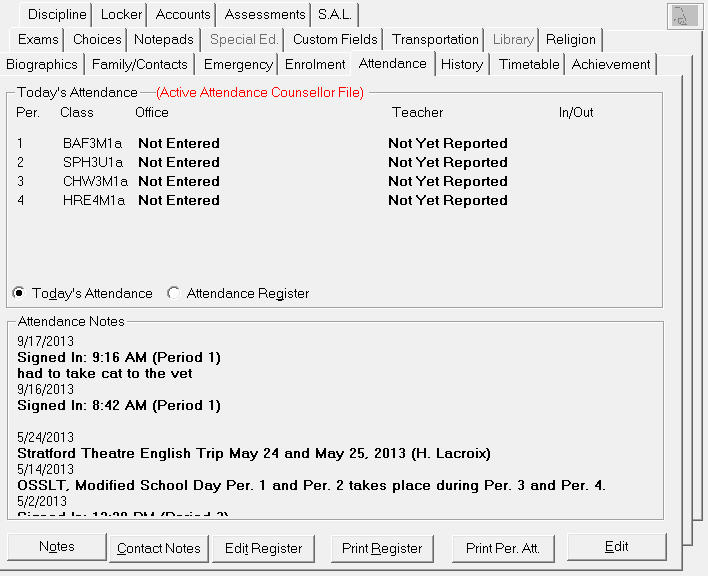
Choose Student Records, (select a student), click Attendance tab.
The Attendance tab will show a message "Attendance has not been initialized" in place of the student's classes if posting has been done and the Maplewood calendar date has been changed to the next day, but attendance has not been initialized for that day. The Edit button will not appear until you've initialized attendance.
On the Attendance tab you can edit Attendance Information by clicking Edit, and you can edit the Attendance Register by clicking Edit Register.
Attendance Notes - Click the Notes button to make Attendance Note entries.
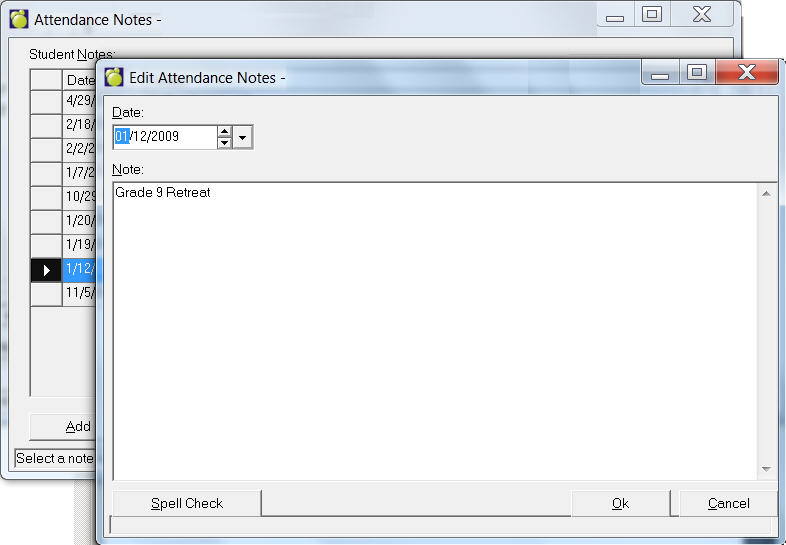
In the Student Notes there will be a list (if any are already recorded). Here you can select the note and click Edit to make changes. You can click Add to enter a new note. Select a note and click Delete to remove a note.
Below is an example of an editing screen for an Attendance note. Use the Spell Check button to check your work before saving.
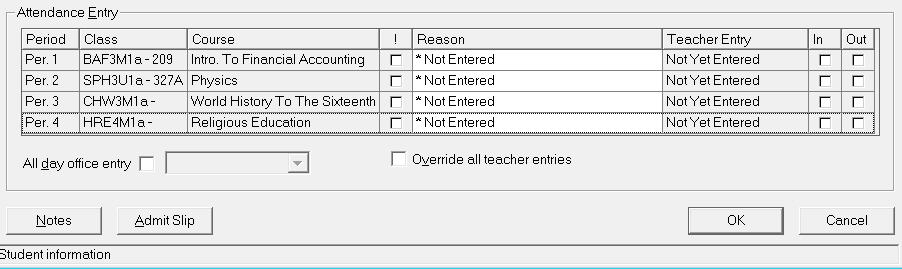
Click Admit Slip to set a printer settings and print an Admit Slip.
Attendance Entry Frame
! - When checked, this column means that is the attendance entry for the student regardless of what the teacher enters. For example, if the office indicates that a student is late to period 1, the teacher is expected to mark the student as L to the class (not absent). Some schools pass their class attendance in before the period is finished so that the student is recorded as Absent in the class. Normally, when the attendance is stored at the end of the day, the computer has to choose between the office that indicates L for the period and A reported by the teacher (the A is ultimately stored and it prints as a deviation).
Office Entry & Teacher Entry - click in the entry cell
and a drop-down list will appear. Select from the defined
Attendance codes.
In/Out - click either the In or Out check box to coincide with the Attendance of the student.
All Day Office Entry - If you know the student's attendance will be the same all day, click this check box and select an attendance type from the drop-down list.
Override All Teacher Entries - Click to override teacher entries
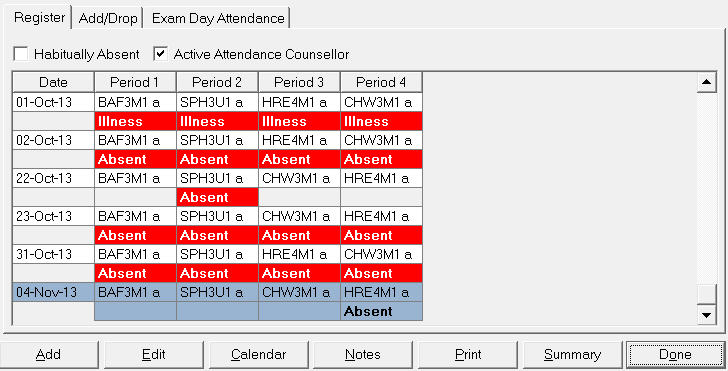
To edit the Attendance Register click the Edit Register button on the Attendance tab from the main Student Records screen.
Register Tab - Use the buttons at the bottom of the Register tab to edit attendance. Editing access to half-day attendance here is the same as users will have on the Exam tab.
Habitually Absent (Ontario only) - this feature is used and defined by the school.
Active Attendance Counsellor Flag (Ontario only) - this means that the student is being supervised by an attendance counsellor, and it supersedes the rule in Maplewood where a student is not counted as being enrolled until the student attends school for the first time in a school year.
This will be a checkbox, that when activated will over-ride the requirement of a student's name to appear on the register only after their first day of attendance.
Ontario register rules state: Enter a pupil's name in the register on the day on which the pupil actually begins to attend classes for the current school year. Although pupils' names from the previous school year may be stored in a school's computerized system for administrative purposes, a pupil's name must not be entered into the current register until the pupil actually begins to attend classes.
Exceptions to this requirement are the following pupils, whose names may be entered in the register on the first day of school for the current school year:
So, if a student is flagged as “Active Attendance Counsellor” and missed the first 5 days of school, you could get the attendance register to print with Absent for the first 5 days of school. If the student is NOT flagged as Active attendance counselor, and you print the attendance register, he/she would show up as “Not Enrolled” until he/she actually showed up.
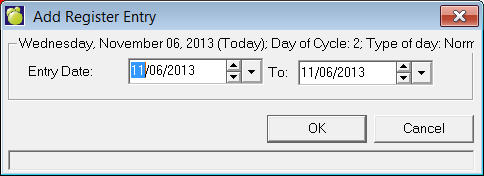
Add button: Add: Click Add and specify a new Entry Date. You can enter attendance in the register for multiple days. Entering attendance directly into the student's attendance register will now prompt a start and end date to allow the period attendance to be recorded for a range of dates.
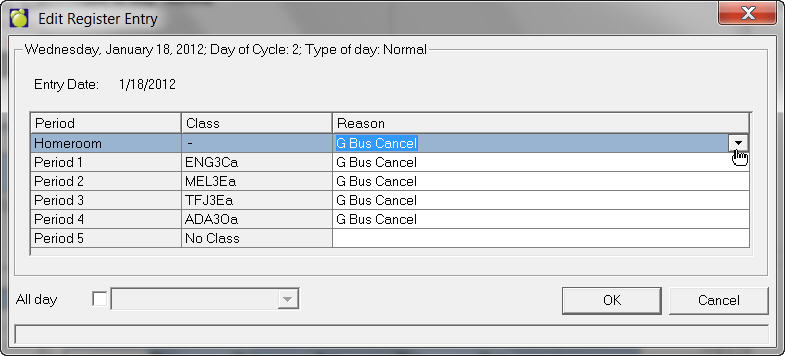
Edit button: Use these button to Edit Attendance Registry entries. Click in the Reason column for each row to set reasons. Click All Day and select from the drop-down list to apply the same reason to every row.
Calendar button: Click to see the Attendance Register as it appears on the school calendar.
Notes button: Click the Notes button to edit previously entered notes. As well, you can add and delete notes.
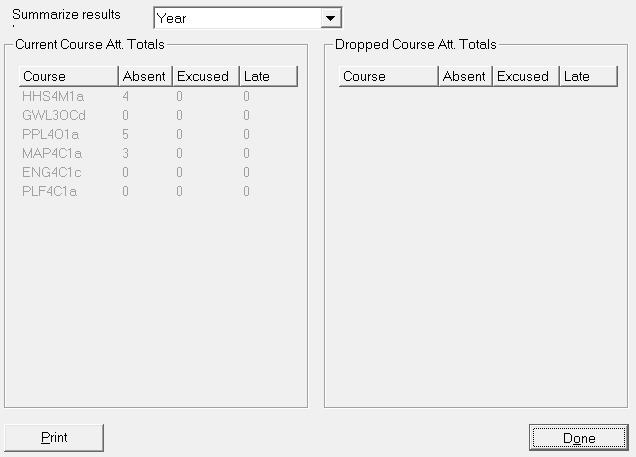
Summary button: For a printable Attendance Summary click the Summary button. You can also access this screen by choosing Attendance, Display/Modify Register, selecting a student and clicking the Summary button. You can view the summary by Year, by Semester, and by Term. Depending on the date, the program will show the attendance summary for its corresponding semester/term.
e.g.
If admin date is within Semester 1, Term 1 you will only get to see data
for that timeframe
e.g. If admin date is within Semester 2, Term 2 you will be able to see
complete breakdown for Semester 1 and 2 and Term 1 and 2
When school is not using homeroom attendance and entering Class attendance (with/without scanner) for period 1, an Absent will appear in student record as follows:
Office: Absent all day
Teacher: Absent for period 1 only. Remaining periods will show Not Yet Reported.
Students who are present in period 1 attendance will appear in student record as follows:
Office: Not Entered all day
Teacher: Present in period 1. Remaining periods will show Not Yet Reported.
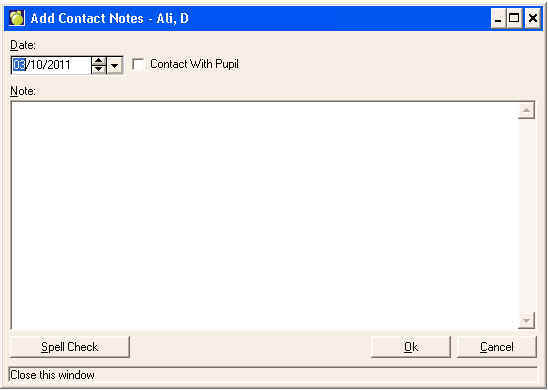
Ontario users will see a Contact Notes button on the Attendance Tab within Student Records. This has been added to adhere to the new 'Daily Attendance Record' requirements mandated by the ministry. As of February 1, 2011, schools are now required to track contact that is made by the school to a SAL or Prolonged Absence Student. When contact is made, a 'C' must be indicated on the student's Attendance Register.
The user has the ability to Add/Edit an entry for the student. Within the add/edit area, a new checkbox called 'Contact with Pupil' has been added. Similar to the attendance notes area, users also have the ability to enter any notes related to this contact made.