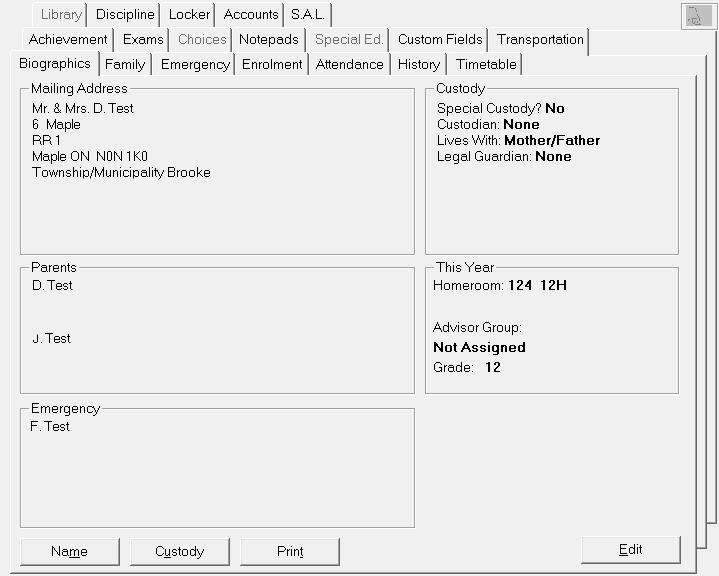
Choose Student Records, select a student, then click the Biographics tab.
Click Edit to change the Date of Birth, Gender, Homeroom for This Year and or Next Year and select defined characters.
Defined Characters - If applicable, click the down arrows and select previously defined characters for the student. Four characters are reserved to be defined by the school for each student. Defined Characters are not recorded anywhere in the system - administrators and teachers must remember what each letter or number represents. Defined Characters can be any letter of the alphabet or any number from 0 to 100. They may be used for selecting groups of students for whom reports will be printed e.g., 1 could represent Aboriginal. You can then print a report for students with defined character 1 using Report Builder.
Name - Click the Name button to edit Surname, Legal Name, Given Name, Middle Name, Usual Name and Student Number.
Legal Surname Same as Usual Surname - The student name fields now include a new box called "Legal Surname Same as usual Surname". For the majority of students, this box will be checked and the same surname will appear in both the Usual Surname and the Legal Surname fields. If the legal surname is different, this new box is unchecked which enables the entry of the unique Legal Surname.
Alias Names - From the Name button in the student's record, Alias Names may be recorded for a student. Alias names are other names by which a student may be referred.
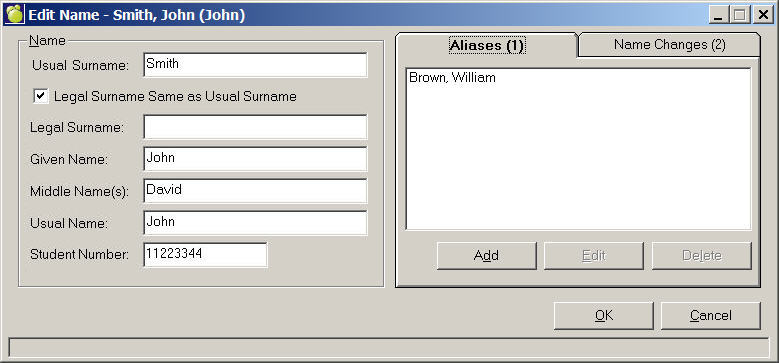
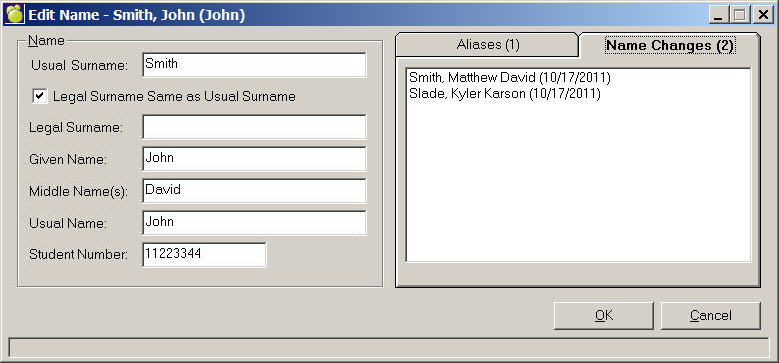
Name changes are tracked as well. When changes are made to a student's name, the date and the name prior to the change is saved. These previous names may also be optionally included in the select student searches if the user checks the Name Changes option in the new Incl. Alt Names frame.
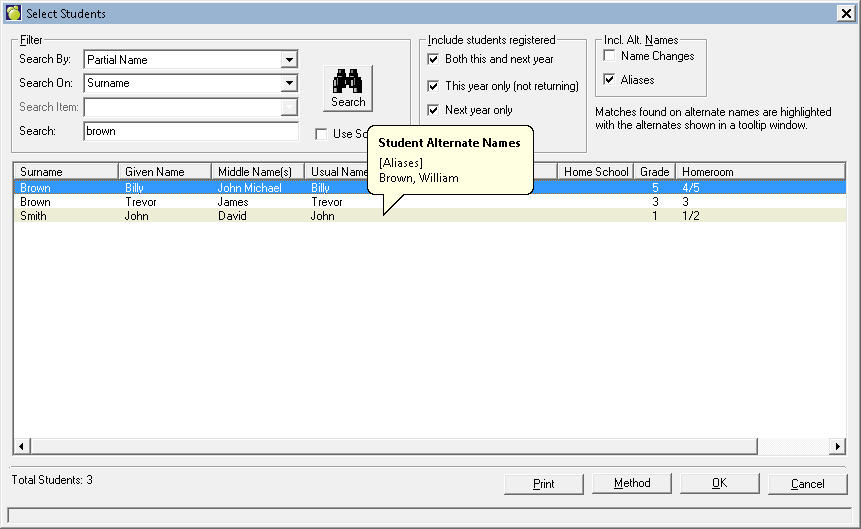
When searching student records, a school may optionally select to include alias names in the search. For example, John Smith may have an alias name of William Brown. If the user checks the Alias option (in the new Incl. Alt. Names frame), and if the user searches for the surname Brown, the list of students will include John Smith. John Smith's row will have a shaded background to highlight to the user that the student was found because of a match on the alias name. When the mouse is positioned on that row, a caption will appear showing the student's matching alias name(s).
Custody - Click the Custody button to select a Custodian, Person with whom the Student lives, and Guardian. If there are Special Custody arrangements click the Special Custody check box.
Special Custody Flag in Student Records: When a student is flagged for Special Custody (Special Custody checkbox is checked), student record will show a flashing icon beside the student's name as well as the text for the Special Custody Note in red.
Click Print to generate a preview of all the information displayed on that screen. From this screen you can print.