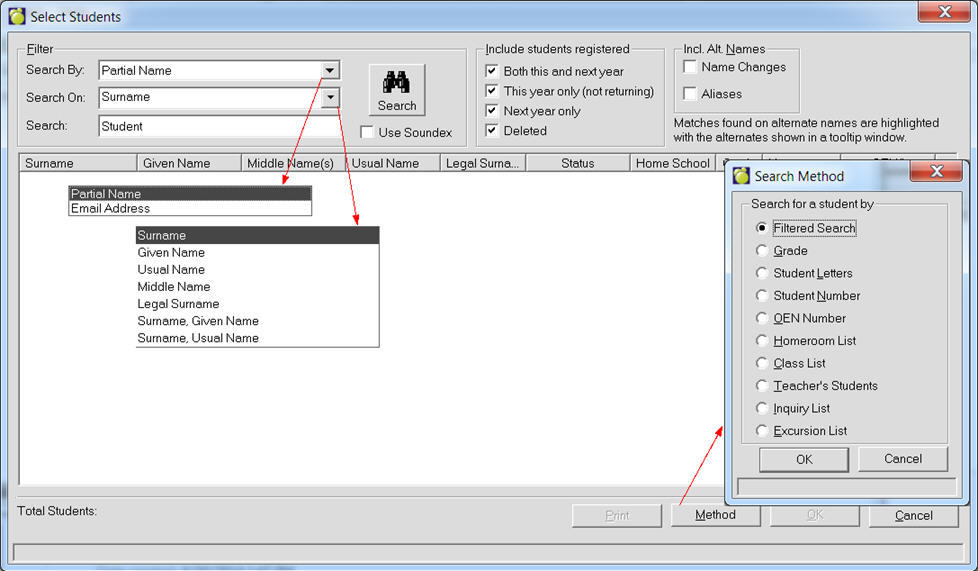
To view or edit a student record choose Students, Student Records from the main screen.
Search By: select Partial Name or Email from the drop down list.
Search On: select one of the search types (see image below).
Method: you can also search by a variety of different methods (see below for search method descriptions.)
Filtered Search - This is the main search screen that you see when you choose Students, Student Records (image above).
Grade - First, choose This Year or Next Year. Now select a grade from the drop-down list. Select a student and click OK or double-click.
Student Letters - Enter the student's three letter code and choose OK. Click Method to access the Student Search screen; click Exit to return to the main screen. Use the scroll bar to see additional students. Double-click the student or press Enter.
Student Number - Enter the student number and choose OK. Click Method to access the Student Search screen; click Exit to return to the main screen.
Ministry Number - You can search according to the jurisdiction title of these numbers.
AB: Alberta Student Number
BC: PEN
MB: MET
NWT: Health Care Number
ON: OEN
SK: DEN
US: Dept. of Education Number
Homeroom List - Select either This Year or Next Year. Select a Homeroom from the drop-down list. Finally, select a student.
Class
List - Select either This Year or Next Year. Select a Class
from the drop-down list. Finally, select a student.
Teacher's Students - Select either This Year or Next Year.
Select a Teacher from the drop-down list. Select a Class from the drop-down
list. Finally, select a student.
Inquiry List - Select a drive from the drop-down list. Select
an Inquiry list from the drop-down list. Finally, select a student.
Excursion List - Select an Excursion list from the drop-down
list. Finally, select a student.
TIP: To get a list of all students when selecting a student in Student Records use the percent (%) character. This will return all students based on the status that is selected. The search returns the number of students, therefore, this is a quick way to get a total for the status of students being searched (i.e. all registered students).
Include students registered: select a specific enrollment status or leave the search as is with all options selected.
Include Alternate Names: Alias Names may be recorded for a student. Alias names are other names by which a student may be referred. When searching student records, a school may optionally select to include alias names in the search. For example, John Smith may have an alias name of William Brown.
Name changes tracked. When changes are made to a student's name, the date and the name prior to the change is saved.
Using Soundex
Soundex is a phonetic algorithm for indexing names by sound, as pronounced in English. The goal is for names with the same pronunciation to be encoded to the same representation so that they can be matched despite minor differences in spelling.