Getting Started:
Screen Resolution
K212 HRP is designed for a screen resolution of 1024 by 768, or greater. If you use a lower resolution (such as 800 by 600), K212 HRP may still function, although it will be far less convenient to use.
Colours & Fonts
As with most Windows applications, K212 HRP uses the display attributes of the Windows desktop. Therefore, if you change your desktop theme, the K212 HRP application also changes to match that theme.
Note: The only exception to this is the font face and size. These remain Arial 9 point (in forms) and Arial 9.75 (in reports) to ensure that layout is not adversely impacted by Windows desktop changes. In a few instances, reports have been modified to use Arial 8 to accommodate a large number of columns.
Opening K212 HRP
K212 HRP may be opened using any of the following methods (may vary from Board to Board):
Double click on the desktop icon entitled “K212 HRP”
Right click on the desktop icon entitled “K212 HRP” and select ‘Open’
Go to the Start Menu and select All Programs > ECNO > K212 HRP.
K212 HRP will perform the following tasks, when it is opened:
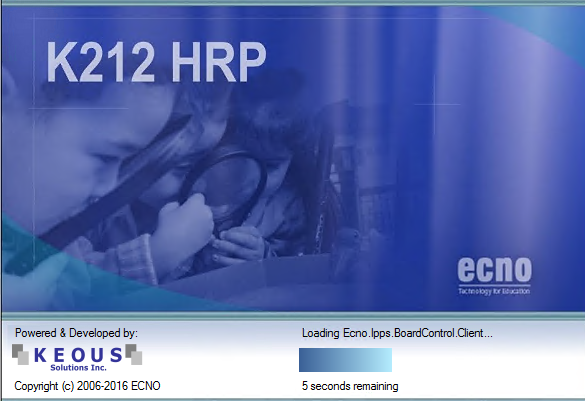
Display the K212 HRP “Splash Page”
If Single Sign On (SSO) is disabled only - K212 HRP will prompt you for your User Name and Password.
Query Active Directory (AD) for your User ID
Load your access rights from the K212 HRP database.
Check the modules that have been installed on your PC (in order to update the K212 HRP Main Menu)
Remove the K212 HRP Splash Page
Display the K212 HRP ‘Parent Window’ and Main Menu (nb. The Parent Window and Main Menu are described later in this document).
Image of the K212 HRP Splash Page
Closing K212 HRP
K212 HRP may be closed using any of the following:
Clicking on the red ‘X’ at the top right of the screen:

(1).png)
•Pressing Alt + F4
•Selecting File > Exit (from the K212 HRP Menu Bar)
Online Help
All user documentation for K212 HRP is provided online. Help for a particular module can be obtained through any of the following methods.
•Open the module and then press the F1 key
•Select Help > Contents from the Menu Bar and then select the module name via the menu structure
•Select Help > Index from the Menu Bar and then select the module name from the alphabetical list of modules.