How to Run an Employee Appraisal Import Job
This screen imports new Employee Appraisal Maintenance records into K212 HRP. The Employee Appraisal Import Job Report is generated by Employee ID; it identifies records that are not imported with an Error message. The Import File contains fields that are found in the Employee Appraisal Maintenance screen
Use the following steps to Run an Employee Appraisal Import Job
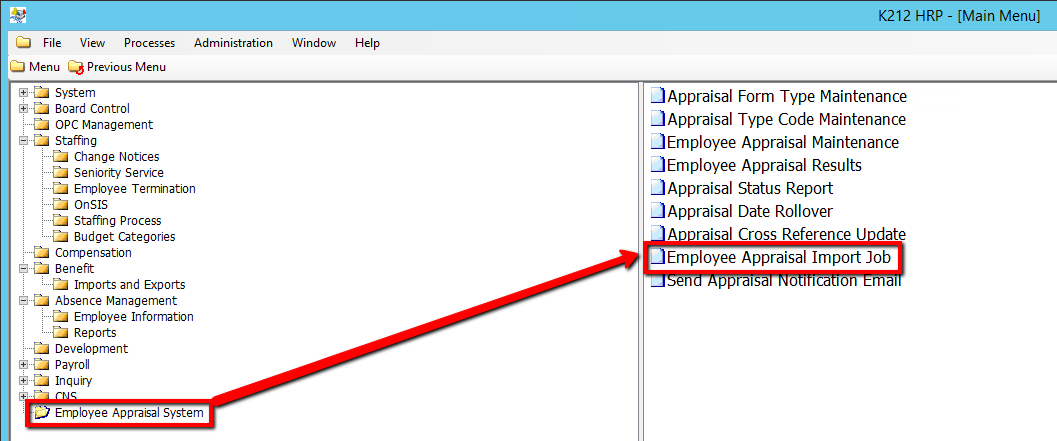
1. Click on Employee Appraisal System.
2. Click on Employee Appraisal Import Job.
.png)
3. Select a Use Default File? value (i.e Y)
If Yes is selected, the data in the Default File will be imported. The Default File is located on the application server. The actual path on the server is defined in the configuration files when K212 HRP is installed. If No is selected, any other file can be selected in the Import File field.
4. Select Browse on the Import Job File Name field & locate the Import File in your directory.
If the Default File is not being imported, then a file must be selected in this field. Enter the full path of the file to import or click the Browse Button to navigate to the file. The file selected here will be copied to the application server when the Submit button is pressed.
5. Click the Submit Mode drop-down menu to select an option.
Trial will produce a test document for viewing only. Update will update the information in the database with the new values.
6. Click the Submit button at the top of the menu bar to begin the Date Rollover process
