How to Send Appraisal Notification Emails
This screen produces the Send Appraisal Notification Email Report; identifying employees that received an email as well as those employees that did not; due to the related error message. Emails will not be resent; the ‘Date Email Sent’ will identify the date populated by a previous submission. When submitted in Update Mode, this process will send an email to all employees with an Active Appraisal and a Preferred Email Address on their Identification record.
Use the following steps to Send Appraisal Notification Emails:
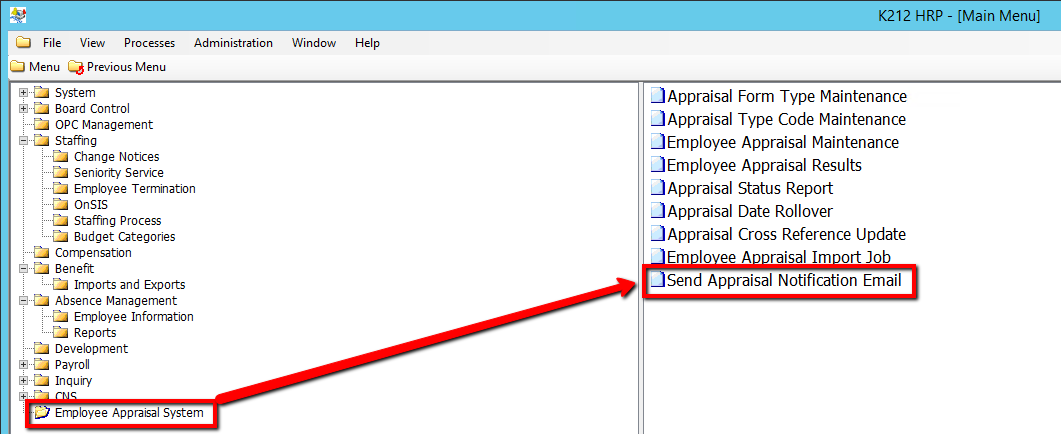
1. Click on Employee Appraisal System.
2. Click on Send Appraisal Notification Email.
.png)
3. Click the Type Code drop-down menu to select an option. (i.e Date)
The value entered in this field must exist on the Appraisal Code Table.
4. Select a CC Manager? value (i.e Y)
Select ‘Yes’ if the Manager requires a copy of the email sent to employees. Select ‘No’ if the Manger does not require a copy of the email sent to employees
5. Click the Submit Mode drop-down menu to select an option.
Trial will produce a test document for viewing only. Update will update the information in the database with the new values.
6. Enter a unique Email Text that will be sent to all specified employees
Emails should not contain sensitive information; they are a reminder from the board to ensure appraisals are performed on a timely basis.
7. Click the Submit button at the top of the menu bar to begin the Date Rollover process
