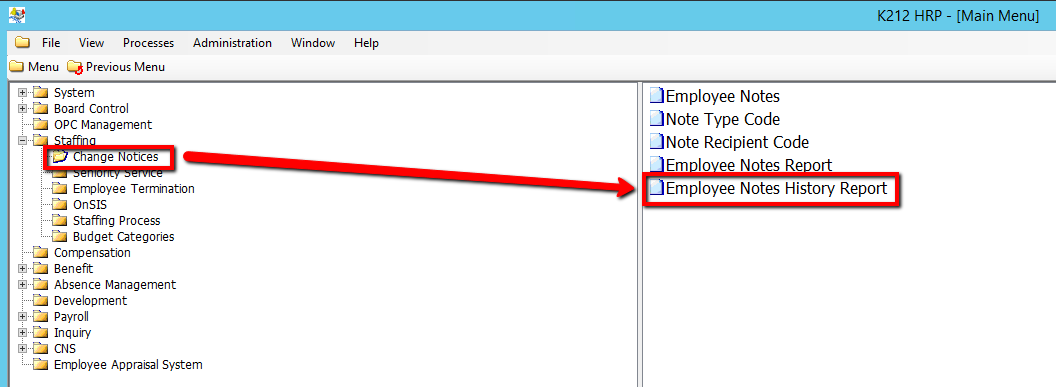
How to Run an Employee Notes History Report
This screen is used to produce a report of all notes that can be filtered by Employee ID, Employee Group, Note Type, Note Recipient or Status. The report will include notes with an effective date within the specified date range in the report parameters.
Use the following steps to Run the an Employee History Notes Report:
1. Click on Staffing
2. Click on Change Notices
3. Click on Employee Notes History Report
.png)
4. Enter a valid Employee ID (i.e 123) (If applicable)
5. Click the Employee Group drop-down menu to select an option or use the '...' button located beside it (i.e ELEM) (If applicable)
6. Click the Note Type drop-down menu to select an option or use the '...' button located beside it (i.e Benefits) (If applicable)
7. Click the Note Recipient drop-down menu to select an option or use the '...' button located beside it (i.e Benefits) (If applicable)
8. Click the Status drop-down menu to select an option.
When adding a new record the Status field will default to Active
9. Click the Date Range From drop-down menu to select an option or Enter in a date manually
10. Click the Date Range To drop-down menu to select an option or Enter in a date manually
11. Click the Submit button at the top of the menu bar to generate the Employee Notes Report
