How to Setup WHMIS Modules & Settings
This screen is used to setup WHMIS Module & Settings. User's can define which set of questions will be for a specific test, which sequence questions will be displayed, , what questions will be displayed, multiple choice answers, the correct answer for each question & where their tests/questions will be saved.
Use the following steps to setup the WHMIS Module & Settings
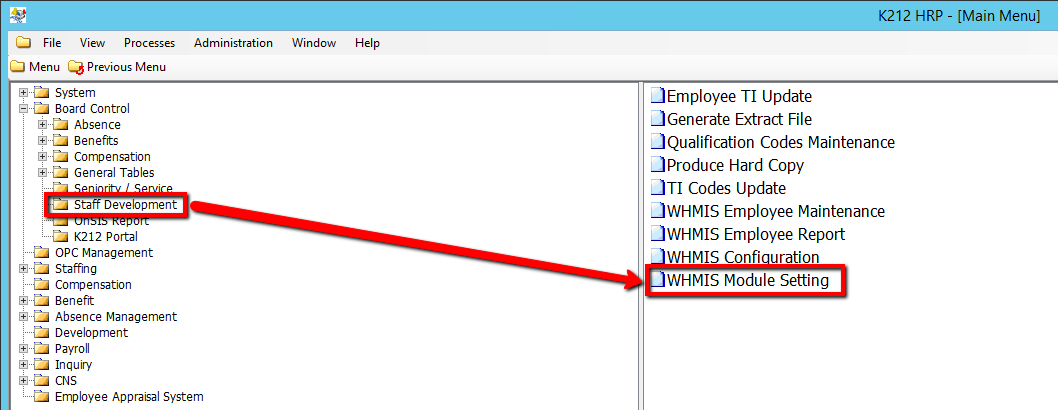
1. Click on Board Control
2. Click on Staff Development
3. Click on WHMIS Module Setting
.png)
4. Click the Find button at top of the menu bar to see all current records in the database. OR Enter in a Specific parameter such as Employee ID or Employee Group to narrow your search.

5. If K212 HRP dialog box displays, click Yes to continue.
.png)
6. Click the New button at the top of the menu bar to add a new record

7. Enter a Module Sequence ID value (i.e 1)
8. Enter a Page Sequence ID value (i.e 1)
9. Enter the File Name that the record will be saved under (i.e Module1Page1.html)
10. Right click the grey grid under the Question ID column and select a New Record
.png)
11. Enter a Question ID value (i.e 1)
12. Enter a WHMIS Question
13. Enter the multiple choice answer for Choice1
14. Enter another multiple choice answer for Choice2
15. Enter another multiple choice answer for Choice3 (If applicable)
16. Enter another multiple choice answer for Choice4 (If applicable)
17. Enter another multiple choice answer for Choice5 (If applicable)
18. Enter the Image Path Name (If applicable)
19. Enter the Answer ID (i.e Choice2 = 2)
20. Click the Save button to save the edits.

21. Repeat Steps 6-20 until the WHMIS test is satisfactory