How to Add/Modify a Position ID
This screen is used to add, modify, duplicate or delete a Position. It also allows you to monitor the number of positions at each location and track the GL accounts to which these positions are charged. A position in K212 HRP is identified by a Position ID. This is a unique number that represents a unique combination of Employee Group Code, Job Code, Location Code and Establishment Code.
•This screen is optional but if it is not used, position defaults will not be populated automatically when boards hire new Employees or enter new positions. You will be required to specify the data for each new Employee manually. In order to force these defaults, the Force OPC? Flag on the Employee Group Maintenance screen for the Employee Group must be set to Yes. This will ensure data integrity for any positions entered on the Position and Assignment screen for that Employee Group Code.
Use the following steps to Add/Modify a Position ID:
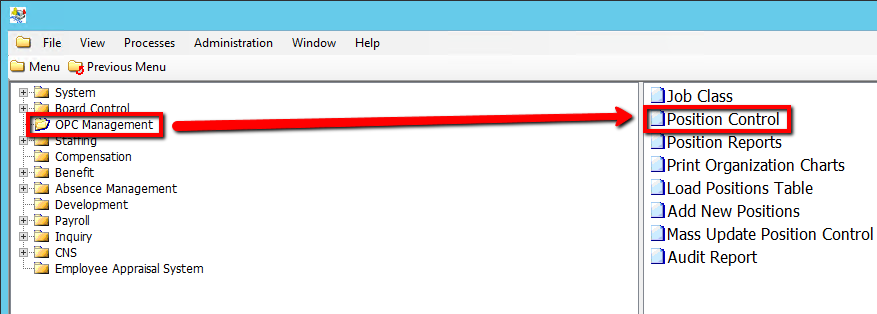
1. Click on OPC Management
2. Click on Position Control
.png)
3. Click the Find button at top of the menu bar to see all records in the database.

4. If K212 HRP dialog box displays, click Yes to continue.
.png)
5. Select a current Position ID to modify or Select New at the top of the menu screen to add a new Job Code
.png)
6. Select a Status value
7. Enter an Effective Date value
8. Enter a unique Position Name value
9. Enter an Abbreviation value
10. Select an Employee Group value
11. Select a Job Code value
12. Select a Location Code value
13. Select an Establishment Code value
14. Enter in any other relevant details in the Details Tab (If applicable)
15. Click on the GL Accounts Tab and Enter a GL Account & GL %
16. Click on the EASy Tab and Select a EASy Delegate value
17. Enter in any other relevant information, such as Staffing or ONSIS information in their respective Tabs (If applicable) (Consult the user guides for more information about each field)
18. Click the Save button to save your changes
.png)