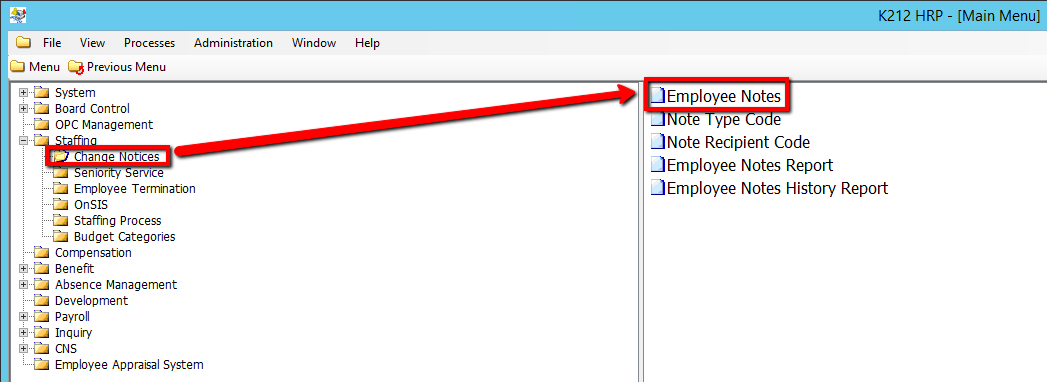
This screen is used to manage notes about specific employees. Codes are used to organize notes by Note Type and Recipient. Employee Notes cannot be deleted or modified, once they have been created and saved. You can add (but not delete) recipients to the note after it has been saved. Refer to the Change Notices Overview for additional details on this module
Use the following steps to Add an Employee Note:
1. Click on Staffing
2. Click on Change Notices
3. Click on Employee Notes
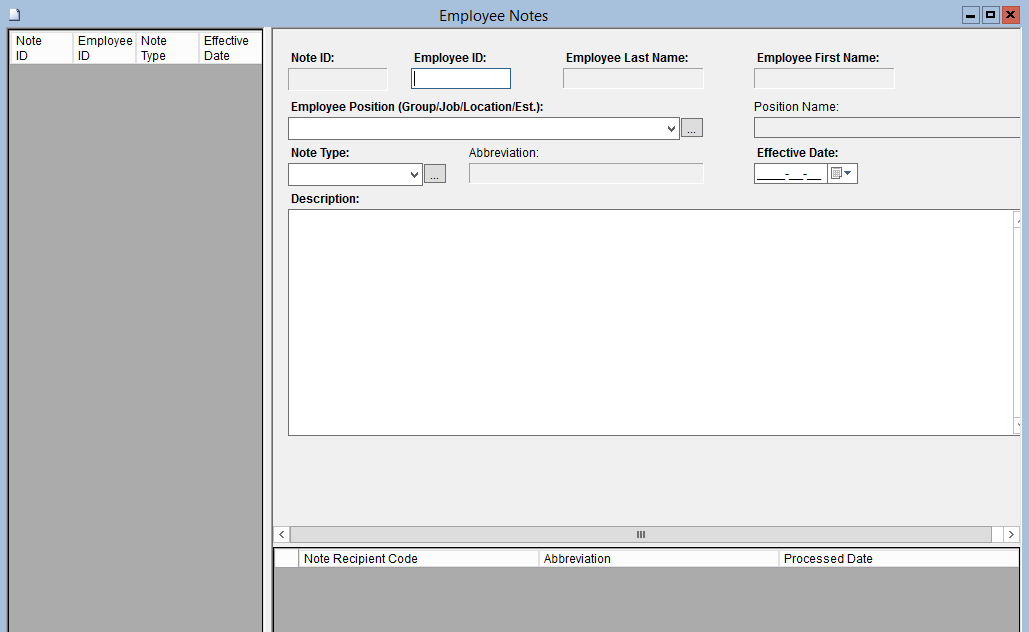
4. Click the Find button at top of the menu bar to see all current records in the database.

5. If K212 HRP dialog box displays, click Yes to continue.
.png)
6. Click the New button at the top of the menu bar to add a new record

7. Enter a valid Employee ID (i.e 123)
8. Select an Employee Position in the drop down using the downward arrow or the '...' button located beside it.
9. Click the Note Type drop-down menu to select an option.
10. Select an Effective Date (i.e Date)
11. Enter a unique Description for the specific Change Notice
12. Right click the grey grid under the Note Recipient Code column and select a New Record
13. Enter a Note Recipient Code value (i.e Benefits)
14. Click Save to save your Employee Note
