How to Add/Modify Historical Employee Absence Records for Previous Fiscal Years
This screen provides the ability to modify or delete posted Absence transactions for an employee from previous fiscal years. This function also allows new Absence records (for a previous fiscal year) to be entered directly.
Use the following steps to Add/Modify Historical Employee Absence Records for Previous Fiscal Years:
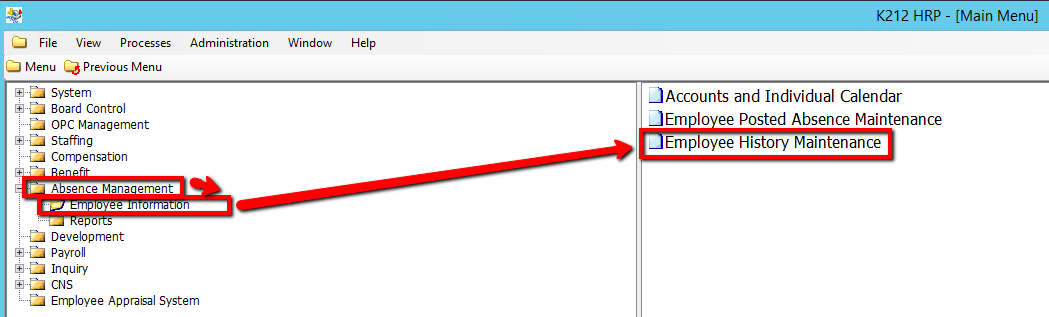
1. Click on Absence Management
2. Click on Employee Information
3. Click on Employee History Maintenance
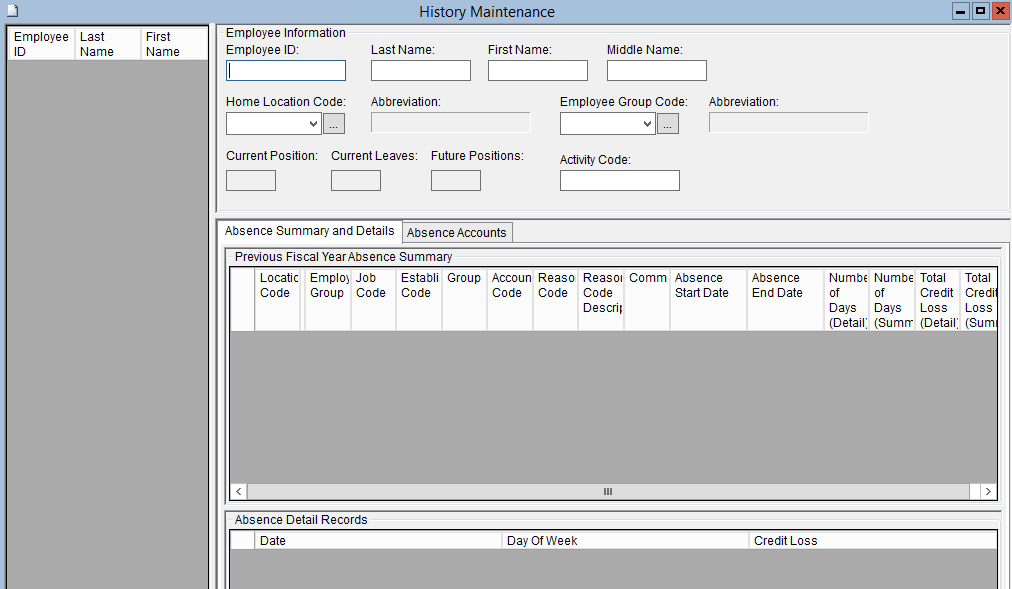
4. Enter a Search parameter, such as Employee ID or Employee Group Code (If applicable)
To View ALL Employee's, Simply click the Find button, with no parameters entered.
5. Click the Find button at top of the menu bar to see all records in the database.

6. Select an Employee ID to modify
7. Select the Absence Summary and Details tab & Right-click the record in the grey grid below the Location Code column and Select New Record to add a new record or Delete Record to rollback or delete a record(If applicable)
.png)
8. Double-click on a grid-column to modify the value (If applicable, however, All fields are Mandatory) (Consult the user guides for more information about each field)
9. Select the Absence Detail Records tab & Right-click the record in the grey grid below the Date column and Select New Record to add a new record or Delete Record to rollback or delete a record(If applicable)
10. Double-click on a grid-column to modify the value (If applicable, however, All fields are Mandatory) (Consult the user guides for more information about each field)
11. Select the Absence Accounts tab & Right-click the record in the grey grid below the Year End Date column and Select New Record to add a new record or Delete Record to rollback or delete a record(If applicable)
12. Double-click on a grid-column to modify the value (If applicable) (Consult the user guides for more information about each field)
13. Click the Save button to save your changes
.png)