How to Run an Employee Pay Records - Define Report
This screen is used to define the parameters of each custom report; allowing the Administrator to give a user access to execute a report without necessarily having access to change the definition of a report (since access can be defined separately for each menu option in K212 HRP).
Use the following steps to Run a Employee Pay Records - Define Report:
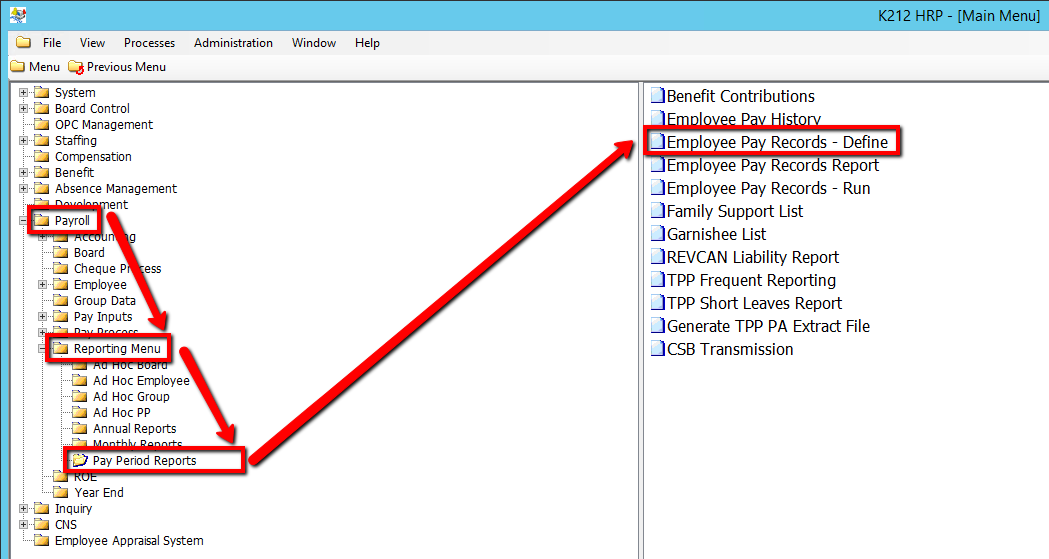
1. Click on Payroll
2. Click on Reporting Menu
3. Click on Pay Period Reports
4. Click on Employee Pay Records - Define
.png)
5. Click the Find button at top of the menu bar to see all records in the database.

6. If K212 HRP dialog box displays, click Yes to continue.
.png)
7. Select a current Report ID to modify or Select New at the top of the menu screen to add a new record
.png)
8. Enter a Report ID value
9. Enter a unique Descriptions value
10. Select a Type o Year value
11. Right-click the record in the grey grid below the Line Number column and Select New Record to add a new record
.png)
12. Enter the relevant information within the grid. Double-click on a grid-column to modify the value (All fields are mandatory) (Consult the user guides for more information about each field)
13. Right-click the record in the grey grid below the Items column and Select New Record to add a new record
14. Enter the relevant information within the grid. Double-click on a grid-column to modify the value. (All fields are mandatory) (Consult the user guides for more information about each field)
15. Click the Save button to save your changes
.png)