How to Prepare or Re-Do Employees ROE(s)
This maintenance screen is used to create and maintain Employee ROE (Record of Employment) Records. Once the appropriate Employee ROE Records have been created, the actual ROEs can be generated through the “Print ROE(s)” background process (refer: Payroll > ROE). The process of generating the ROE will change the status to 3 to indicate that the ROE has been generated. An ROE can be reprinted through the “Print ROE(s)” process after the status is changed from 3 back to 1 on this screen.
Use the following steps to Prepare or Re-do Employee ROE(s):
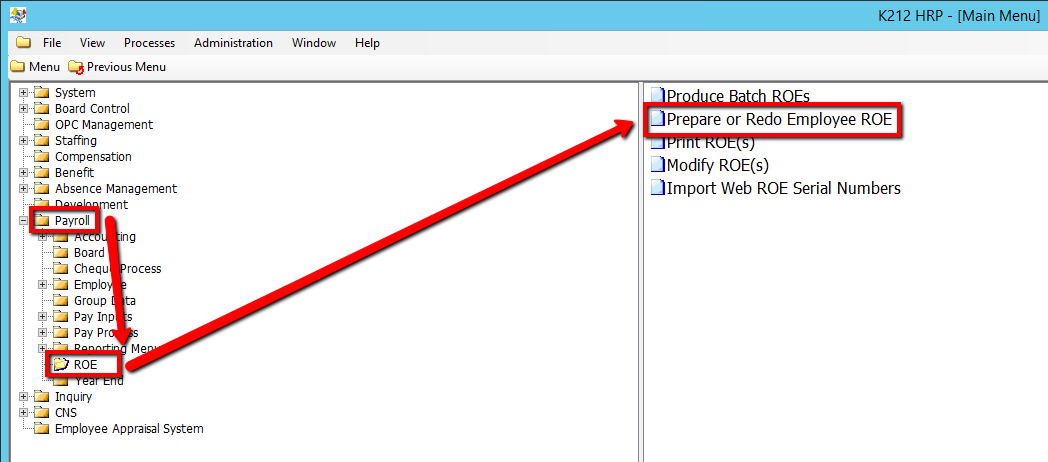
1. Click on Payroll
2. Click on ROE
3. Click on Prepare or Re-do Employee ROE
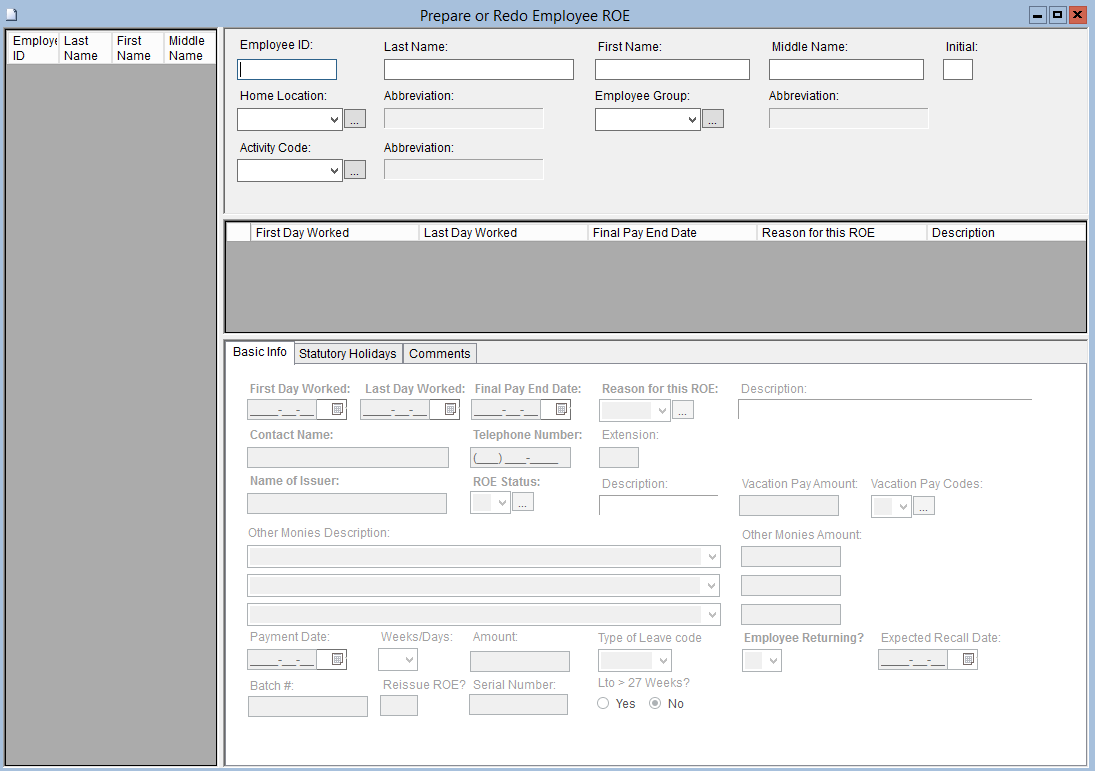
4. Enter a Search parameter, such as Employee ID
To View ALL Employee's, Simply click the Find button, with no parameters entered.
5. Click the Find button at top of the menu bar to see all records in the database.

6. Select an Employee ID to Modify or Right-click the record in the grey grid below the First Day Worked column and Select New Record to add a new record
.png)
7. Select a First Day Worked value
8. Select a Last Day Worked value
9. Select a Final Pay End Date value
10. Select a Reason for this ROE value
11. Enter a Contact Name value
12. Enter a Telephone Number value
13. Enter a Name of Issuer value
14. Select an Employee Returning? value
15. Select an Expected Recall Date value (If applicable)
16. Select the Statutory Holiday Dates tab & Select Add to Box 15 values
17. Enter in any other relevant information on the screen (If applicable) (Consult the user guides for more information about each field)
18. Click the Save button to save your changes
.png)